Determine battery cycle count for Mac laptops
Learn how to determine the number of charge cycles your Mac laptop's battery has.
Learn about battery cycles
When you use your Mac laptop, its battery goes through charge cycles. A charge cycle happens when you use all of the battery’s power, but that doesn’t necessarily mean in a single charge. For example, you could use half of the battery's power in one day, and then recharge it fully. If you did the same thing the next day, it would count as one charge cycle, not two. In this way it might take several days to complete a cycle.
Batteries have a limited amount of charge cycles before their performance is expected to diminish. Knowing how many charge cycles your battery has and how many are left can help you determine when battery replacement is required. Your battery is designed to retain up to 80% of its original charge capacity at its maximum cycle count.* For best performance, replace your battery when it reaches its maximum cycle count.
You can use your battery after it reaches its maximum cycle count, but you might notice a reduction in battery life. You can also turn on optimized battery charging to help reduce battery aging. This lets your Mac learn your charging routine and wait to charge past 80% until you need to use it.
Find your battery's cycle count
While you press and hold the Option key, choose System Information from the Apple menu .
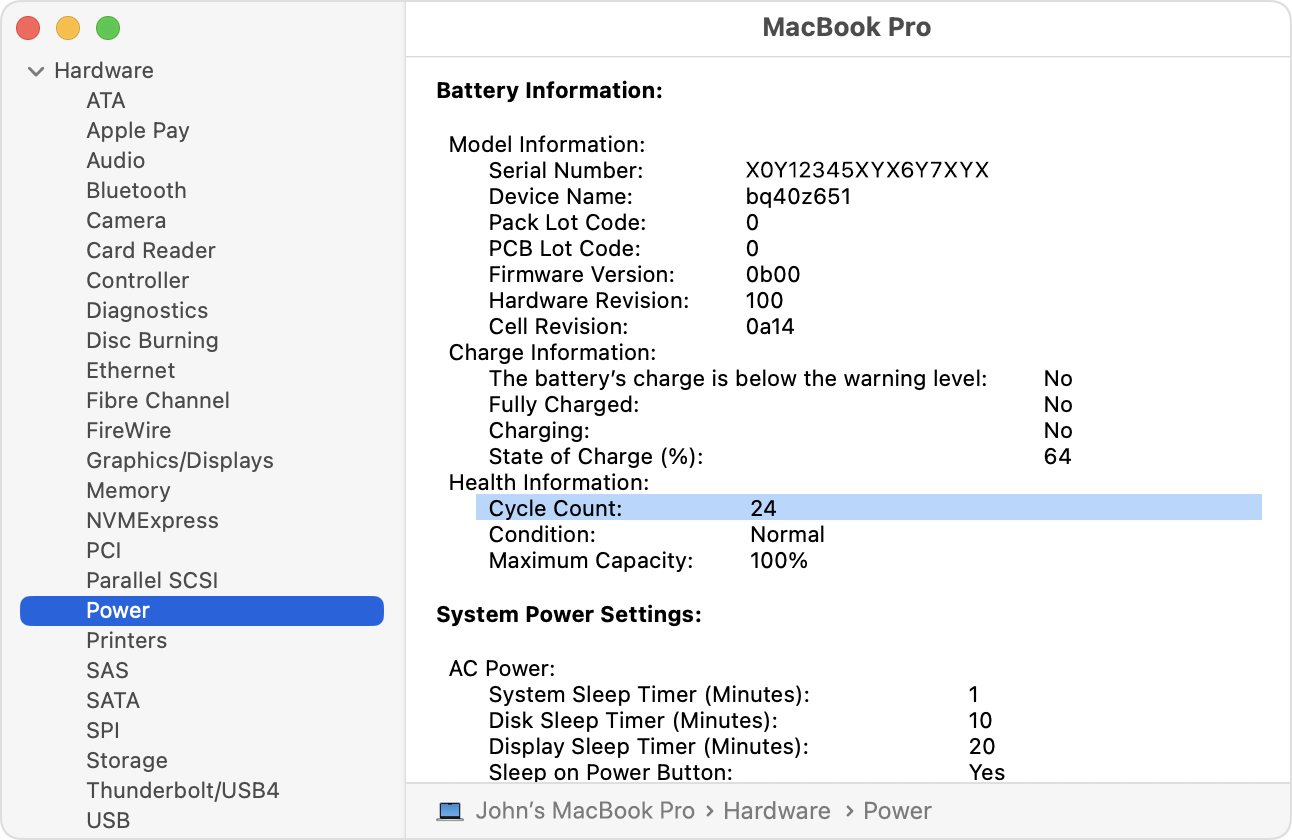
Select Power in the sidebar, then find the current cycle count in the Battery Information section on the right.
Identify your computer
Cycle-count limits vary between Mac models.
Find your battery cycle count
The battery is considered consumed when it reaches its maximum cycle count.
Computer | Maximum Cycle Count* |
|---|---|
| 1000 |
| 300 |
| 300 |
| 1000 |
| 1000 |
| 500 |
| 300 |
| 1000 |
| 500 |
| 300 |
Learn more
* Testing conducted by Apple under ideal conditions. Battery life and capacity percentage varies by use, configuration, and charging behavior. See apple.com/batteries for more information.