
Use Lost Mode in Find Devices on iCloud.com
Lost Mode lets you lock your iPhone, iPad, iPod touch, Mac, or Apple Watch so that others can’t access your personal information. You can turn on Lost Mode in Find Devices on iCloud.com.
Lost Mode requires a device that meets the minimum system requirements listed in the Apple Support article System requirements for iCloud.
To sign in to Find Devices, go to icloud.com/find.
What happens when you use Lost Mode or lock a lost device?
A confirmation email is sent to your Apple ID email address.
You can create a message for the device that says it’s lost and how to contact you.
For an iPhone, iPad, iPod touch, Mac, and Apple Watch, your device doesn’t display alerts or play a sound when you receive messages or notifications, or if any alarms go off. Your device can still receive phone calls and FaceTime calls.
For an iPhone, iPad, iPod touch, and Apple Watch, you see your device’s current location on the map, as well as any changes in its location.
For applicable devices, payment cards and other services are suspended.
Turn on Lost Mode or lock a device
In Find Devices on iCloud.com, select the device in the All Devices list on the left.
If you’ve already selected a device, you can click All Devices to return to the list and select a new device.
Click Mark As Lost.
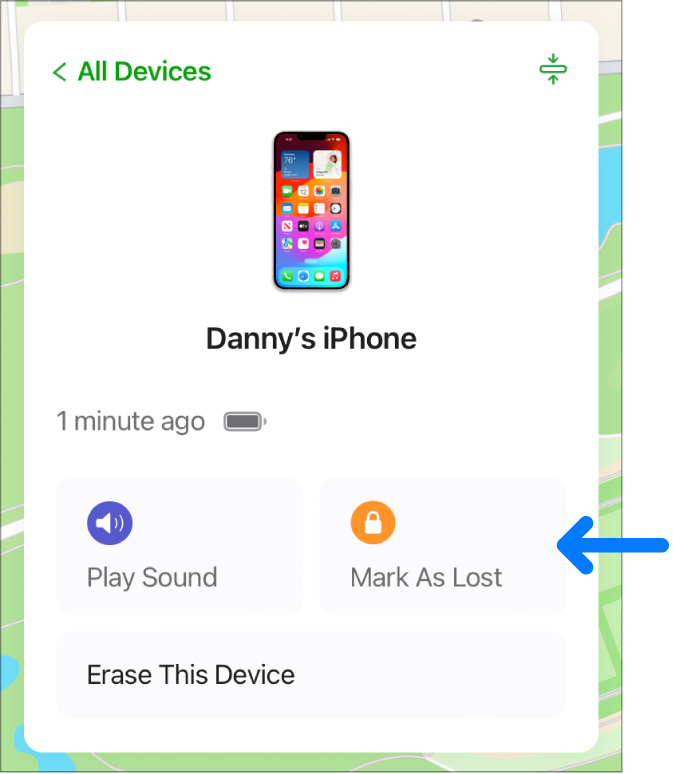
Follow the onscreen instructions, keeping the following in mind:
Passcode and password: If your iPhone, iPad, iPod touch, or Apple Watch has a passcode, it’s required to unlock the device. Otherwise, you’re asked to create a passcode now. If you’re locking an Intel-based Mac, you must create a numerical passcode, even if you already have a password set up on your Mac. If you’re locking a Mac with Apple silicon, it’s locked with your Apple ID and password.
WARNING: You can’t unlock a Mac online or on another device. You can only unlock it on the Mac you marked as lost.
Family Sharing: If you’re trying to place a family member’s iPhone, iPad, or iPod touch in Lost Mode and the device doesn’t have a passcode set, you must enter that person’s Apple ID password on this computer. If you’re trying to lock a family member’s Mac, you must enter that person’s Apple ID password on this computer.
Contact information: If you’re asked to enter a phone number, enter a number where you can be reached. If you’re asked to enter a message, you may want to indicate that the device is lost or how to contact you. The number and message appear on the device’s Lock screen.
Change your contact information on a lost device
After you mark your iPhone, iPad, iPod touch, or Apple Watch as lost, you can update your contact information.
In Find Devices on iCloud.com, select the device in the All Devices list on the left.
If you’ve already selected a device, you can click All Devices to return to the list and select a new device.
Click Lost Mode, change the information, then click Done.
Turn off Lost Mode on an iPhone, iPad, iPod touch, or Apple Watch
In Find Devices on iCloud.com, select the device in the All Devices list on the left.
Click Lost Mode, click Stop Lost Mode, then click Stop Lost Mode again.
You can also turn off Lost Mode by entering your passcode on the device. If you turned on Stolen Device Protection on your iPhone, you may need to use Face ID or Touch ID.
Note: If you had any cards suspended when you put your device in Lost Mode (credit or debit cards for Apple Pay, or student ID cards or Express Transit cards), when you turn off Lost Mode and sign back in to iCloud, you can use them again.
Recover the passcode and unlock your Mac
If you locked an Intel-based Mac, you can recover the passcode online.
In Find Devices on iCloud.com, select the Mac in the All Devices list on the left.
If you’ve already selected a device, you can click All Devices to return to the list and select a new device.
Click Unlock, then follow the onscreen instructions to verify your identity with your Apple ID password.
When you have your passcode, enter it on your Mac.
If you locked a Mac with Apple silicon, you must enter your Apple ID (or another email address or phone number on file) and password to unlock it. See the Apple Support articles If you forgot your Apple ID and If you forgot your Apple ID password.
You can also use Find My on any device that’s signed in with the same Apple ID. See Use Find My to locate people, devices, and items.
If you can’t use Lost Mode because Find My isn’t set up on your lost device, see the Apple Support article Find your lost iPhone or iPad with Find My.