Subscribe to iTunes Match
iTunes Match gives you access to all of your music on all of your devices, even songs that you've imported from other sources such as CDs.
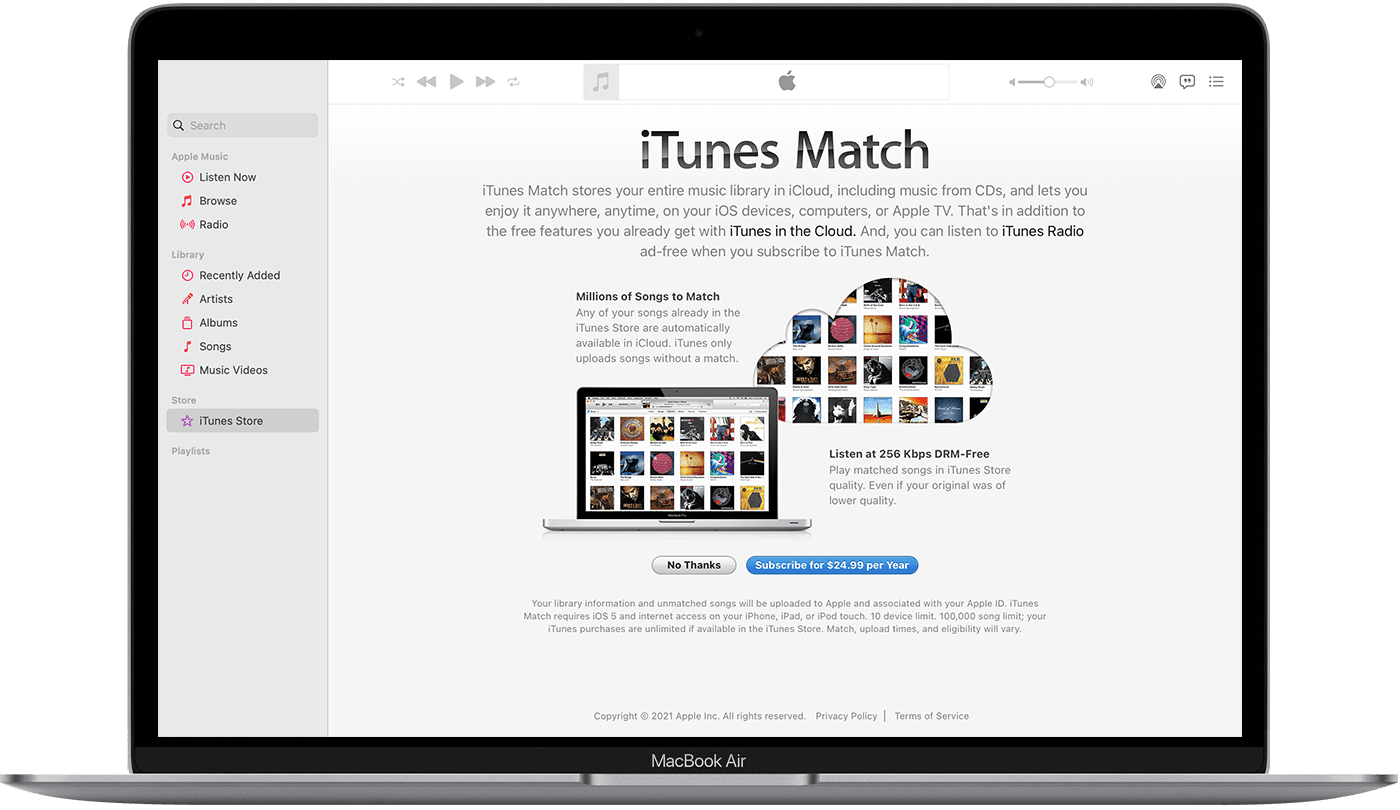
About iTunes Match
iTunes Match uploads your music library from the Apple Music app on your Mac or iTunes for Windows on your PC. Then you can access your music library on all of your devices that have Sync Library turned on.
To subscribe to iTunes Match, update your Mac to the latest version of macOS. On your PC, make sure that you have the latest version of iTunes for Windows.
iTunes Match isn't a back up service, so make sure to always have a back up of your music collection before you make any changes.
Subscribe to iTunes Match
On your Mac, open the Apple Music app. On your PC, open iTunes for Windows.
On your Mac, go to the sidebar and click iTunes Store. Don't see the iTunes Store on your Mac? On your PC, click Store at the top of the iTunes window.
Scroll to the bottom of the Store window. Under Features, click iTunes Match.
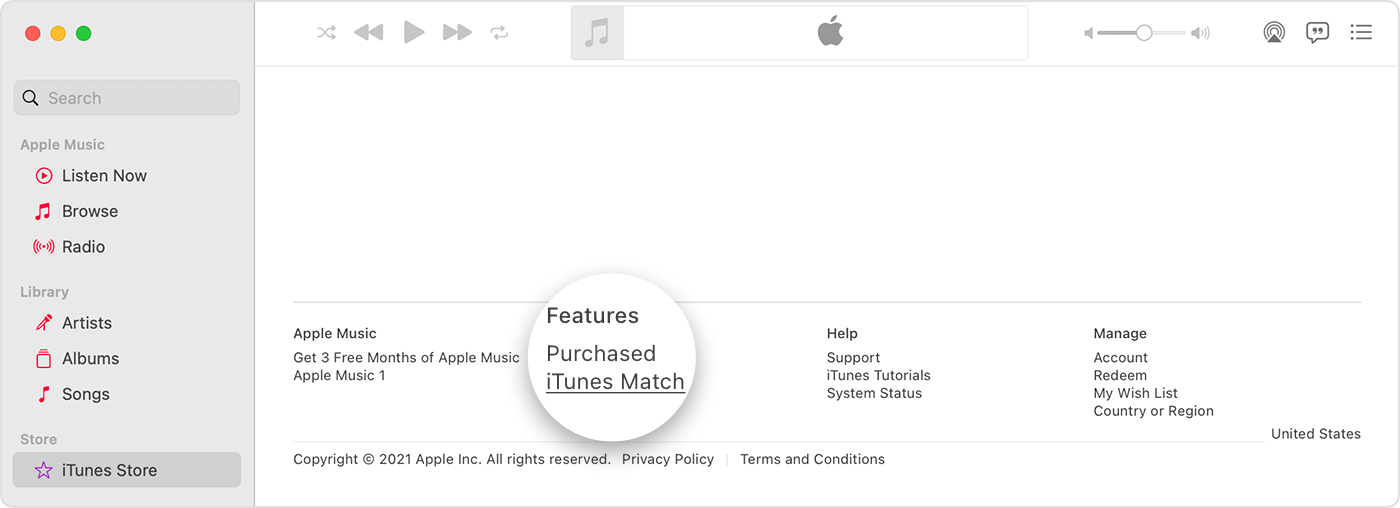
Click the Subscribe button.
Sign in with the Apple ID and password.
Confirm your billing information. You might need to add a valid payment method. Then click Subscribe.
After you subscribe, iTunes Match automatically scans your music library for matches. A status indicator lets you track the scan's progress. You can manually pause and resume the scan at any time by clicking the Stop or Start button.
It might take some time for iTunes Match to upload your music from your Mac or PC. If your Mac or PC disconnects from the Internet during the upload process, iTunes Match will automatically resume where it left off the next time you open the Apple Music app or iTunes for Windows.
Once your music library is uploaded, you'll see the Download button next to songs that are available in iCloud. If you don't see the Download button, then the song is already in your local music library.
If you don't see the iTunes Store on your Mac
In the latest version of macOS, the iTunes Store might be hidden. Here's how to find it:
In the Apple Music app, go to the menu bar and choose Music > Preferences.
Go to the General tab and select iTunes Store.
Click OK.
Cancel your iTunes Match subscription
By default, your iTunes Match subscription automatically renews at the end of your one-year subscription. Learn how to cancel your subscription.
Use iTunes Match
To access your songs and playlists on other devices, turn on Sync Library on all of your devices.
When you sign in with the Apple ID that you use with iTunes Match on your iPhone, iPad, iPod touch, Mac, or PC, you associate that device with your account and get access to your music library.
iTunes Match isn't available for Android devices.
Learn more
Learn how to turn on Sync Library on all of your devices.
If songs are missing from your music library after you turn on Sync Library, learn what to do.
Learn how to delete music from your devices.
Learn about the cloud status icons you'll see when you have an iTunes Match subscription.
iTunes Match availability varies by country and region.
Information about products not manufactured by Apple, or independent websites not controlled or tested by Apple, is provided without recommendation or endorsement. Apple assumes no responsibility with regard to the selection, performance, or use of third-party websites or products. Apple makes no representations regarding third-party website accuracy or reliability. Contact the vendor for additional information.

