About Location Services in OS X and Safari
Location Services allows applications and websites to gather and use information based on the current location of your computer. You have to give your permission before an app or website can use your location data.
Your approximate location is determined using information from local Wi-Fi networks, and is collected by Location Services in a manner that doesn’t personally identify you.
If you allow third-party applications or websites to use your current location, you are subject to their terms and privacy policy and practices. You should review the application’s or website’s terms, privacy policy and practices to understand how they use your location and other information. Information collected by Apple is treated in accordance with Apple’s Privacy Policy, which can be found at www.apple.com/privacy.
For information about Location Services on an iPhone, iPad or iPod touch, see this article.
Location Services in OS X
Enabling Location Services
Follow these steps to enable location services in OS X Mountain Lion or later
Choose System Preferences from the Apple () menu.
Click the Security & Privacy icon in the System Preferences window.
Click the Privacy tab.
If the padlock icon in the lower left is locked (
 ), click it and enter an admin name and password to unlock it (
  ).
).Select Location Services.
Check the "Enable Location Services" checkbox.
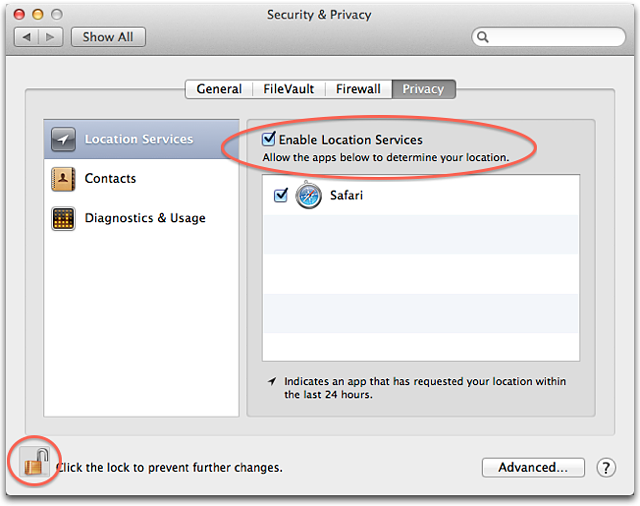
Apps that you have allowed to use Location Services appear in the Privacy pane of Security & Privacy preferences. Checkboxes show whether Location Services is turned on or off for an app. If you don’t want to allow Location Services for one or more apps, you can deselect (uncheck) the checkbox next to an app's name. If you turn Location Services off for an app, you are prompted for permission the next time that app requests to use your location data.
Location Services indicator
If an app is currently using Location Services, an arrow indicator (  ) appears in the menu bar. Click it to see which apps are using Location Services. If an app has requested your location within the last 24 hours, an arrow indicator ( ) appears to the right of the app name in System Preferences.
Date & Time preferences
Location Services can be used for setting your time zone automatically in Date & Time preferences.
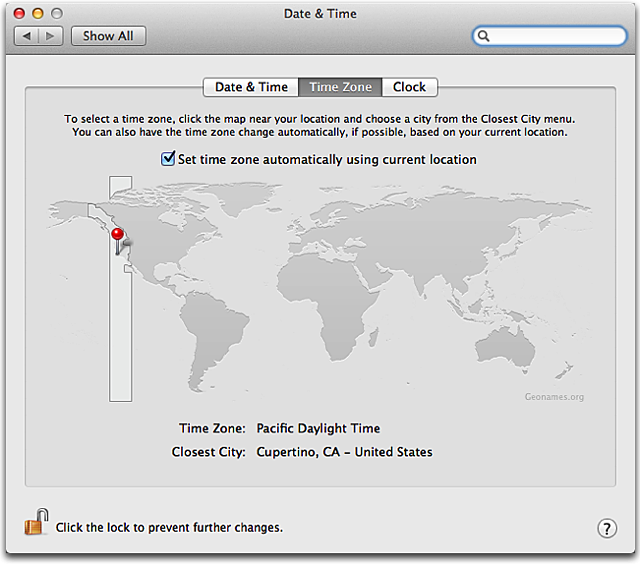
The "Set time zone automatically using current location" checkbox appears on Macs that have Wi-Fi capability. If your Mac doesn't offer this feature, manually choose the closest city.
Location Services in Safari 6 or later
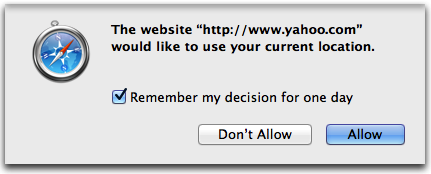
When you visit a geolocation-enabled website in Safari, you are asked if you want to share your location with the site. Websites can provide helpful location-based information, such as showing you the nearest post office or bank ATM. In the sheet that appears, select the option "Remember my decision for one day" if you want to allow or disable authorization for the next 24 hours.
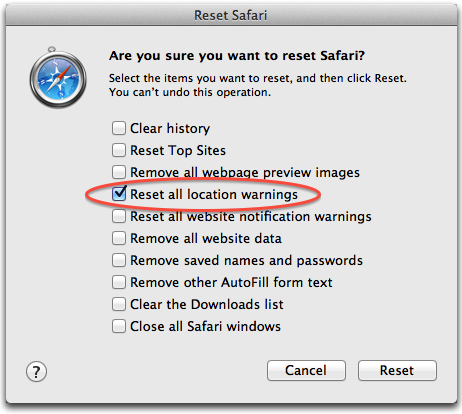
You can reset all website authorizations in Safari by choosing Reset Safari from the Safari menu. Select the "Reset all location warnings" option in the Reset Safari window. (Don't select the other checkboxes unless you are sure you want to reset those items as well.)
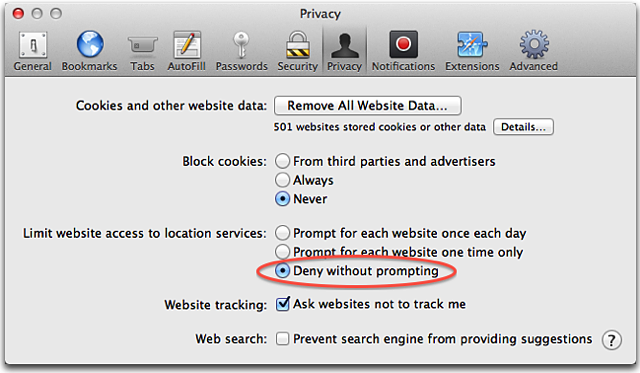
Follow these steps to disable Location Services features in Safari:
In Safari select Safari > Preferences.
Click the Privacy icon in the Preferences window.
Select the "Deny without prompting" option.
Information about products not manufactured by Apple, or independent websites not controlled or tested by Apple, is provided without recommendation or endorsement. Apple assumes no responsibility with regard to the selection, performance, or use of third-party websites or products. Apple makes no representations regarding third-party website accuracy or reliability. Contact the vendor for additional information.