Request a certificate from a Microsoft Certificate Authority
Learn how to use DCE/RPC and the Active Directory Certificate profile payload to request a certificate.
With OS X Mountain Lion and later, you can use the DCE/RPC protocol. With DCE/RPC, you don’t need a web-enabled certificate authority (CA). DCE/RPC also offers more flexibility when you choose the template that creates the certificate.
OS X Mountain Lion and later support Active Directory (AD) Certificate profiles in the Profile Manager web UI. You can deploy computer or user AD certificate profiles to client devices automatically or via manual download.
Learn more about profile-based certificate renewal in macOS.
Network and system requirements
A valid AD domain
A working Microsoft AD Certificate Services CA
An OS X Mountain Lion or later client system that's bound to AD
Profile deployment
OS X Mountain Lion and later support configuration profiles. You can use profiles to define many system and account settings.
You can deliver profiles to macOS clients in several ways. The main delivery method is macOS Server Profile Manager. In OS X Mountain Lion or later, you can use some other methods. You can double-click a .mobileconfig file in the Finder, or use a third-party Mobile Device Management (MDM) server.
Payload details
The Profile Manager interface that lets you define an AD Certificate payload contains the fields shown below.
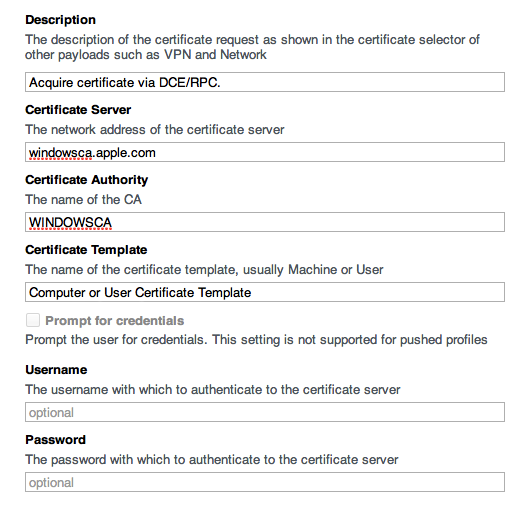
Description: Enter a brief description of the profile payload.
Certificate Server: Type the fully qualified host name of your CA. Don’t type “http://“ before the hostname.
Certificate Authority: Enter the short name of your CA. You can determine this value from the CN of the AD entry: CN=<your CA name>, CN=Certification Authorities, CN=Public Key Services, CN=Services, CN=Configuration, <your base DN>
Certificate Template: Enter the certificate template that you want in your environment. The default user certificate value is User. The default computer certificate value is Machine.
Certificate Expiration Notification Threshold: This is the integer value that defines the number of days before the certificate expires and macOS displays an expiration notification. The value must be greater than 14, and less than the maximum lifetime of the certificate in days.
RSA Key Size: This is the integer value for the size of the private key that signs the certificate signing request (CSR). Possible values include 1024, 2048, 4096, and so on. The chosen template, which is defined on your CA, helps define the key size value to use.
Prompt for credentials: For computer certificates, disregard this option. For user certificates, this setting applies only if you choose Manual Download for profile delivery. When the profile is installed, the user is prompted for credentials.
User name: For computer certificates, disregard this field. For user certificates, the field is optional. You can enter an AD user name as the basis for the requested certificate.
Password: For computer certificates, disregard this field. For user certificates, type the password that’s associated with the AD user name, if you entered one.
Request a computer certificate
Make sure that you’re using macOS Server with Profile Manager service enabled for Device Management and bound to AD.
Use a supported AD Certificate profile combination
Computer/machine certificate only, automatically delivered to an OS X Mountain Lion or later client
Certificate integrated into a Network profile for EAP-TLS 802.1x authentication
Certificate integrated into a VPN profile for machine-based certificate authentication
Certificate integrated into both Network/EAP-TLS and VPN profiles
Deploy a Profile Manager payload
Bind the OS X Mountain Lion or later client to AD. You can use a profile, GUI on client, or CLI on client to bind the client.
Install the issuing CA or other CA certificate on the client so that it has a complete trust chain. You can also use a profile to install it.
Choose to deliver the AD Certificate profile by Automatic Push or Manual Download for the device or device group profile.
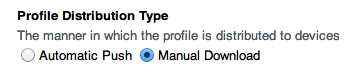
If you choose Automatic Push, you can use macOS Server’s Profile Manager Device Management to enroll the client.
Define the AD Certificate payload for an enrolled device or a device group. For payload field descriptions, see the “Payload details” section above.
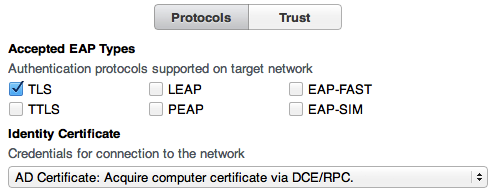
You can define a network payload for wired or wireless TLS for the same device or device group profile. Select the configured AD Certificate payload as the credential. You can define a payload for either Wi-Fi or Ethernet.

Define an IPSec (Cisco) VPN profile via device or device group. Select the configured AD Certificate payload as the credential.

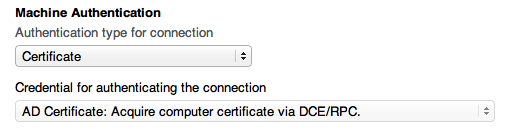
Certificate-based machine authentication is supported only for IPSec VPN tunnels. Other VPN types require different authentication methods.
You can populate the account name field with a placeholder string.
Save the profile. With Automatic Push, the profile deploys to the enrolled computer over the network. The AD Certificate uses the computer’s AD credentials to populate the CSR.
If you use Manual Download, connect to the Profile Manager user portal from the client.
Install the available device or device group profile.
Make sure that the new private key and certificate are now in the System keychain on the client.
You can deploy a device profile that combines Certificate, Directory, AD Certificate, Network (TLS), and VPN payloads. The client processes the payloads in the proper order so that each payload action is successful.
Request a user certificate
Make sure that you’re using macOS Server with Profile Manager service enabled for Device Management and bound to AD.
Use a supported AD Certificate profile combination
User certificate only, automatically delivered to clients in OS X Mountain Lion or later
Certificate integrated into the Network profile for EAP-TLS 802.1x authentication
Deploy a Profile Manager payload
Bind the client to AD. You can use a profile, GUI on client, or CLI on client to bind the client.
Turn on AD mobile account creation on the client, per your environment's policy. You can enable this feature with a profile (Mobility), GUI on the client, or client command line such as this:
sudo dsconfigad -mobile enableInstall the issuing CA or other CA certificate on the client so that it has a complete trust chain. You can also use a profile to install it.
Choose to deliver the AD Certificate profile by Automatic Push or Manual Download for the AD user or a user group profile. You must grant Profile Manager service access to the user or group.
If you choose Automatic Push, you can use the macOS Server Profile Manager Device Management to enroll the client. Associate the client computer with the AD user mentioned above.
Define the AD Certificate payload for the same AD user or group profile. For payload field descriptions, see Payload details.
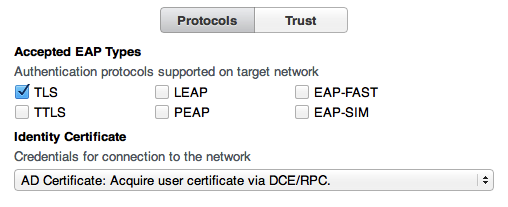
You can define a network payload for wired or wireless TLS for the same AD user or group profile. Select the configured AD Certificate payload as the credential. You can define the payload for either Wi-Fi or Ethernet.
Log in to the client with the AD user account that has access to the Profile Manager service. With Automatic Push, the login gets you the necessary Kerberos Ticket Granting Ticket (TGT). The TGT serves as the identity template for the requested user certificate.
If you use Manual Download, connect to the Profile Manager user portal.
Install the available user or group profile.
If prompted, enter the user name and password.
Launch Keychain Access. Make sure that the login keychain contains a private key and user certificate issued by the Microsoft CA.
You can deploy a user profile that combines Certificate, AD Certificate, and Network (TLS). Clients in OS X Mountain Lion or later process the payloads in the proper order, so that each payload action is successful.
Information about products not manufactured by Apple, or independent websites not controlled or tested by Apple, is provided without recommendation or endorsement. Apple assumes no responsibility with regard to the selection, performance, or use of third-party websites or products. Apple makes no representations regarding third-party website accuracy or reliability. Contact the vendor for additional information.