DVD or CD sharing: Using Remote Disc
Summary
You can use a DVD or CD via another computer's optical drive by enabling DVD or CD sharing. You might want to do this if your Mac did not come with an optical drive and you don't have an external Apple USB SuperDrive or MacBook Air SuperDrive.
Products Affected
Mac OS X 10.5, Mac OS X 10.6, Mac desktops, Mac notebooks, OS X Lion, OS X Mountain Lion
Requirements for DVD or CD Sharing and Remote Disc
On the Mac that does not have an optical drive, use Remote Disc to access another computer's optical drive.
Requirements for the computer without an optical drive to use Remote Disc:
- A local network connection to a computer with an optical drive.
- A computer that supports Remote Disc. This includes all MacBook Air, MacBook Pro with Retina display, iMac, Mac mini and Mac mini server computers without an optical drive.
- Mac OS X v10.4.11 or later. Note: If you're using Mac OS X v10.4.11, you need to install DVD or CD Sharing Setup Update for Mac v1.0.
On the computer that does have an optical drive that you will use DVD or CD sharing to allow access to the computer's optical drive. Requirements for the computer with an optical drive to enable DVD or CD sharing:
- A network connection to the computer without an optical drive.
- On a Mac: Mac OS X v10.4.11 or later. Note: If you're using Mac OS X v10.4.11, you need to install DVD or CD Sharing Setup Update for Mac v1.0.
- On a Windows computer: Windows XP Service Pack 2 or later. You will also need to install the DVD or CD Sharing Update 1.0 for Windows.
Note: These types of discs or activities are not supported by DVD or CD sharing:
- DVD movies.
- Audio CDs.
- Copy protected discs such as game discs.
- Install discs for an operating system such as Microsoft Windows (for use with Boot Camp), or Mac OS X.
- Burn a CD or DVD
To use the above mentioned discs with a computer without an optical drive, use the MacBook Air SuperDrive or the Apple USB SuperDrive. For assistance with remote installing Mac OS X v10.6 or earlier, refer to Reinstalling software using Remote Install Mac OS X.
Instructions for DVD or CD Sharing and Remote Disc
OS X disc instructions
- Be sure both computers are connected to the same local network.
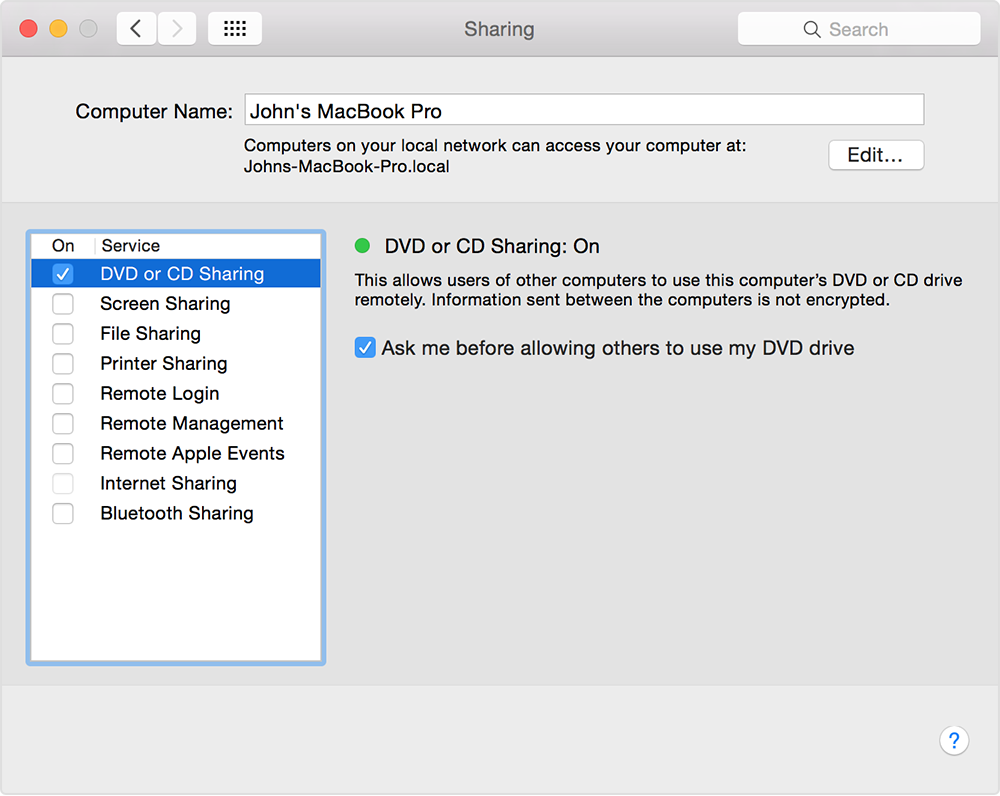
- On the Mac you want to share the disc from (that is, the Mac with the optical drive), choose System Preferences from the Apple () menu.
- Choose Sharing from the View menu.
- Enable the checkbox for DVD or CD Sharing. If you don't see this option in Mac OS X v10.5 or 10.4, download and install DVD or CD Sharing Setup Update for Mac.
Note: A computer without an optical drive will not show the DVD or CD sharing option. - If you want to be asked for permission before others can use the optical drive on the computer, enable the "Ask me before allowing others to use my DVD drive" checkbox.

- After you've enabled DVD or CD Sharing, insert the disc that you want to share.
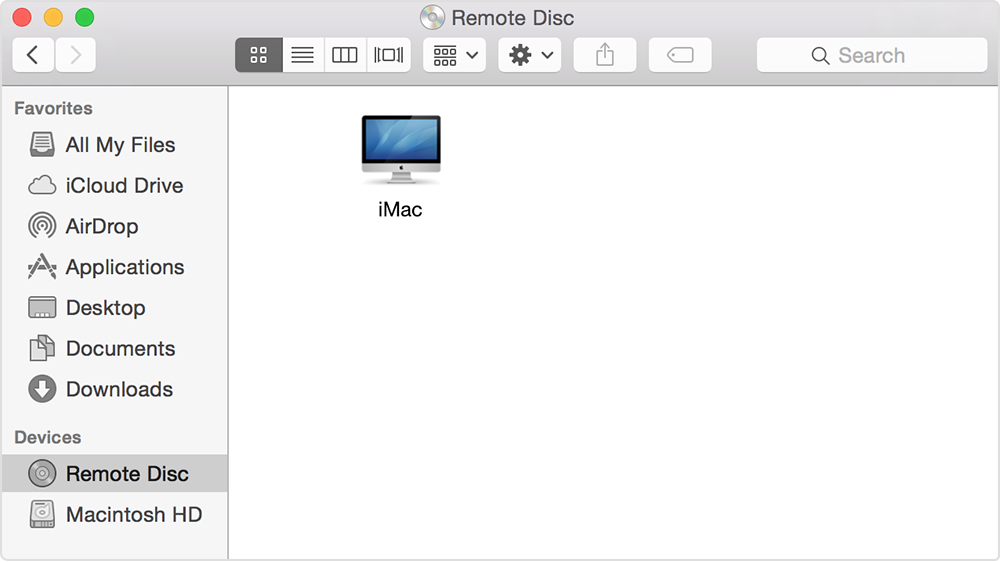
- Go to your Mac that does not have an optical drive and open a Finder window.
- Select Remote Disc in the DEVICES sidebar list. You should see the computer that has DVD or CD Sharing enabled.

- Double-click the computer's icon and click Connect. If the computer that is sharing its optical drive has "Ask me before allowing others to use my DVD drive" enabled, click "Ask to use."
- On the computer sharing its optical drive, acknowledge the request by clicking Accept.
Windows Instructions
- Be sure both computers are on the same local network.
- On the PC that you want to share the disc from, download and install the DVD or CD Sharing Update 1.0 for Windows.
- After installing, click the Start button in the lower-left corner of the screen.
- Click Control Panel.

- In the Control Panel, click "Hardware and Sound."

- Click "DVD or CD Sharing Options."

- Enable the checkbox for DVD or CD Sharing to access the Windows computer's optical drive on your Mac without an optical drive. Note: If you want to give permission before the optical drive can be used on the computer, enable the "Ask me before allowing others to use my DVD drive" option.

- After the software is installed and you have enabled DVD or CD Sharing, go back to your Mac, open the Finder, and select Remote Disc in the DEVICES sidebar list. You should see the computer that has DVD or CD Sharing enabled.

OS X firewall settings
Your DVD or CD Sharing settings may be overridden by your local network router's firewall, the firewalls on other computers, or the firewall in Mac OS X v10.5 or later. See About the Application Firewall for details. Refer to your vendor's documentation about firewalls for computers or routers not manufactured by Apple.
Settings in Mac OS X v10.6, OS X Lion, and OS X Mountain Lion
On the host (computer with the optical drive), open the Security panel of System Preferences:
- From the Apple () menu, choose System Preferences.
- Choose Security from the View menu, then click the Firewall tab.
The default setting is labeled "Firewall: Off", which allows DVD or CD Sharing to operate correctly on the host computer.

If the Firewall is turned on, click Firewall Options and enable "Automatically allow signed software to receive incoming connections."

Settings in Mac OS X v10.5
If your host is a Mac with Mac OS X v10.5 Leopard, open the Security System Preferences pane:
- Choose System Preferences from the Apple () menu.
- Choose Security from the View menu, then click the Firewall tab.
For Leopard, the default setting labeled "Allow all incoming connections" allows DVD or CD Sharing to operate correctly on the host computer.

The setting labeled "Set access for specific services and applications" also allows DVD or CD Sharing to operate on the host computer.

Remote Disc applications are already "signed and authorized" to operate correctly using this setting. You do not need to add them manually. For more information, see About the Application Firewall.
Note: Do not use the "Allow only essential services" setting. Remote Disc will not work with this setting.
Windows firewall settings
Third-party firewall software may not allow Remote Disc for Windows to operate correctly.
You may need to modify your third-party firewall to allow Remote Disc for Windows programs to communicate over your network:
- Look for a Control Panel for your third-party firewall software.
- Add the following programs to the Program Control or Programs panel:
- ODSAgent
- RemoteInstallMacOSX
- These programs need full access to operate properly with your firewall.
- Every third-party firewall vendor's implementation is unique. Consult your product documentation or the vendor's website for further information.
Troubleshooting
The Remote Disc icon may not appear in the Finder or on the desktop.
Note: The Remote Disc icon is not available on computers that have an optical drive.
To enable a Remote Disc drive to show up on the desktop:
- Choose Preferences from the Finder menu.
- In the General tab, be sure that "CDs, DVDs and iPods" is enabled.

To enable a Remote Disc drive to show up in the Finder Sidebar:
- Choose Preferences from the Finder menu.
- In the Sidebar tab, be sure that "CDs, DVDs and iPods" is enabled.

If the Remote Disc icon appears in the Finder window but you are unable to see the disc in the drive:
- Make sure the computer or network you are trying to connect to is running and has a wireless access point. Both computers must be connected to the same wireless network. If you are using an Ethernet adapter on your Mac make sure both computers are connected to the same Local Area Network.
- Make sure you have a strong wireless signal. Nearby electronic devices or metal structures can interfere with wireless communication and reduce the strength of the signal. Check the AirPort status icon in the menu bar. If signal strength is low, try changing your location.
- Make sure you have properly configured the software according to the instructions that came with your router.
- If you are having issues while connected wirelessly or through the Internet, try connecting to the other computer via Internet Sharing. Disable Internet Sharing after using DVD or CD sharing
- Choose Software Update from the Apple () menu to download and install the latest software updates.
If you see the message "The operation cannot be completed because the original item for cannot be found" when selecting the contents of a Remote Disc:
- Make sure you have a strong wireless signal. Nearby electronic devices or metal structures can interfere with wireless communication and reduce the strength of the signal. Check the AirPort status icon in the menu bar. If signal strength is low, try changing your location.
- Make sure you have properly configured the software according to the instructions that came with your router.
- Unsupported discs may produce this message. See above for the types of unsupported discs.
- If you are having issues while connected wirelessly or through the Internet, try connecting to the other computer via Internet Sharing. Disable Internet Sharing after using DVD or CD sharing.
- Choose Software Update from the Apple () menu to download and install the latest software updates.
Twitter
Facebook