Use Siri on all your Apple devices
Use Siri to help you with the things you need to find, know, or do every day. Use your voice or press a button to get Siri's attention, then say what you need. Find your Apple device below to learn how to use Siri.
How to use Siri on your iPhone
Here are a few ways to activate Siri.
Use your voice
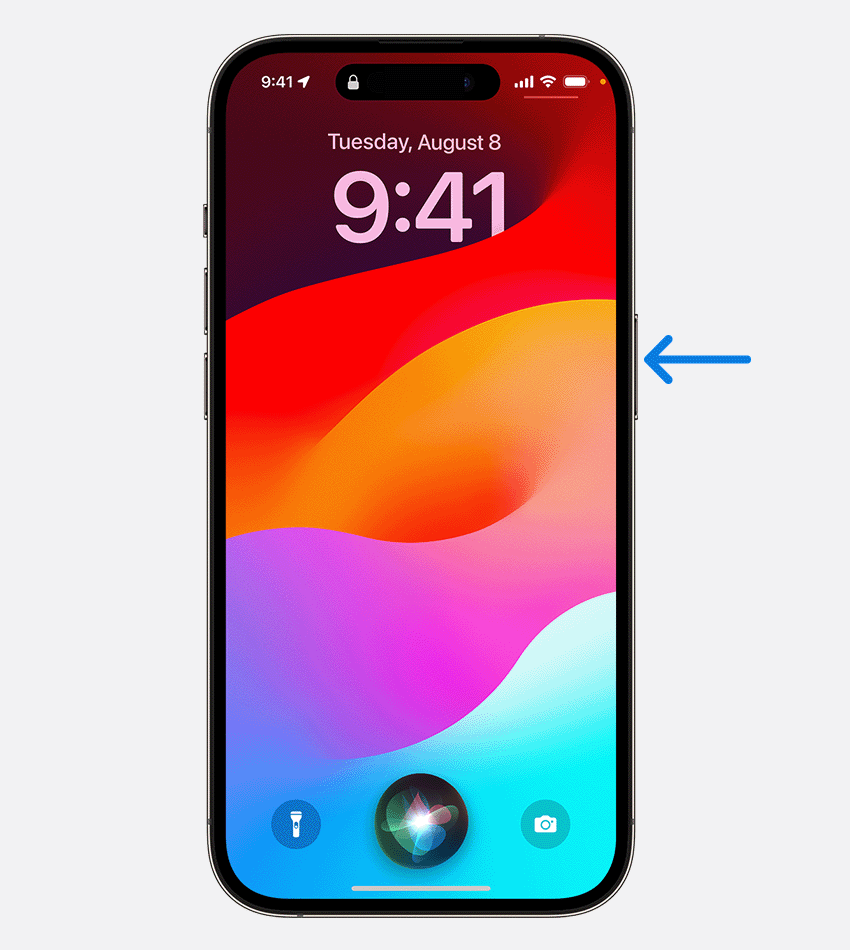
Just say Siri* or Hey Siri, then immediately say what you need. Set up how to get Siri's attention in Settings > Siri & Search, tap Listen for, and then turn on Siri or Hey Siri.
Press and release the button
If your iPhone has a Home button, press the Home button, then make your request.
If your iPhone doesn't have a Home button, press the Side button, then make your request.
To make a longer request, press and hold the Side or Home button until you're finished with your request.
Type instead of speaking to Siri
Turn on Type to Siri. Then press the button to activate Siri and type your request.
How to use Siri on your iPad
Here are a few ways to activate Siri.
Use your voice
Just say Siri* or Hey Siri, then immediately say what you need.
Press and release the button
If your iPad has a Home button, press and hold the Home button, then make your request.
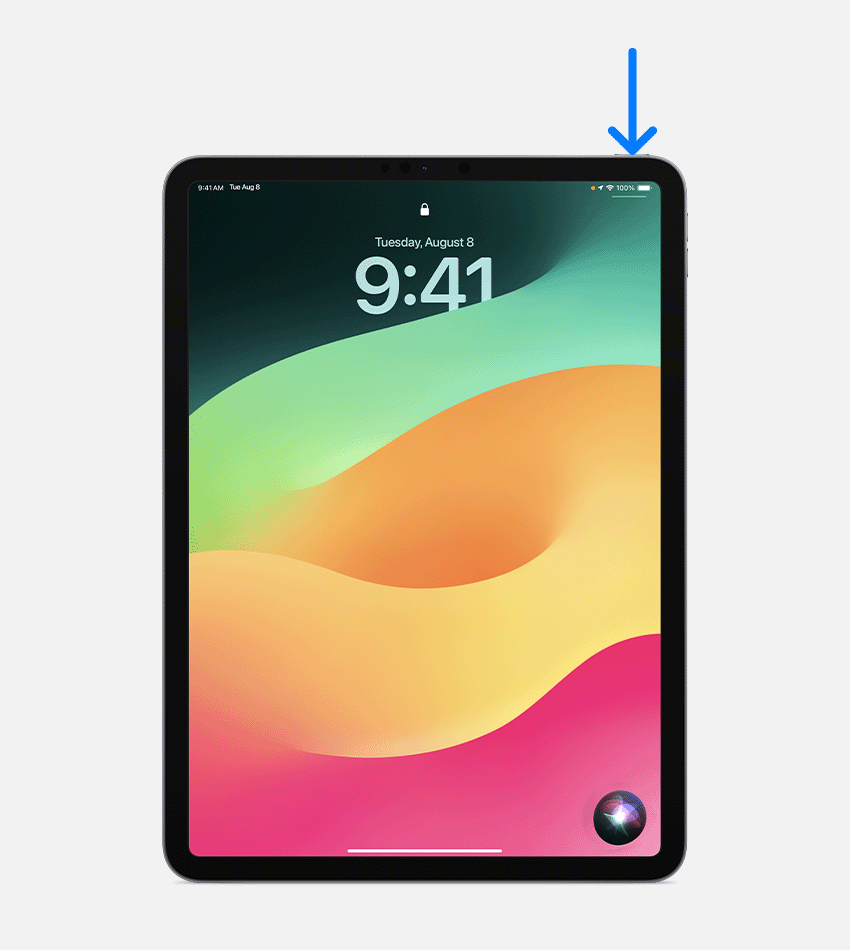
If your iPad doesn't have a Home button, press and hold the top button, then make your request.
To make a longer request, press and hold the Home or top button until you're finished with your request.
Type instead of speaking to Siri
Turn on Type to Siri. Then press the button to activate Siri and type your request.
How to use Siri on your AirPods
Here are a few ways to activate Siri.
Use your voice
While wearing AirPods Pro, AirPods Max, or AirPods (2nd generation or later), say Siri* or Hey Siri, then immediately say what you need.
Press or tap your AirPod
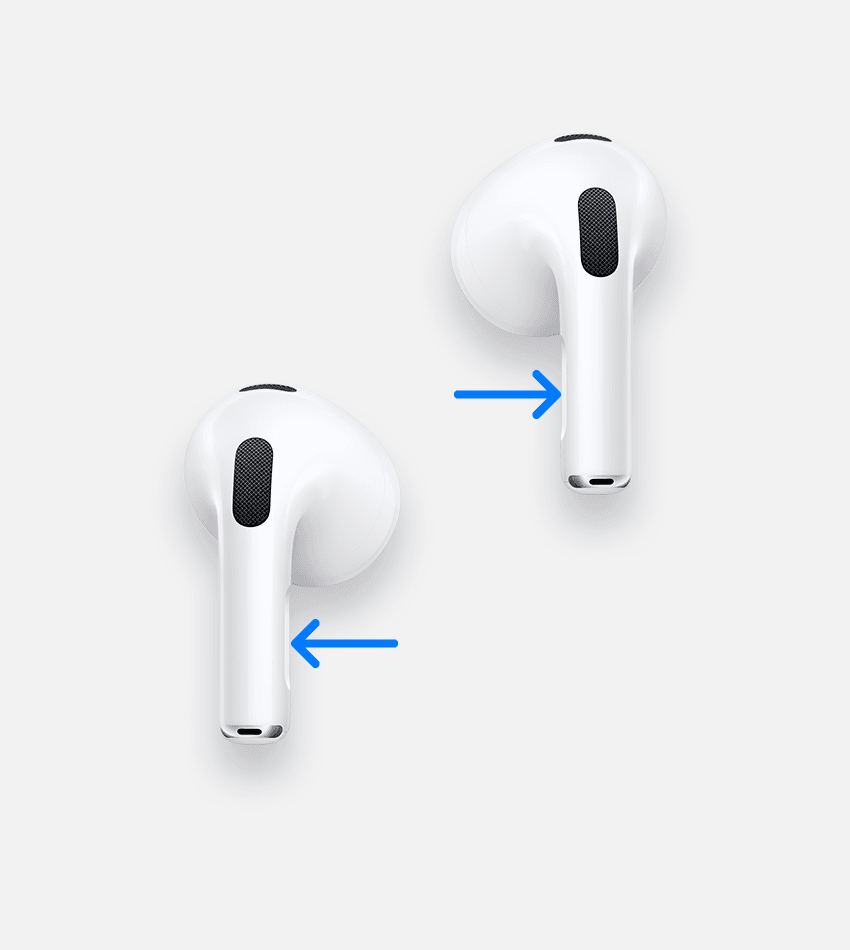
On AirPods Pro or AirPods (3rd generation), press and hold the force sensor on the stem of either AirPod, then make your request.
On AirPods (1st or 2nd generation), double-tap the outside of either AirPod, wait for a chime, then make your request.
On AirPods Max, press and hold the Digital Crown, then make your request.
How to use Siri on your Mac
Here are a few ways to activate Siri.
Use your voice
On supported Mac models, say Siri* or Hey Siri, then make your request.
Use the Siri button
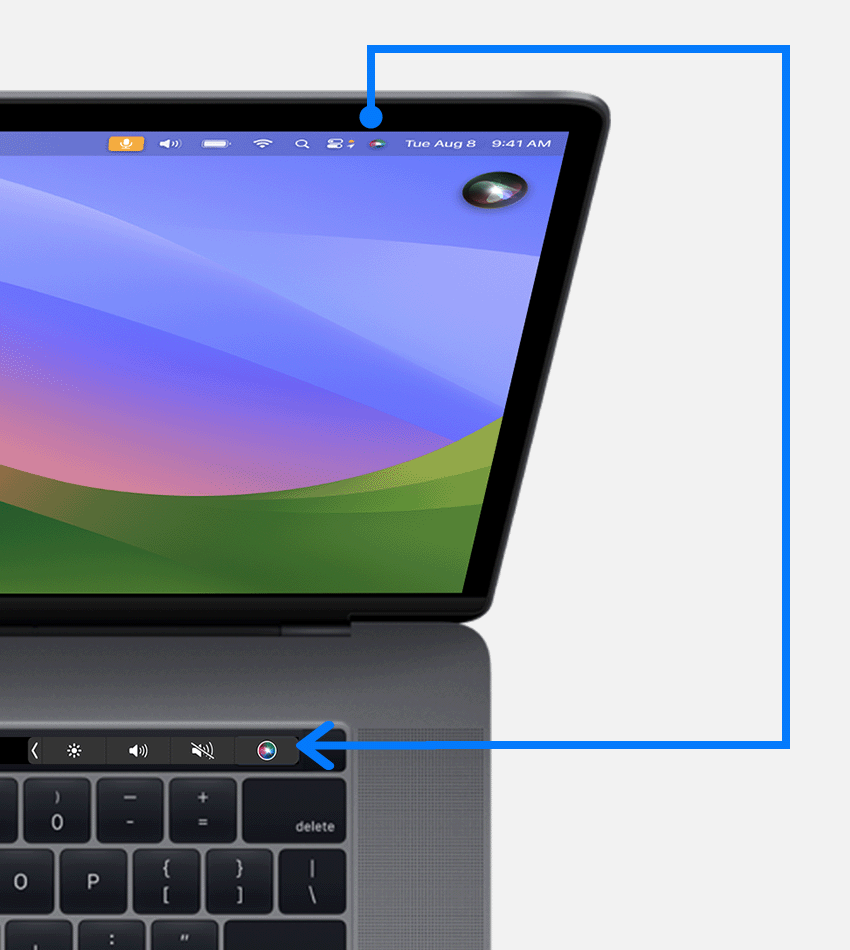
In the menu bar or Dock, click the Siri button
 , then say what you need.
On a Mac with a Touch Bar, tap the Siri button
, then make your request.On an Apple keyboard with function keys, press and hold the Dictation key
 , then make your request.
To make a longer request, hold the Siri button
until you're finished with your request.
Type instead of speaking to Siri
Enable Type to Siri. Then press or click the Siri button and type your request.
How to use Siri on your Apple Watch
Here are a few ways to activate Siri.
Use your voice
Look at your Apple Watch or tap its screen. Then say "Siri"* or "Hey Siri," followed by your request.
Raise to speak
On your Apple Watch Series 3 or later, raise your wrist so your Apple Watch is near your mouth, then say what you need.
Press the Digital Crown
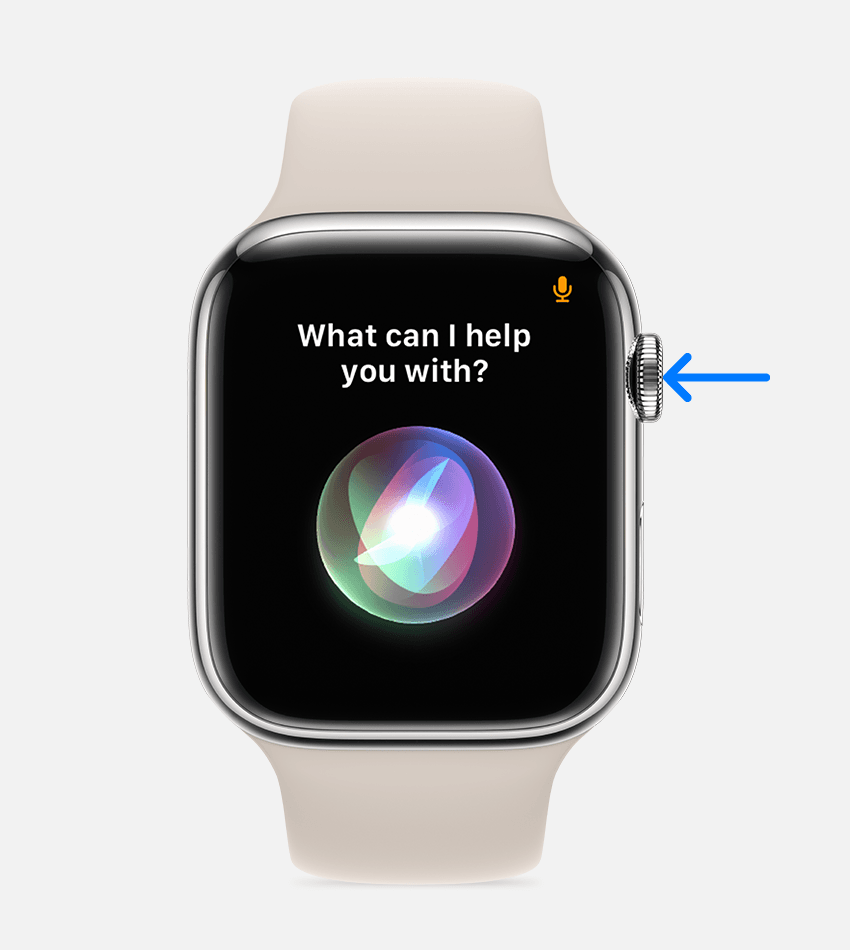
Press and hold the Digital Crown, then say what you need.
To make a longer request, press and hold the Digital Crown until you're finished making your request.
How to use Siri on your HomePod
Here are a few ways to activate Siri.
Use your voice
Just say "Siri"* or "Hey Siri," then immediately say what you need.
Touch the top of HomePod

Touch and hold the top of HomePod, then make your request.
To make a longer request, touch and hold the top of HomePod until you're finished making your request.
HomePod isn't available in all countries and regions.
How to use Siri on your Apple TV
Hold down the Siri button on your Siri Remote, make your request, then release the Siri button.
Learn more about using Siri on your Apple TV
How to use Siri with CarPlay
If your vehicle supports CarPlay or Siri Eyes Free, hold down the voice-command button on your steering wheel while you make your request.
Do more with Siri
From finding information to controlling your home, discover more ways you can use Siri to help you do the things you do every day.
*Siri availability and features vary by language, and country and region. Learn which Siri features are supported in your country or region on iOS, iPadOS, macOS, watchOS, and tvOS. Just say Siri is available in United States, Australia, Canada, and United Kingdom.


