How to verify the authenticity of manually downloaded Apple software updates
You can verify the digital signature of software downloaded from Apple to confirm that the software authentic and complete.
Apple digitally signs all software updates to ensure their authenticity, and offers them exclusively through Software Update, the App Store, or Apple's Downloads site. Always get Apple software from one of these sources, and always check these sources to make sure that you have the latest software.
When you use Software Update to download and install software, Apple's digital signature is automatically verified before installation.
If you have a package (.pkg) installer, you can confirm that it is authentic and complete by verifying its digital signature before installation.
Open the .pkg file.
Click the lock icon
 or certificate icon
 in the upper-right corner of the installer window to see information about the certificate. If neither icon is present, the package is unsigned, and you shouldn't install it.
Select “Apple Software Update Certificate Authority,” as pictured. If you see a different certificate authority, or the certificate doesn't have a green checkmark indicating that the certificate is valid, don't install the package.
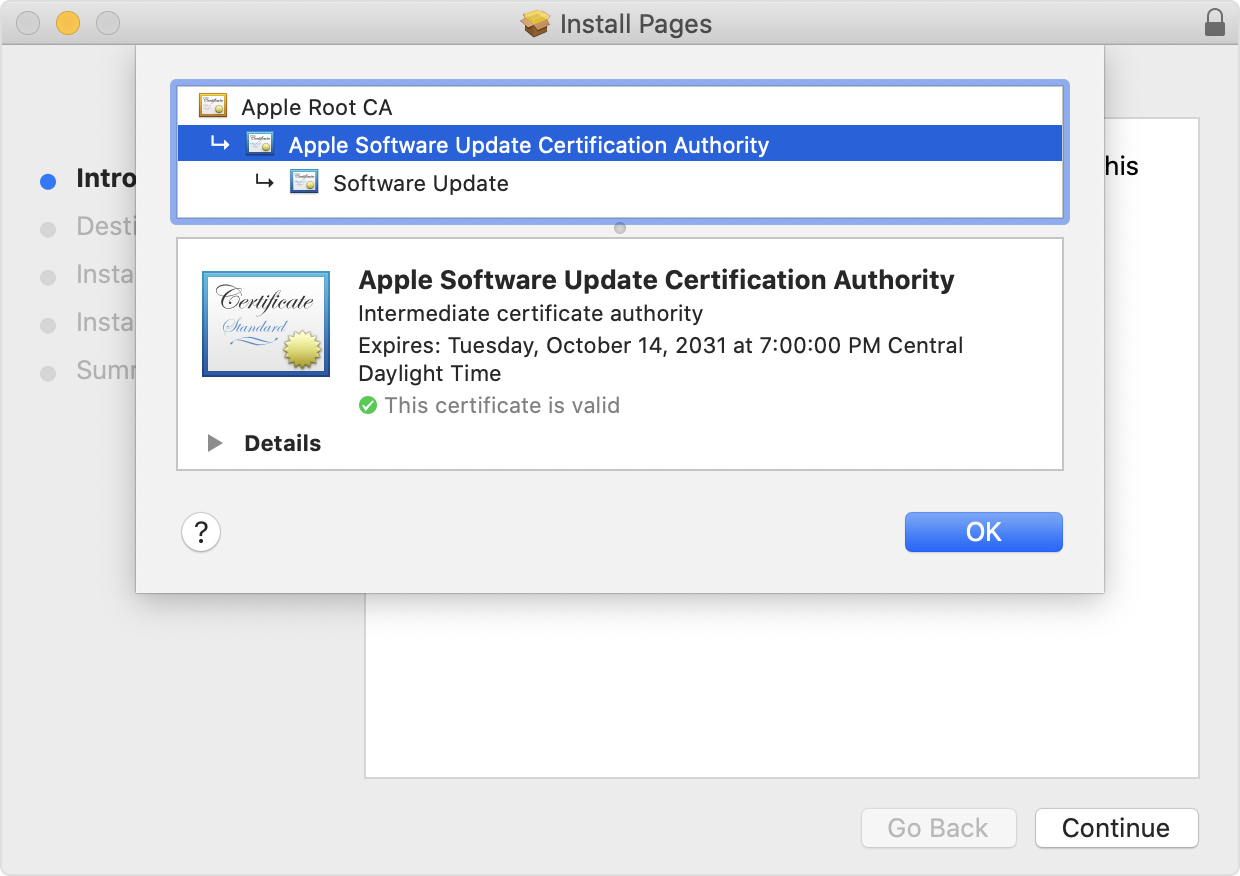
Click the arrow next to the word Details to see more information about the certificate.
Scroll to the bottom of the Details section to see the SHA-256 fingerprint.
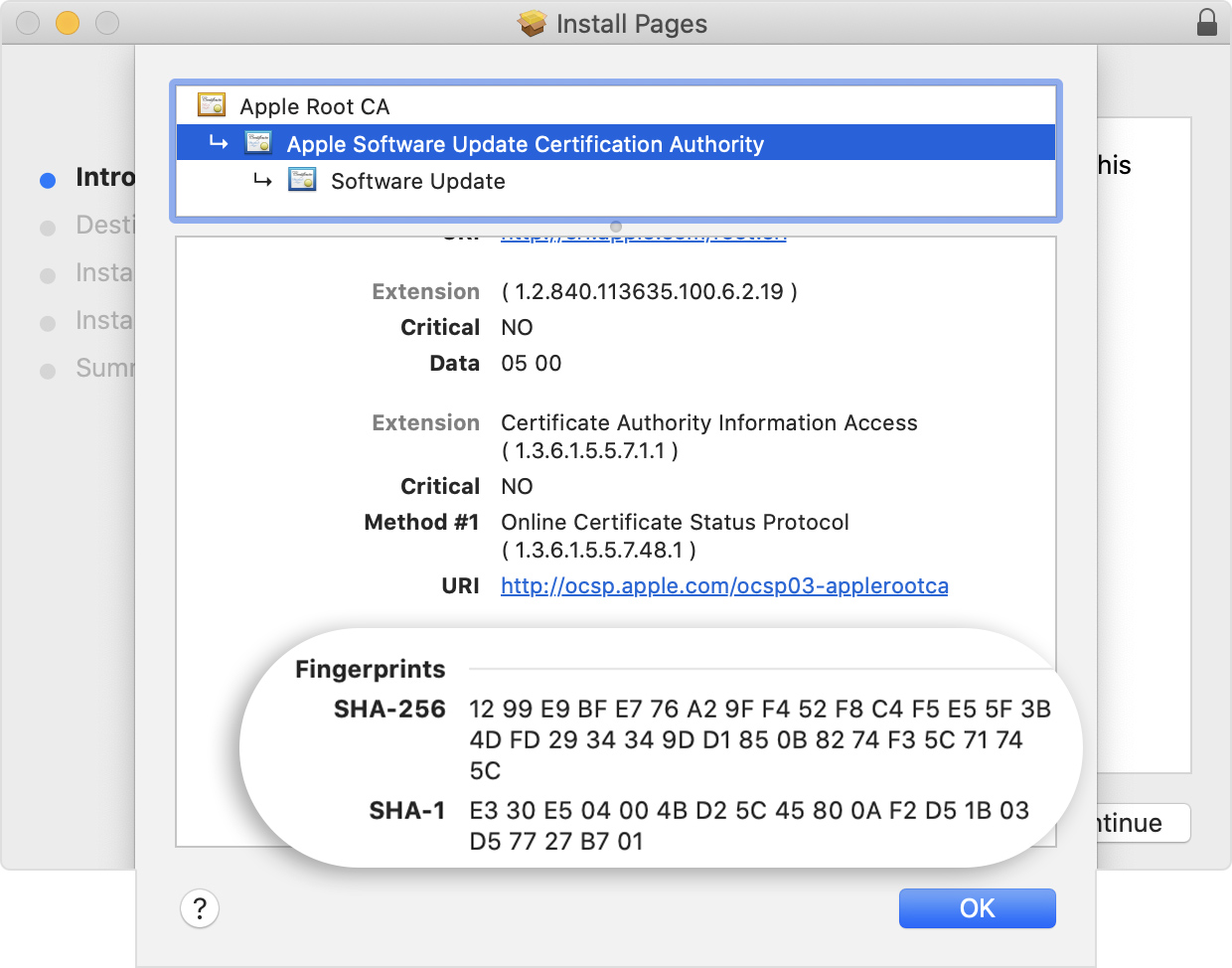
Make sure that the SHA-256 fingerprint in the installer matches the following fingerprint. If they match, the signature is verified: click OK and allow the installer to continue.
SHA-256 12 99 E9 BF E7 76 A2 9F F4 52 F8 C4 F5 E5 5F 3B 4D FD 29 34 34 9D D1 85 0B 82 74 F3 5C 71 74 5C
The installer automatically verifies the files in the package. If any file has an issue, installation stops without changes to your system, and you'll see a message that the installer encountered an error.

