


iCloud: About storage buffering
Summary
Learn more about iCloud storage buffering.
Products Affected
iCloud
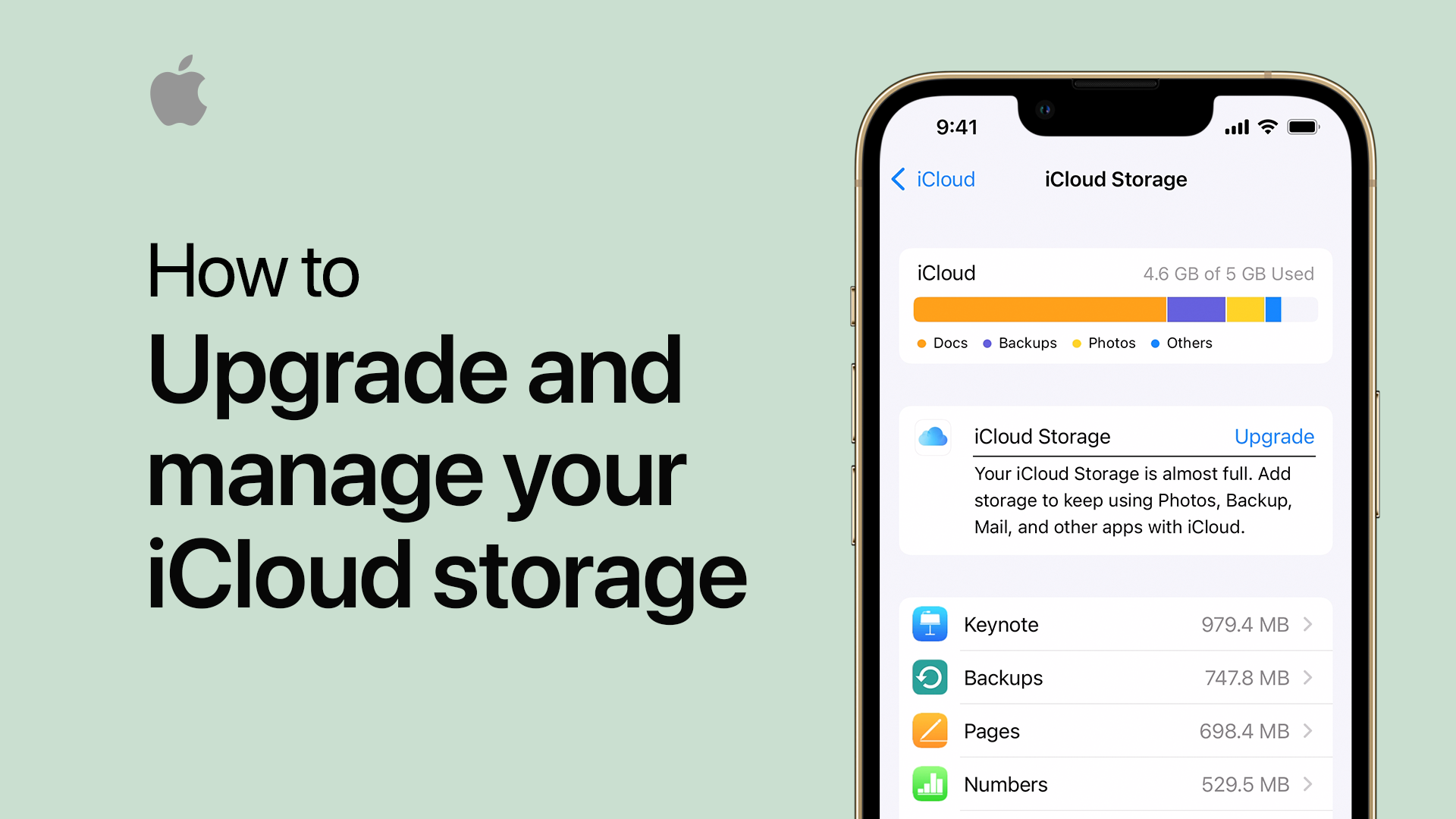
Documents, Backup, and Mail all count towards your iCloud Storage space. In some cases, one portion of your storage may appear to vary from the actual storage space it is using. For example, you may notice that your Mail appears to be using 50 MB of storage space when actuality it's only using 10 MB.
This may occur after you free up storage space that you were once using. Your iCloud Storage allocation will readjust itself automatically, but only once another iCloud feature uses the previously allocated space. Until then, it may appear that you are still using more Documents, Backup, or Mail storage space than you actually are.
Storage buffering and Documents in the Cloud
If you add files to Documents in the Cloud using any method other than the recommended iCloud iWork web app, App Store approved applications, or through the iCloud Documents Library on your Mac, an inconsistent storage quota value may be displayed on your iOS device or in System Preferences.
To resolve this issue, do one of the following:
- Go to the iCloud iWork web app (icloud.com/iwork), and locate and delete the files.
- From your iOS device (iPad, iPhone or iPod touch), choose Settings > iCloud > Storage and Backup > Manage Storage, and locate and delete the files.
- On your Mac, choose System Preferences > iCloud > Manage, and locate and delete the files.
- On your PC, open the Windows Control Panel:
- In Windows 8, move the pointer to the upper-right corner of the screen to show the Charms bar, click the Search charm, and then click the iCloud Control Panel on the left.
- In Windows 7 and Vista, choose Start > All Programs > iCloud > iCloud.
Once you have deleted the files, the change in your iCloud storage allocation automatically updates the quota values.
If you're unable to locate or delete the files, or the storage quota values displayed on your iOS device or in System Preferences continue to be inconsistent, contact iCloud Support for assistance.
Storage buffering and Backup
If you turned off iCloud Backup, and do not see your available storage increase as expected, try the following:
- From an iOS device that does not have iCloud Backup enabled, choose Settings > iCloud.
- Tap Storage & Backup.
- Turn on iCloud Backup.
- Tap Manage Storage.
- Select the name of your device.
- Select Delete Backup. Select Turn Off & Delete.
If your available Storage displayed in iCloud Settings on your iOS device, in iCloud System Preferences on your Mac or in the iCloud Control Panel for Windows on your PC continues to be different than expected, contact iCloud Support for assistance.
Additional Information
Notes:
- If you are concerned with your iCloud Storage and the current Mail allocation, you can delete messages to provide additional space by following this article.
- If you have exceeded your provided iCloud Storage space, your ability to back up Documents and receive large amounts of email will be restricted.
See Manging your iCloud Storage for additional iCloud Storage information.
Twitter
Facebook