Use Multi-Touch gestures on your Mac
With a Multi-Touch trackpad or Magic Mouse, you can tap, swipe, pinch, or spread one or more fingers to perform useful actions.
Trackpad gestures
For more information about these gestures, choose Apple menu > System Settings (or System Preferences), then click Trackpad. You can turn a gesture off, change the type of gesture, and learn which gestures work with your Mac.
Trackpad gestures require a Magic Trackpad or built-in Multi-Touch trackpad. If your trackpad supports Force Touch, you can also Force click and get haptic feedback.
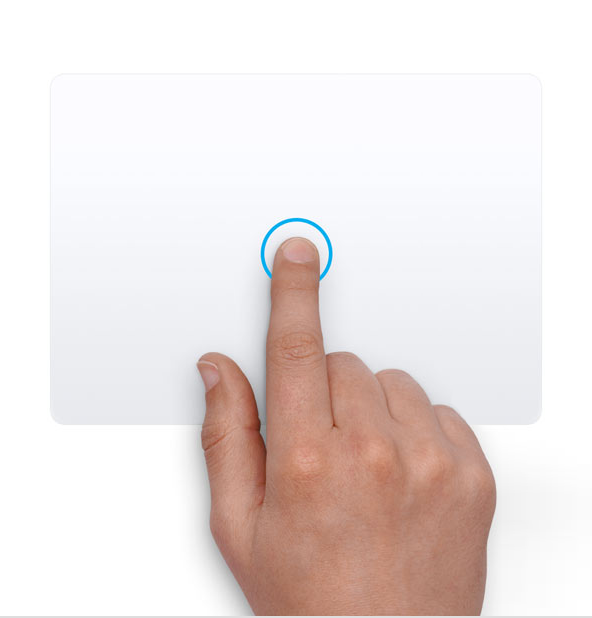
Tap to click
Tap with one finger to click.

Secondary click (right-click)
Click or tap with two fingers.

Smart zoom
Double-tap with two fingers to zoom in and back out of a webpage or PDF.

Scroll
Slide two fingers up or down to scroll.1

Zoom in or out
Pinch with two fingers to zoom in or out.
Rotate
Move two fingers around each other to rotate a photo or other item.

Swipe between pages
Swipe left or right with two fingers to show the previous or next page.

Open Notification Center
Swipe left from the right edge with two fingers to show Notification Center.

Three finger drag
Use three fingers to drag items on your screen, then click or tap to drop. Turn on this feature in Accessibility preferences.

Look up and data detectors
Tap with three fingers to look up a word or take actions with dates, addresses, phone numbers, and other data.

Show desktop
Spread your thumb and three fingers apart to show your desktop.

Launchpad
Pinch your thumb and three fingers together to display Launchpad.


App Exposé
Swipe down with four fingers2 to see all windows of the app you're using.

Swipe between full-screen apps
Swipe left or right with four fingers2 to move between desktops and full-screen apps.
Mouse gestures
For more information about these gestures, choose Apple menu > System Settings (or System Preferences), then click Mouse. There you can turn a gesture off, change the type of gesture, and learn which gestures work with your Mac. Mouse gestures require a Magic Mouse.

Secondary click (right-click)
Click the right side of the mouse.

Scroll
Slide one finger up or down to scroll.1

Smart zoom
Double-tap with one finger to zoom in and back out of a webpage or PDF.


Swipe between full-screen apps
Swipe left or right with two fingers to move between desktops and full-screen apps.

Swipe between pages
Swipe left or right with one finger to show the previous or next page.
1. You can turn off trackpad scrolling in Accessibility settings.
2. In some versions of macOS, this gesture uses three fingers instead of four.


