Wi-Fi base stations: Setting up and configuring a roaming network (802.11 a/b/g/n)
This article explains how to set up multiple Wi-Fi base stations to create a single wireless network (known as a "roaming" network) using Ethernet.
Set up: Connecting your Wi-Fi base stations together
Use Ethernet to connect from a LAN port of the primary Wi-Fi base station to the WAN port
 of an extended Wi-Fi base station. The primary base station is the base station connected directly to the Internet.
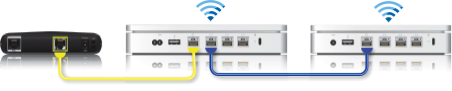
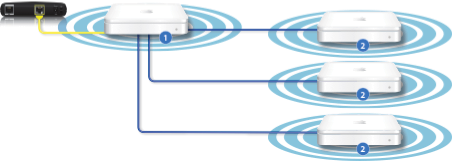
➊ Primary Wi-Fi base station
➋ Extended Wi-Fi base station
To configure a roaming network
Power on all 802.11n Wi-Fi base stations and allow them time to appear in the AirPort Menu Extra.
Open AirPort Utility (On a Mac, choose Go > Applications from your desktop, click the Utilities folder, then open AirPort Utility. In Microsoft Windows, choose Start > All Programs > AirPort to start AirPort Utility).
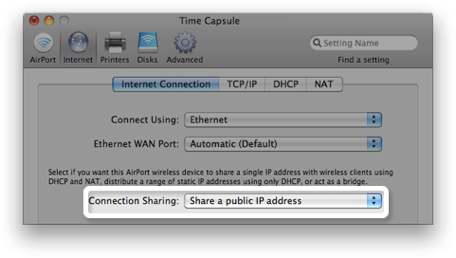
If you are configuring the primary Wi-Fi base station, set Connection Sharing to "Share a public IP address."
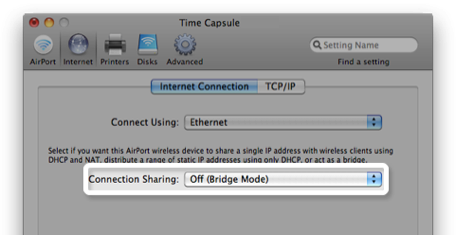
If you are configuring the extended Wi-Fi base stations, set Connection Sharing to "Off (Bridge Mode)."
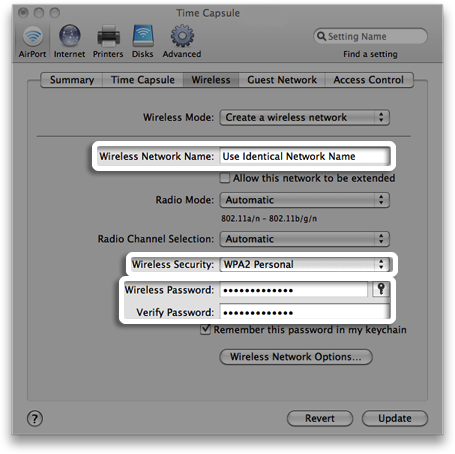
Use AirPort Utility to configure the Wireless Network Name, security, and password on each Wi-Fi base station to be exactly the same.
Information about products not manufactured by Apple, or independent websites not controlled or tested by Apple, is provided without recommendation or endorsement. Apple assumes no responsibility with regard to the selection, performance, or use of third-party websites or products. Apple makes no representations regarding third-party website accuracy or reliability. Contact the vendor for additional information.