iOS: How to back up your data and set up as a new device
Summary
Learn how to erase all data on your iPhone, iPad, or iPod touch and set it up as a new device to troubleshoot an issue.
Products Affected
iPad, iPhone, iPod touch, iTunes
If you are going to give away or sell your iOS device, see this article.
Follow these steps to erase your device and set it up as if it were new. This article also explains how to preserve your data before erasing it.
Collapse All Sections | Expand All Sections
1. Install all iOS updates
Check for software updates and install them if available.
2. Transfer content
Before you erase your device, take few minutes to transfer your content from your device to your computer to ensure that all your critical data is safe.
3. Back up
Back up your device before you erase it. Review the steps below, depending on your backup method, to ensure that you have a recent backup in case you decide to restore your device from a backup.
iCloud
iCloud backs up your device automatically once a day when connected to power and Wi-Fi. Review when your device was last backed up by tapping Settings > iCloud > Storage & Backup. You can see the last time the device was backed up on the bottom of the page. If you need to back up, tap Backup now. Ensure that your device is connected to Wi-Fi and connected to a power source before backing up.
iTunes
To back up your device using iTunes:
- Ensure that you have the latest version of iTunes installed.
- Connect your device to your computer.
- Select your iPhone, iPad, or iPod touch when it appears in the top right corner of iTunes.

Note: If you have the Sidebar enabled, your device will appear there. - Select the Summary tab. In the center portion of the Summary tab, click Back Up Now.

- When this is finished, view the date and time of your latest backup by clicking Preferences > Devices.

For more information on backing up your device, see iOS: How to back up. If you wish to copy your backup to another folder, disk, or location for safekeeping, see this article in the section titled "Where iTunes backups are stored on your computer." For more information about what iTunes backs up, see this article.
4. Turn off iMessage
If iMessage is active, turn off iMessage at Settings > Messages > iMessage.

5. Erase your device
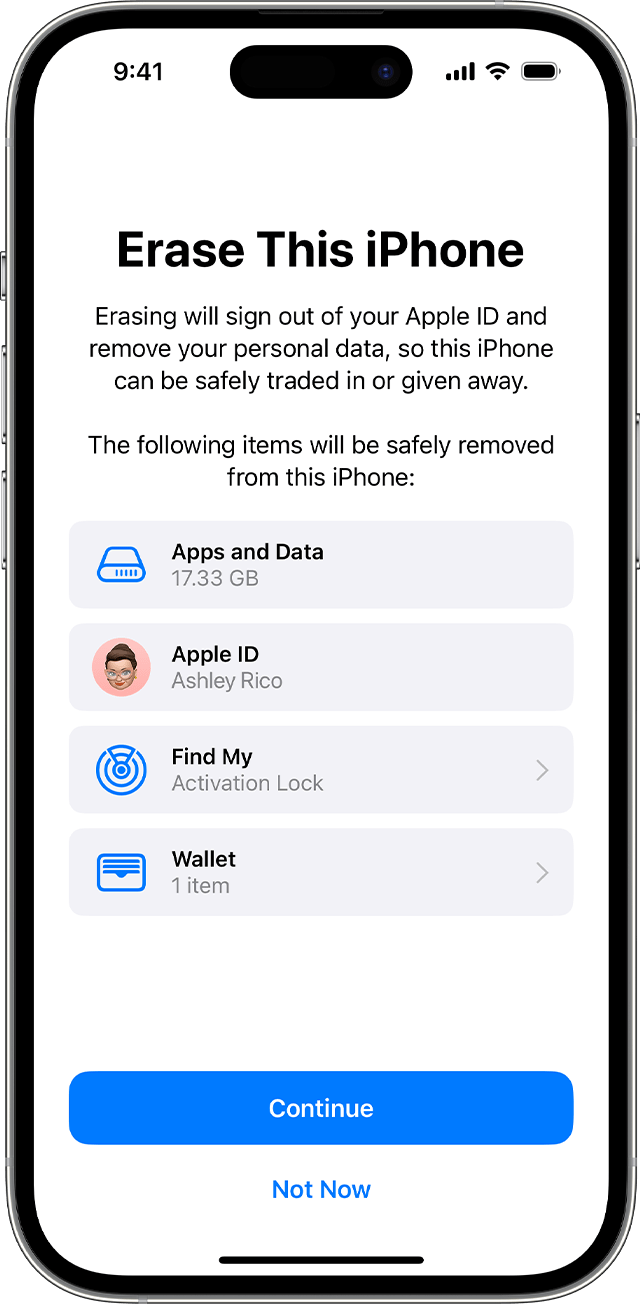
Erasing all content and settings will delete all the data from your device, including songs, videos, contacts, photos, calendar information, and any other data. All device settings are restored to their factory condition.
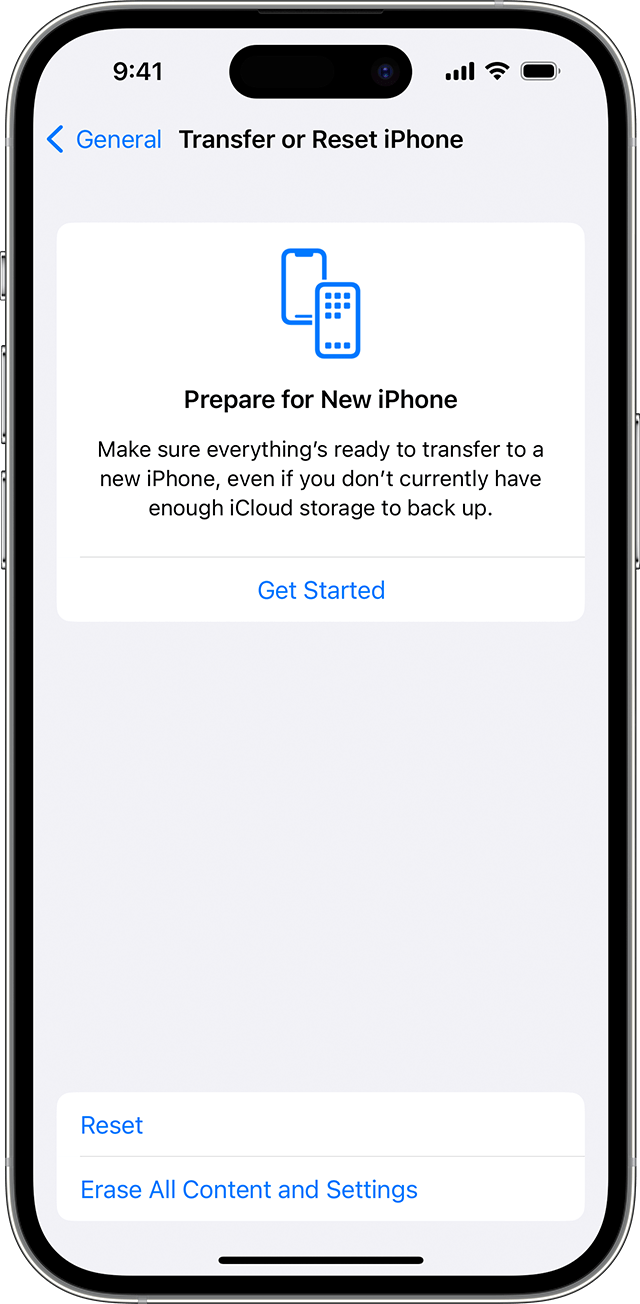
To remove all settings and information from your device, tap Settings > General > Reset > Erase All Content and Settings. For more information about this feature, see iOS: Understanding 'Erase All Content and Settings'.

If you are unable to erase your device, restore the device using iTunes.
After your device is erased or restored, you should be able to see the following on your device screen.

6. Set up as new
Complete the setup assistant. When prompted to set up your device, select "Set up as new" and then tap Next to continue.

Skip the Apple ID sign-in, in case the original issue was related to any of your content on iCloud.

Note: After setting up as new, you will need to reenter the Visual Voicemail password for iPhone (on carriers that support Visual Voicemail). If you've forgotten the password, contact your carrier to help you reset it.
After erasing and setting up as a new device, your device is now in a factory configuration.
Test now to determine if erasing and setting up as a new device resolved the issue. It may be that content on the device caused unexpected behavior.
If the issue is now resolved, sync one type of content at a time back to the device. You may sign in with your Apple ID in Settings > iCloud and turn on this content one item at a time. After each sync, test to see if the issue has returned.
Additional Information
To restore your device using a previous backup
iCloud
- Erase all content and settings by tapping Settings > General > Reset > Erase All Content and Settings.
- When your device turns back on, complete the setup assistant. When prompted to set up your device, choose "Setup from iCloud" and then enter your user name and password.

- iCloud will prompt you to choose a backup. Select the backup you wish to use and then tap Restore to continue.
iTunes
To restore your device using a previous backup, connect your device to iTunes. When your device appears in the source list, right-click your device and click "Restore from backup…". iTunes will ask you to choose the desired backup from the list provided.
Some Apple services (such as two-step verification for your Apple ID) require Find My iPhone to be turned on. After testing the issue, sign in to your iCloud account and enable Find My iPhone.
Twitter
Facebook