Set graphics performance on MacBook Pro
Learn how to adjust graphics performance on your MacBook Pro.
Many MacBook Pro models have two graphics systems — an integrated graphics processor and a discrete graphics processor — and a software feature that optimizes graphics performance between them.
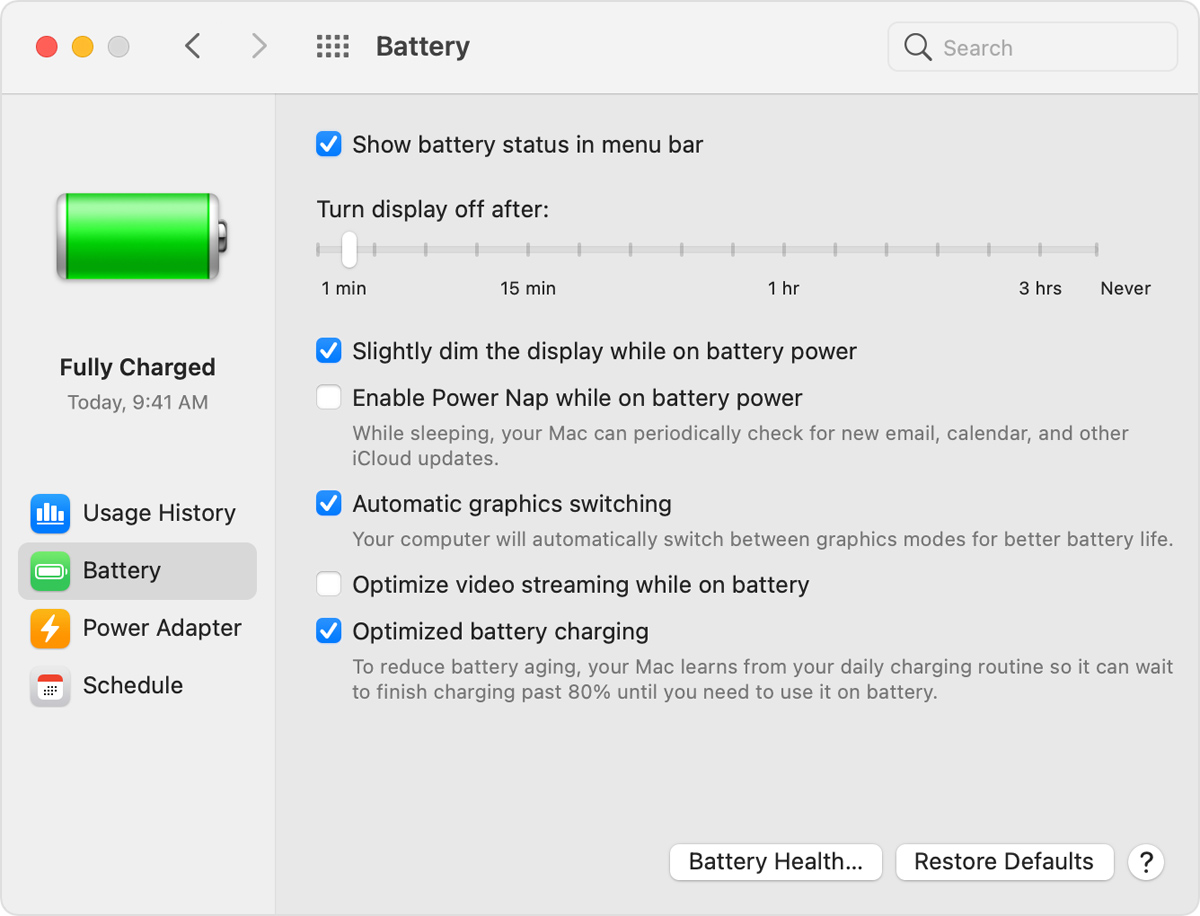
On these computers, the "automatic graphics switching" option is turned on by default to allow your computer to automatically switch to the best graphics system for the applications running on your computer. Using this option may also maximize battery life.
If you want to use the higher-performance discrete graphics processor at all times, in macOS Ventura or later, choose Apple menu > System Settings, click Battery in the sidebar, then click the Options button.

In macOS Monterey and Big Sur, choose Apple menu > System Preferences, click Battery, click the Battery tab, then deselect the automatic graphics switching checkbox. In macOS Catalina 10.15 and earlier, this setting is in Energy Saver preferences.
If you connect an external display to your Mac, your computer uses the high-performance graphics processor until you disconnect the display.
If you can't change graphics settings
If you don't see the automatic graphics switching option, your computer has only one graphics system.
Learn more
Learn how to find out which graphics processor is in use on your MacBook Pro and how to set the graphics performance on earlier MacBook Pro models.