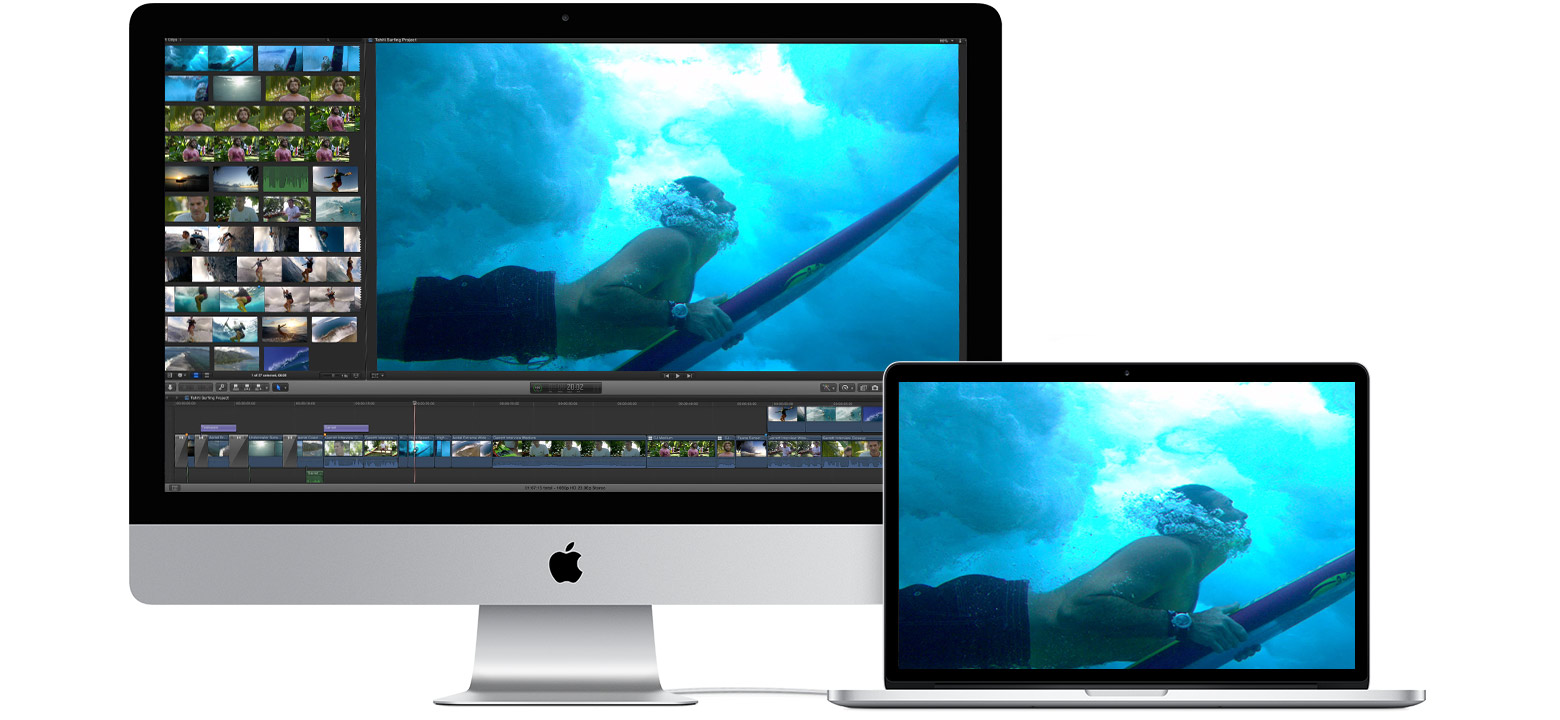
Use iMac as a display with target display mode
Some older Mac models can use older iMac models as an external display.
System requirements for target display mode
To use target display mode, the older iMac to be used as a display and the older Mac connecting to it must meet the system requirements for target display mode.
Requirements for the iMac used as a display
Any iMac introduced in 2011, 2012, 2013, or mid 2014 using macOS High Sierra 10.13.6 or earlier. When using these iMac models as a display, the cable connecting the two Mac computers must be a Thunderbolt
 or Thunderbolt 2 cable.
Any 24-inch or 27-inch iMac model introduced in 2009 or 2010 using macOS High Sierra 10.13.6 or earlier. When using these iMac models as a display, the cable connecting the two Mac computers must be a Mini DisplayPort
 cable.
Requirements for the Mac connecting to the iMac display
Any Mac introduced in 2019 or earlier using macOS Catalina 10.15.8 or earlier. Target display mode does not support Boot Camp or Windows.
How to use target display mode
Make sure that both computers meet the system requirements for target display mode and are turned on and started up. The Mac connecting to the iMac display must be logged in to a macOS user account.
Connect the two computers using a Mini DisplayPort
or Thunderbolt cable, depending on the system requirements. When using an iMac model that connects using a Thunderbolt cable, you can connect more than one iMac to separate Thunderbolt ports on the other Mac. Learn how to identify the ports on your Mac.Press Command-F2 on the keyboard of the iMac. You should now see the desktop of the other Mac.
To exit target display mode, press Command-F2 again, or disconnect the cable, or restart either Mac.
When using target display mode:
Apps that were open on your iMac when entering target display mode remain open in target display mode. For example, if you begin playing music on your iMac and then enter target display mode, the music doesn't pause on your iMac.
The other Mac can't use the iMac computer's built-in camera or ports. To use external devices with your other Mac, connect them directly to that Mac, not to the iMac.
To control the brightness of the iMac while it's in target display mode, use Displays preferences on the other Mac, or the brightness keys
 on the keyboard of the other Mac.
If you want to use the built-in speakers of your iMac to play audio from the other Mac, open Sound preferences on the other Mac. Click Output, then select the iMac as the device for sound output. You can then use the sound and media keys on the keyboard of the other Mac to adjust volume and control media playback.
If target display mode doesn't work
Make sure that both the iMac and the Mac connecting to it meet the system requirements for target display mode.
Restart both Mac computers.
Unplug the Thunderbolt or Mini DisplayPort cable from the other Mac, then plug it back in.
Press Command-F2 on the iMac. If you're currently logged in to the iMac, choose Log Out from the Apple menu to return to the login window. Then press Command-F2 again.
From the Apple menu , choose System Preferences, then click Keyboard. If "Use F1, F2, etc. keys as standard function keys" is selected, target display mode uses Command-Fn-F2 instead of Command-F2. It might also help to use the keyboard that came with your iMac. Some third-party keyboards and older Apple keyboards don't support target display mode.