Using a Bluetooth mouse, keyboard, or trackpad with your Mac
Learn about connecting Bluetooth input devices to your Mac, and get tips for using them.
What's Bluetooth?
Bluetooth is a wireless technology that makes short-range connections between devices (like your Mac, and a mouse or keyboard) at distances up to 10 meters (approximately 30 feet).
And with Bluetooth, your iPhone or iPad can create a "Personal Hotspot" to provide Internet access for your Mac through your wireless service provider. Learn more about creating a Personal Hotspot with your iOS device.
Find out if your Mac has Bluetooth
Most Mac computers come with Bluetooth technology built-in. You can check to see if your computer supports Bluetooth:
Look for the Bluetooth icon
 in the menu bar. If the Bluetooth icon is present, your computer has Bluetooth.
Choose System Preferences from the Apple menu, then click Bluetooth. If the Bluetooth preferences lists options for enabling Bluetooth and making your device discoverable, Bluetooth is installed.
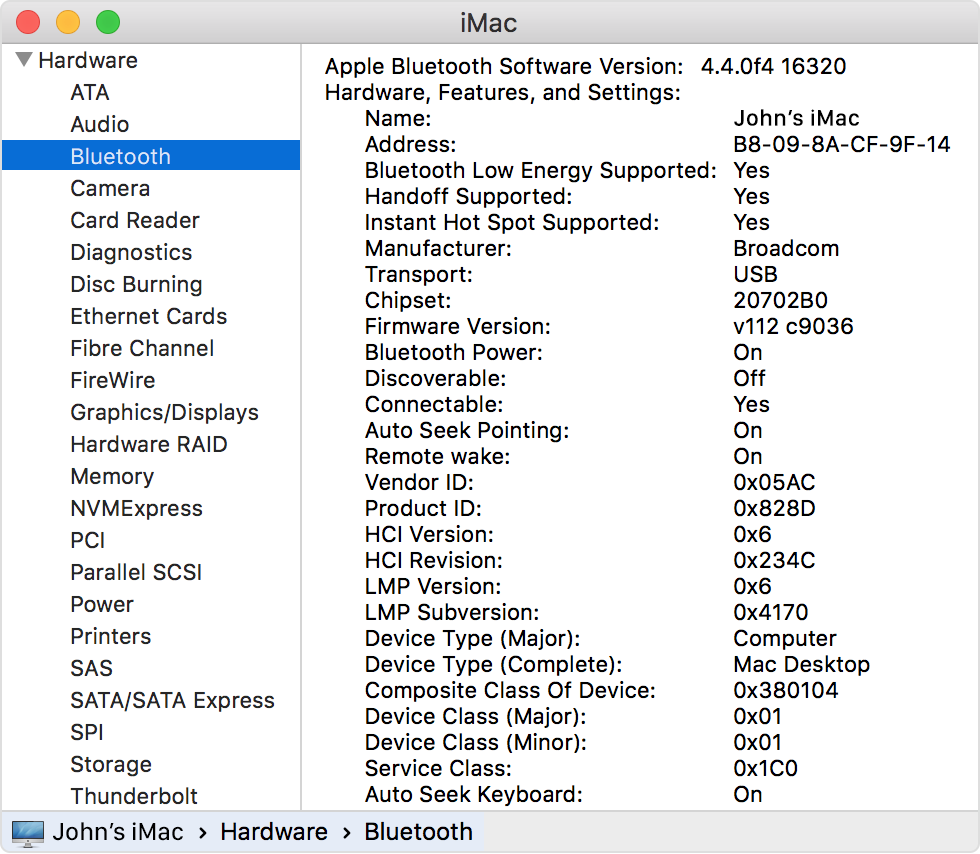
From the Apple menu, choose About this Mac, then click More Info. Select Bluetooth from the Hardware section. If the Hardware Setting section shows information, your system has Bluetooth installed.
About Bluetooth menu bar icons
The Bluetooth menu bar icon in the upper-right of your display gives you information about the status of Bluetooth and connected devices:
Bluetooth is on, but there are no devices connected to your Mac. If you expect a wireless device to be connected, make sure it's turned on.
Bluetooth Bluetooth is on and at least one wireless device is connected.
Bluetooth At least one wireless device has a low battery. Click the Bluetooth icon to identify the affected device, then replace its batteries.
Bluetooth Bluetooth is off. Click the Bluetooth icon using a wired mouse or trackpad or the built-in trackpad on your Mac notebook and select Turn Bluetooth On.
Mac computers without built-in trackpads won’t allow Bluetooth to be turned off unless a USB mouse is connected.
Bluetooth Bluetooth is offline and unavailable. Restart your Mac. If the Bluetooth status doesn’t change, disconnect all USB devices and restart your Mac again. If Bluetooth continues to show as unavailable, you might need to get your Mac serviced.
Pair your Mac with a Bluetooth device
Bluetooth wireless devices are associated with your computer through a process called pairing. After you pair a device, your Mac automatically connects to it anytime it's in range.
If your Mac came with a wireless keyboard, mouse, or trackpad, they were pre-paired at the factory. Turn on the devices and your Mac should automatically connect to them when your computer starts up.
If you purchased your Apple wireless devices separately, learn how to pair them with your Mac.
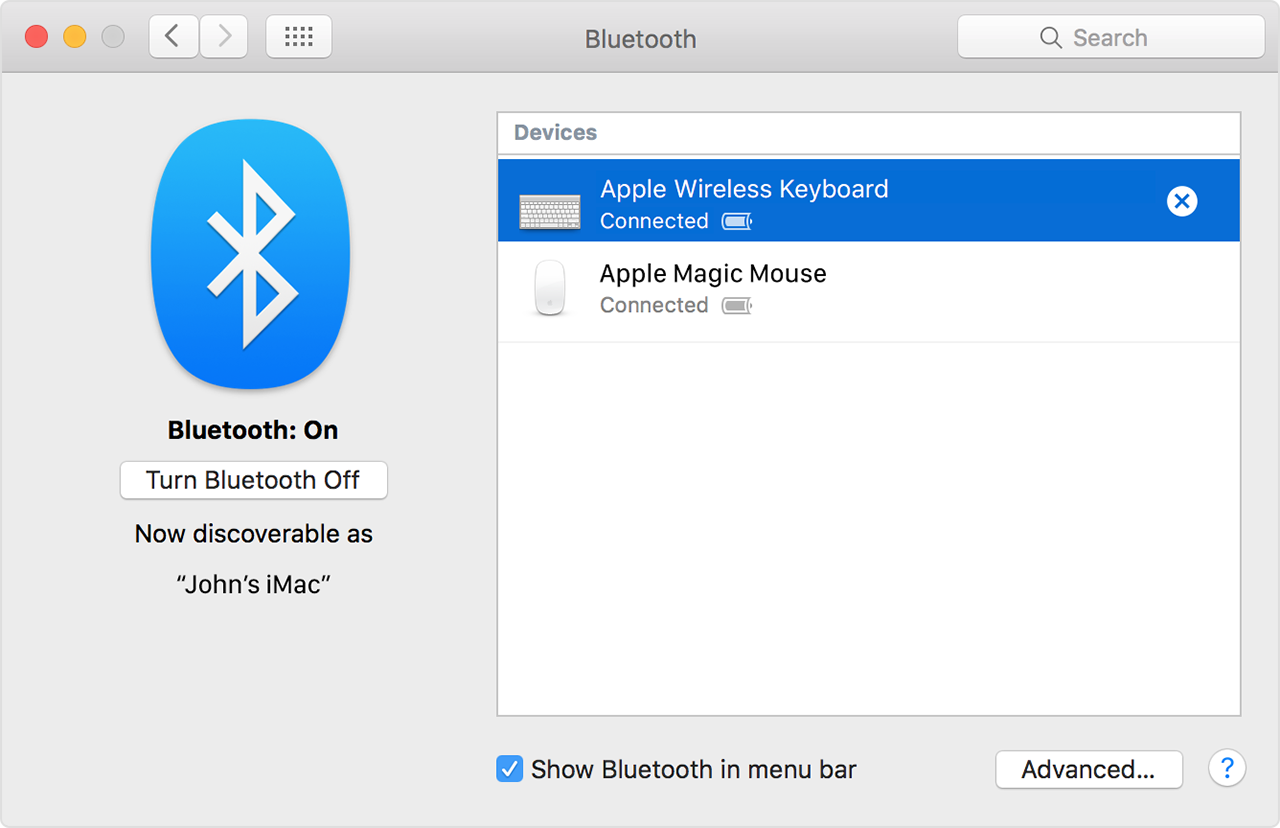
After you pair a Bluetooth device with your Mac, you should see it listed in Bluetooth preferences:
Remove a Bluetooth device from your Mac
If you want to remove (unpair) a Bluetooth device from your Mac's device list, follow these steps:
Choose Apple menu > System Preferences, then click Bluetooth.
Hover the pointer over the device you want to remove, then click the cross
 button that appears next to the device's name.
After you remove a Bluetooth device, you'll have to repeat the pairing process if you want to use it again.
Connect to Bluetooth devices after wake or startup
Bluetooth devices are usually available a few moments after your Mac completes its startup process. After waking from sleep, your Mac should find Apple wireless devices right away. Other wireless devices can take up to 5 seconds to be recognized. You might need to click a button on your wireless mouse to wake it up.
Some Bluetooth devices, such as audio headsets, might disconnect to conserve the device's battery power after no audio or data is present for a certain amount of time. When this happens, you might need to push a button on the device to make it active again. Check the documentation that came with your device for more information.
Wake your computer with Bluetooth devices
You can click your paired Bluetooth mouse or press a key on your paired Bluetooth keyboard to wake your Mac. You might need to press the space bar on the keyboard.
If clicking the mouse or pressing a key doesn't wake the computer, you might need to allow wireless devices to wake up your computer:
Choose Apple menu > System Preferences, then click Bluetooth.
Click Advanced.
Select the checkbox next to Allow Bluetooth Devices to wake this computer.

Connect multiple Bluetooth devices to one computer
The official Bluetooth specifications say seven is the maximum number of Bluetooth devices that can be connected to your Mac at once.
However, three to four devices is a practical limit, depending on the types of devices used. Some devices require more Bluetooth data, so they're more demanding than other devices. Data-intensive devices might reduce the total number of devices that can be active at the same time.
If a Bluetooth device doesn't appear in Bluetooth preferences, or if it becomes slow to connect or doesn't perform reliably, try turning off devices you aren't using or unpair them from your Mac.
Fix interference from other household devices
Bluetooth shares the 2.4 GHz ISM band with other household devices such as cordless telephones, wireless networks, baby monitors, and microwave ovens. If you see issues with your Bluetooth devices that you suspect might be due to frequency congestion, see AirPort and Bluetooth: Potential sources of wireless interference for further information.
Press startup keys on a Bluetooth keyboard
You can press keys immediately after startup to have your Mac perform functions like selecting a startup disk, using the recovery partition, or resetting NVRAM.
Learn more at Startup key combinations for Mac.
Information about products not manufactured by Apple, or independent websites not controlled or tested by Apple, is provided without recommendation or endorsement. Apple assumes no responsibility with regard to the selection, performance, or use of third-party websites or products. Apple makes no representations regarding third-party website accuracy or reliability. Contact the vendor for additional information.