Safely open apps on your Mac
macOS includes a technology called Gatekeeper, that's designed to ensure that only trusted software runs on your Mac.
The safest place to get apps for your Mac is the App Store. Apple reviews each app in the App Store before it’s accepted and signs it to ensure that it hasn’t been tampered with or altered. If there’s ever a problem with an app, Apple can quickly remove it from the store.
If you download and install apps from the internet or directly from a developer, macOS continues to protect your Mac.
When you install Mac apps, plug-ins, and installer packages from outside the App Store, macOS checks the Developer ID signature to verify that the software is from an identified developer and that it has not been altered.
By default, macOS Catalina and later also requires software to be notarized, so you can be confident that the software you run on your Mac doesn't contain known malware.An app that has been notarized by Apple indicates that Apple checked it for malicious software and none was detected.
Before opening downloaded software for the first time, macOS requests your approval to make sure you aren’t misled into running software you didn’t expect.
Running software that hasn’t been signed and notarized may expose your computer and personal information to malware that can harm your Mac or compromise your privacy.
If your Mac displays an alert when you open an app
The warning messages displayed below are examples, and it's possible that you could see a similar message that isn't displayed here. Please use caution if you choose to install any software for which your Mac displays an alert.
Alert that the app was downloaded from the Internet
The first time that you open a new app from an identified developer that you downloaded outside the App Store, your Mac asks if you’re sure that you want to open it.
Alert that Apple cannot check the app for malicious software
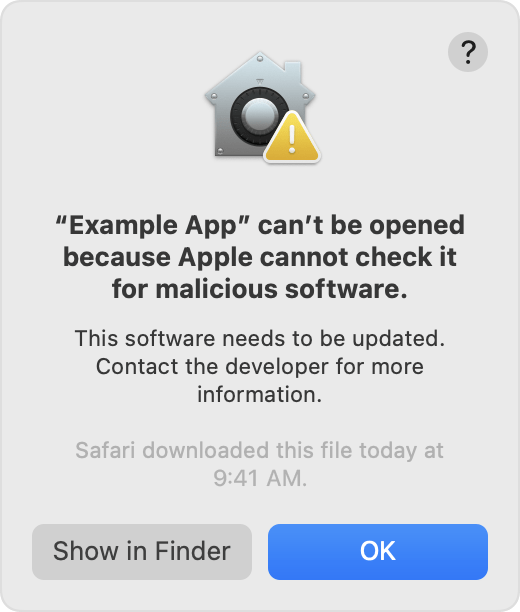
If Apple can't check an app for malicious software:
Check the App Store for an updated version or search for an alternative app.
If you’re certain that the app is from a trustworthy source and hasn’t been tampered with, you might be able to temporarily override your Mac security settings to open it
Alert that the app developer cannot be verified
If the app developer can't be verified and — in macOS Catalina and later — the app hasn't been notarized by Apple, macOS can't verify that the app is free of malware.
Check the App Store for an updated version or search for an alternative app.
If you're certain that the app is from a trustworthy source and hasn't been tampered with, you might be able to temporarily override your Mac security settings to open it
Alert that the app wasn't downloaded from the App Store
If your Privacy & Security settings allow apps from only the App Store, macOS won't open an app that wasn't downloaded from the App Store.
If you're certain that the app is from a trustworthy source and hasn't been tampered with, you might be able to temporarily override your Mac security settings to open it
Alert that the app will damage your computer or the app is damaged
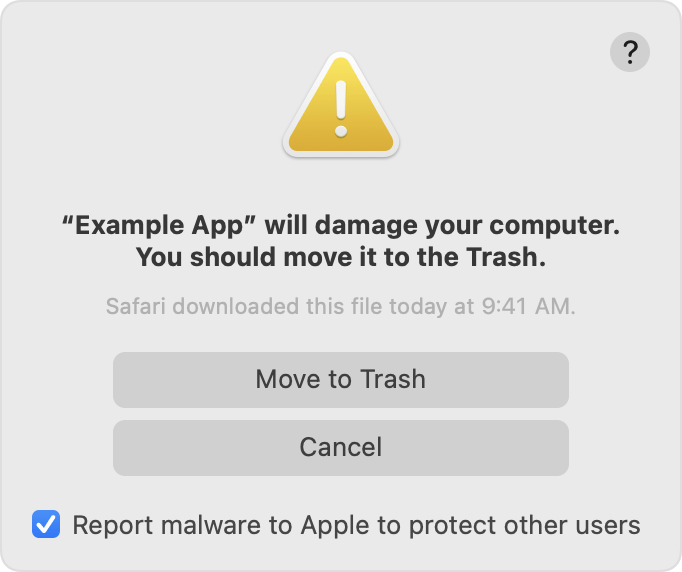
If macOS detects that software has malicious content or its authorization has been revoked for any reason, your Mac notifies you that the app will damage your computer.
If macOS detects that software has been modified or damaged, your Mac notifies you that the app can't be opened. The app might be broken or corrupted, or it might have been tampered with.
You should move this app to the Trash and, if available, check "Report malware to Apple to protect other users."
If you want to open an app that hasn’t been notarized or is from an unidentified developer
Running software that hasn’t been signed and notarized might expose your computer and personal information to malware that can harm your Mac or compromise your privacy.
If you’re certain that an app that you want to open is from a trustworthy source and hasn’t been tampered with, you might be able to temporarily override your Mac security settings to open it.*
Open System Settings.
Click Privacy & Security, scroll down, and click the Open Anyway button to confirm your intent to open or install the app.
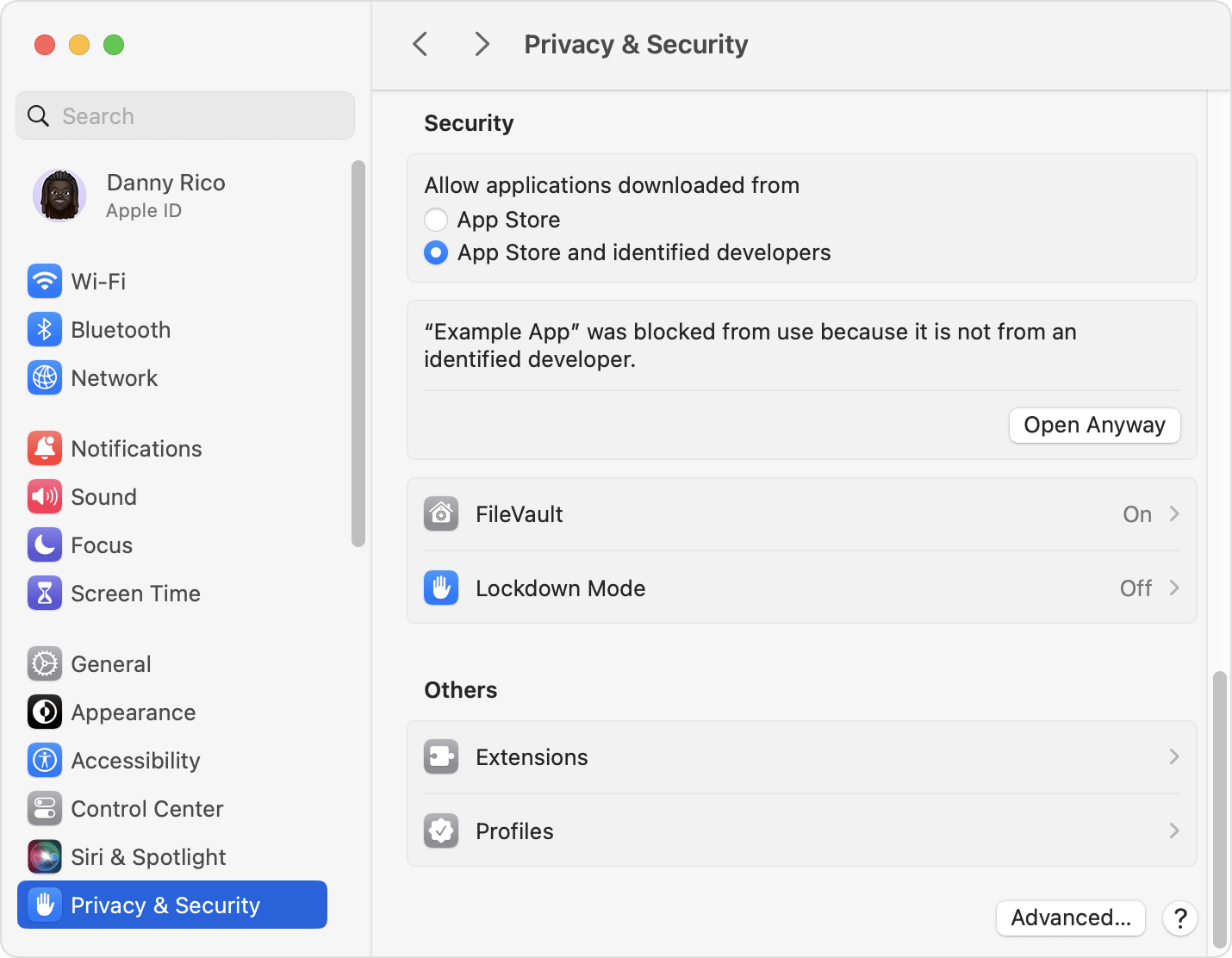
The warning prompt reappears and, if you're absolutely sure that you want to open the app anyway, you can click Open.
The app is now saved as an exception to your security settings, and you can open it in the future by double-clicking it, just as you can any authorized app.
* If you're prompted to open the app in Finder and you're sure that you want to open it despite the warning, you can control-click the app, choose Open from the menu, then click Open in the dialog that appears. Enter your admin name and password to open the app.
Change the app security settings on your Mac
In System Settings, click Privacy & Security. Then scroll down to Security.
Under "Allow apps downloaded from," select an option: *
App Store: Allow only apps that have been downloaded from the App Store
App Store and identified developers: Allow apps that have been downloaded from the App Store and from developers identified by Apple.
* These settings might not be available if your Mac is managed by a system administrator or IT department.
Privacy protections
macOS has been designed to keep users and their data safe while respecting their privacy.
Gatekeeper performs online checks to verify if an app contains known malware and whether the developer’s signing certificate is revoked. We have never combined data from these checks with information about Apple users or their devices. We do not use data from these checks to learn what individual users are using on their devices.
Notarization checks if the app contains known malware using an encrypted connection that is resilient to server failures.
These security checks have never included the user’s Apple ID or the identity of their device. To further protect privacy, we don't log IP addresses associated with Developer ID certificate checks, and we make sure that any collected IP addresses are removed from logs.
Information about products not manufactured by Apple, or independent websites not controlled or tested by Apple, is provided without recommendation or endorsement. Apple assumes no responsibility with regard to the selection, performance, or use of third-party websites or products. Apple makes no representations regarding third-party website accuracy or reliability. Contact the vendor for additional information.

