iOS: Improve backup and restore times by importing Camera Roll or Saved Photos

Summary

Pictures and screenshots taken with your iOS device are stored on the Camera Roll (or Saved Photos for devices without a camera). When you sync or perform a restore, iTunes creates a backup of the contents of your iOS device, including the Camera Roll and Saved Photos. The more pictures or other multimedia files that are on the Camera Roll, the longer a backup or restore will take.

Improve backup and restore times by regularly importing the contents of your Camera Roll or Saved Photos, and then sync that content back to the iPhone.

Products Affected

iPad 2, iPad 2 Wi-Fi + 3G, iPhone, iTunes

Import the contents of your Camera Roll or Saved Photos to your computer and then delete them by following these steps:

Mac

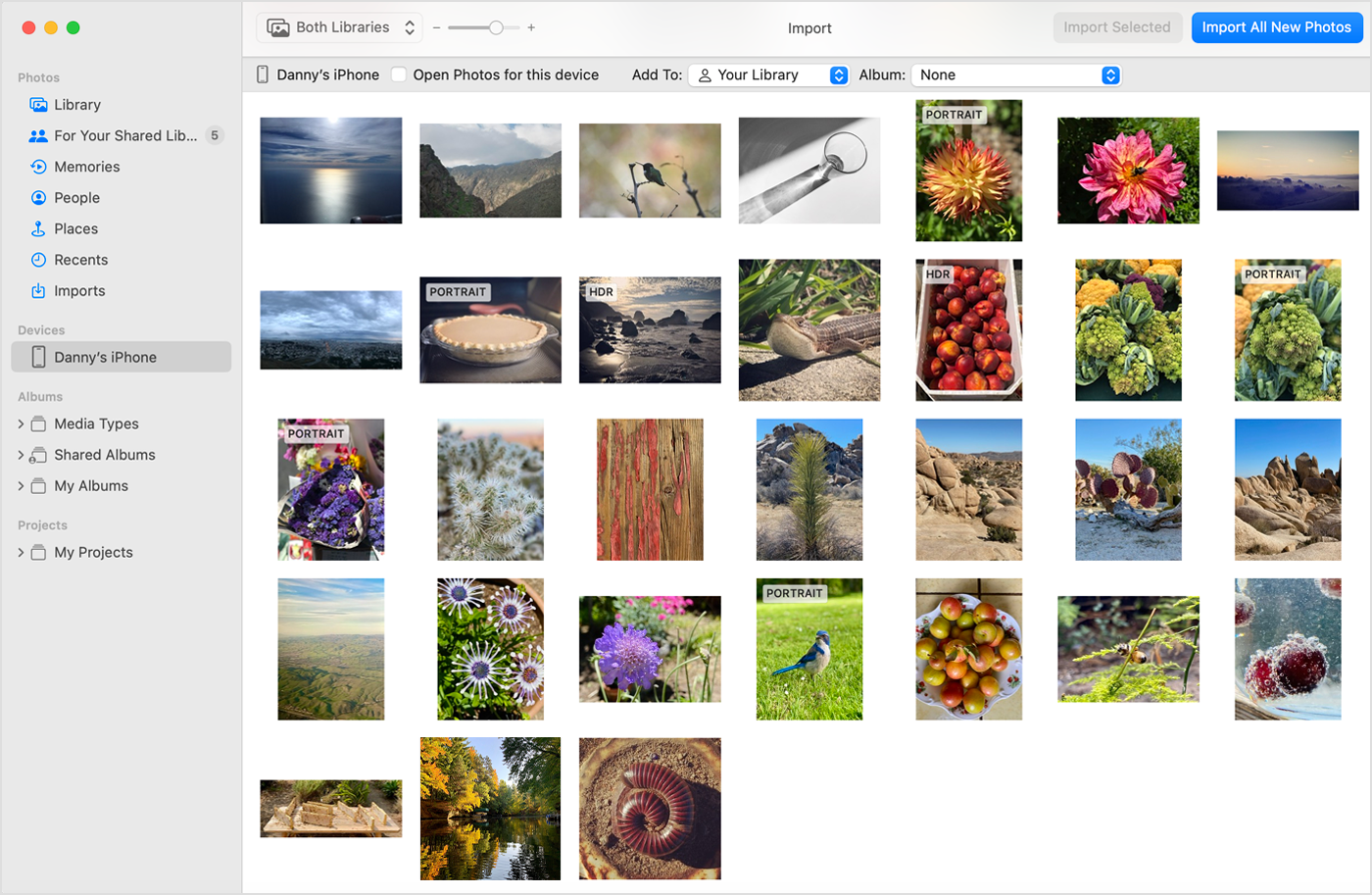
You can import pictures from your iOS device using iPhoto (if installed):

  1. Connect the device to your computer.
  2. If iPhoto does not open automatically, you can navigate to the Applications folder and open iPhoto from there.
  3. Choose the device in the Devices list in the left column.
  4. Click Import All.
  5. When the photos finish importing, you will be presented with a dialog asking whether you'd like to delete the original photos from your Camera Roll. Click Delete Originals.

If you do not have iPhoto installed on your computer, you can import pictures from the device using Image Capture:

  1. Connect the iOS device to the computer.
  2. If Image Capture does not open automatically, you can navigate to your Applications folder and open Image Capture from there.
  3. Choose the location to which you'd like to import pictures.
  4. Click Options.
  5. Click the Options tab if it isn't already selected.
  6. Enable the option "Delete items from camera after downloading".
  7. Click OK.
  8. Click Download All.

You can also use Aperture to import pictures from your iOS device. If you use an application other than iPhoto or Image Capture, refer to that application's documentation for instructions.

Note: If you would like iPhoto or Image Capture to open automatically when you connect your device, open the Image Capture application. Choose Preferences from the Image Capture menu and then use the menu next to "When a camera is connected, open:" to choose the application you desire.

Windows XP

  1. Connect the iOS device to the computer.
  2. If Scanner and Camera Wizard does not open automatically, choose Start > All Programs > Accessories > Scanner and Camera Wizard.
  3. If a window appears asking you to select your device, choose your iOS device from the list and click OK.
  4. When the Scanner and Camera Wizard launches, click Next.
  5. Ensure that all of your photos are selected and click Next.
  6. Enter a name for your group of photos and choose the location to which you'd like to import them.
  7. Enable the option "Delete pictures from my device after copying them."
  8. Click Next.
  9. When the photos finish importing and deleting, click Next.
  10. Click Finish.

You can also use Adobe Photoshop Album 2.0 or later and Adobe Photoshop Elements 3.0 or later to import pictures. Refer to the documentation of the application you wish to use.

Note: If you would like the Scanner and Camera Wizard to open automatically when connecting your iOS device, choose My Computer from the Start menu. Then right click your iPhone and choose Properties. Click the Events tab and choose Start this program under actions, and then choose Microsoft Scanner and Camera Wizard in the adjacent pop-up menu. Click Apply to save these changes.

Windows Vista

  1. Connect your iOS device to the computer. If the "Import Pictures and Video" dialog appears, skip to step 5.
  2. Choose Start > All Programs > Windows Photo Gallery.
  3. Choose File > Import from Camera or Scanner.
  4. Choose your device from the list and click Import Photos.
  5. Click the Options link.
  6. In the resulting window, you can change the folder to which your Camera Roll's photos will be imported by clicking the Browse button next to the "Import to" field. By default, these will be imported to the Pictures folder.
  7. Enable the option "Always erase from camera after importing."

Note: If you do not want Windows to delete pictures from your camera on subsequent imports, remember to come back here and disable this option when you're finished.

  1. After setting your import options, click OK to dismiss the window.
  2. Choose a tag if desired and click Import.

You can also use Adobe Photoshop Album 2.0 or later and Adobe Photoshop Elements 3.0 or later to import pictures. Refer to the documentation of the application you wish to use.

Note: You can configure Windows to automatically display the "Import Pictures and Video" dialog when connecting your iOS device. To do so, choose Control Panel from the Start menu. Then open the AutoPlay control panel. In the Devices section, find your device in the list and choose Import pictures using Windows from the adjacent pop-up menu.

Windows 7

  1. Connect your iOS device to the computer. If the "Import Pictures and Video" dialog appears, skip to step 4.
  2. Choose Start > Computer.
  3. Right-click the logo for your device and click Import pictures and videos.
  4. Click the Import Settings link.
  5. In the resulting window, you can change the folder to which your Camera Roll's photos will be imported by clicking the Browse button next to the "Import to" field. By default, these will be imported to the My Pictures folder.
  6. Enable the option, "Always erase from device after copying".

Note: If you do not want Windows to delete pictures from your camera on subsequent imports, remember to come back here and disable this option when you're finished.

  1. After setting your import options, click OK to dismiss the window.
  2. Choose a tag if desired and click Import.

If you find that not all your photos were imported from your device's Camera Roll after performing the above steps, you can either copy the photos to your computer using Windows Explorer, or you can use additional software such as Windows Live Photo Gallery or Adobe Photoshop Elements 3.0 or later to import all pictures. 

To copy the photos to your computer using Windows Explorer:

  1. Connect the iOS device to the computer.
  2. Choose Start > Computer.
  3. Double-click the logo for the device to browse its camera folders.
  4. Navigate to [iOS device]\Internal Storage\DCIM\100APPLE.
  5. Manually copy the content in this folder to your computer, wherever you would like to store it.
  6. Disconnect your device. Open the Camera Roll and manually delete all the pictures from the iPhone Camera Roll that you just imported.

To copy the photos to your computer using Windows Live Photo Gallery or Adobe Photoshop Elements 3.0 or later, refer to the documentation of the application you wish to use.

Note: You can configure Windows to automatically display the "Import Pictures and Video" dialog when connecting your iOS device. To do so, choose Control Panel from the Start menu. Then open the AutoPlay control panel. In the Devices section, find your device in the list and choose Import pictures using Windows from the adjacent pop-up menu.


After your photos have been imported from your Camera Roll or Saved Photos, you can use iTunes to sync them back to your iOS device:

  1. Ensure that your iOS device is connected to your computer.
  2. Open iTunes.
  3. Select the device in the Devices list in the left column.
  4. Click the Photos tab.
  5. Ensure that "Sync photos from" is enabled and choose the appropriate source from the adjacent pop-up menu. For example, if you imported your photos into an application (like iPhoto) you would select that application in the list. If you imported your photos to a folder (using Image Capture, Scanner and Camera Wizard, or Windows Photo Gallery), you would choose Choose Folder and then the folder in question.
  6. Click Apply or Sync.

When the sync process completes, your photos are no longer stored on your Camera Roll, but they will appear in the Photos application on your device. Importing your photos from your device and then syncing them back using iTunes is a great way to limit the number of photos in your Camera Roll or Saved Photos. This significantly improves backup times and restore times.

Storing your photos on your computer enables you to print them out (if you desire) or back them up to a CD (Compact Disc) or an external hard drive. Apple strongly recommends that you back up your data regularly.

Important: Information about products not manufactured by Apple is provided for information purposes only and does not constitute Apple’s recommendation or endorsement. Please contact the vendor for additional information.
Not helpful Somewhat helpful Helpful Very helpful Solved my problem
Ask other users about this article
in Apple Support Communities
See all questions on this article See all questions I have asked