Xserve (Late 2006 or later): How to configure Server Monitor to access Xserve
Learn how to configure Server Monitor to access Xserve LOM (Lights-Out Management).
Server Monitor uses Lights-Out Management (LOM) on Xserve (Late 2006 and later). This feature allows you to connect to the server even when the server is shut down. To access an Xserve (Late 2006 or later) remotely with Server Monitor, you must connect to the LOM port on the server. If you have not configured the LOM, see Configuring Lights-Out Management (LOM).
Remotely monitor an Xserve using Server Monitor
Click Add Server on the tool bar.

Enter the IP address or domain name of the LOM port on the Xserve that is connected to the network.
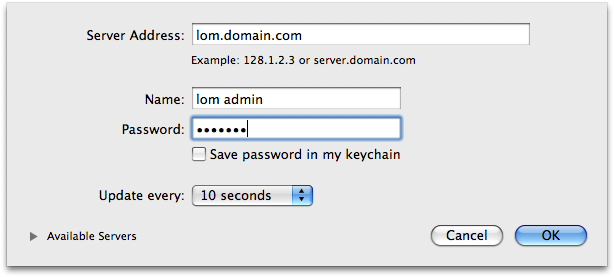
Enter the user name and password for the LOM port administrator account and click OK.
Server Monitor will connect and monitor the Xserve hardware through the LOM port. Note: If you are using Server Monitor version 1.7 or later to monitor an Xserve (Early 2009), you can also click the disclosure triangle next to "Available Servers" to see a list of available Xserve (Early 2009) servers on your local subnet.
Monitor an Xserve locally with Server Monitor
Click Add Server on the tool bar.
Enter 127.0.0.1 or "localhost".
Enter the server administration user name and password and click OK. Note: This is not the LOM account information; this is the user name and password for managing your server.
