iPod: Selecting a VoiceOver language for individual songs
Learn how to select a VoiceOver language for individual songs on your iPod.
VoiceOver allows you to hear the names of songs, artists, and playlists spoken when listening to content on certainiPod models. Learn how to enable VoiceOver.
You can select a default language for VoiceOver in the Summary tab when the iPod is connected to iTunes. You can also set a VoiceOver language for individual songs that will be used in place of the default language. To learn how to set a specific VoiceOver language to selected content in your iTunes library, review the steps below.
Open iTunes and select the song, audiobook, or podcast that you would like to set a specific VoiceOver language for.
After selecting the item, choose File > Get Info.
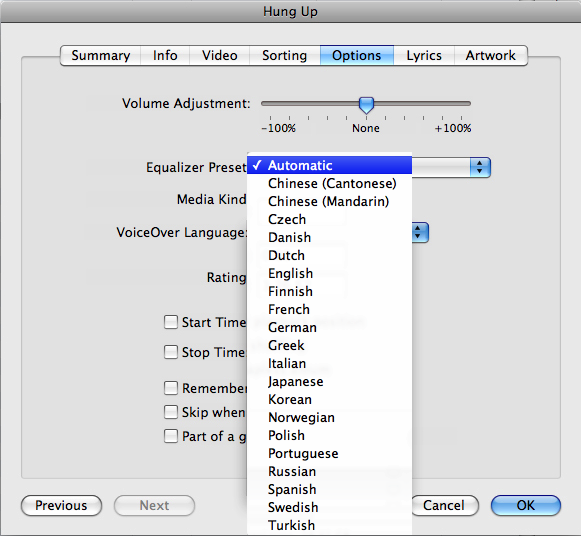
Select the Options tab and choose a VoiceOver language for this content.
Click OK.
If the VoiceOver Language option isn't visible, VoiceOver may not be enabled in iTunes or isn't supported with your iPod model.
