Apple TV: How to use your Apple remote for Apple TV
Summary
Refer to the table below for a list of all the command functions for the Apple TV remote.
Products Affected
Apple TV (1st generation), Apple TV (2nd generation)
Click here to see an image of the white Apple remote

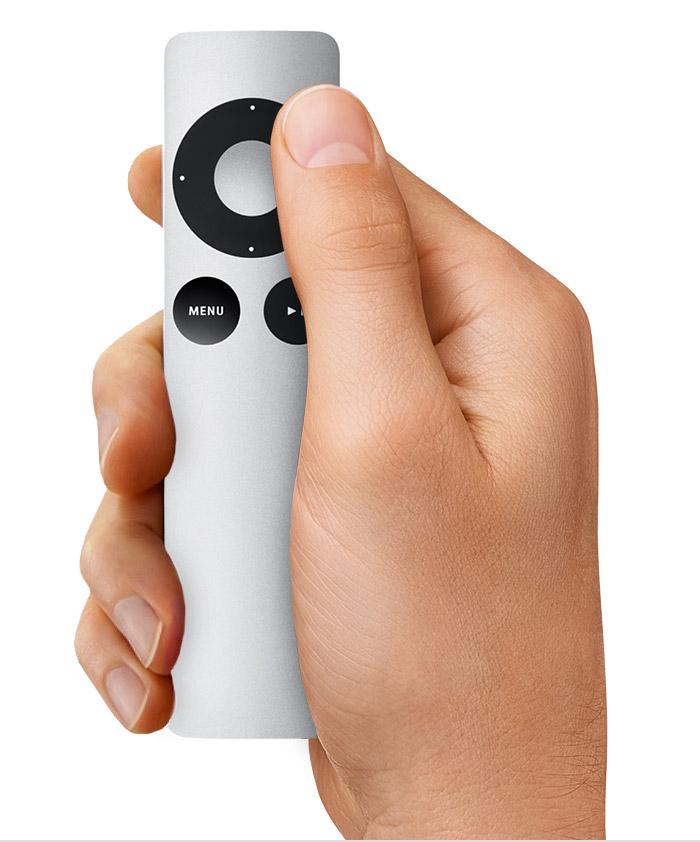
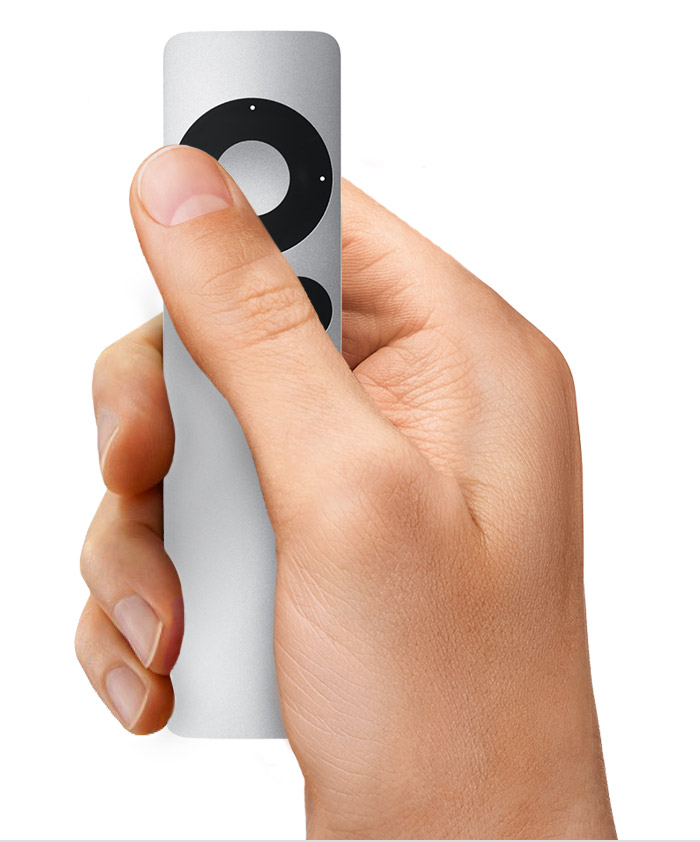
Click here to see an image of the aluminum Apple remote

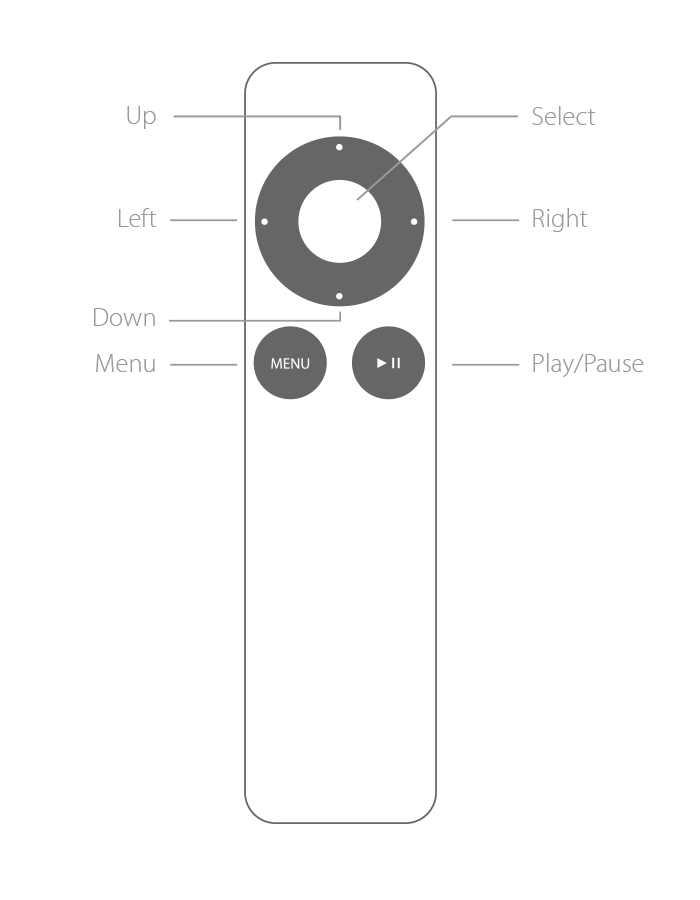
- Up
- Left
- Down
- Menu
- Select
- Right
- Play/Pause
| Basic Remote Commands | White Apple remote |
Aluminum Apple remote |
| Result | Action | Action |
| Move through the menu options | Press + or - / Fast-Forward or Rewind | Press Up, Down, Left, or Right |
| Select an option from the menu | Press Play/Pause | Press Select |
| Return to a previous menu | Press Menu | Press Menu |
| Put Apple TV in standby mode | From the main menu, press Play/Pause for about three seconds (or go to Settings > Standby) | Press and hold Select for five seconds (or go to Settings > Sleep Now on Apple TV (2nd generation), or Settings > Standby on Apple TV (1st generation) |
| Black Screen Recovery (cycle through display resolutions) -- Apple TV (1st generation only) | Hold down Menu and + for six seconds | Hold Menu and Up for six seconds |
| Reset Apple TV | Hold down Menu and - for six seconds | Hold Menu and Down for six seconds |
| Increment Apple Remote UID - (pairing status is dependent upon whether remote was paired or unpaired prior to command) | Hold down Menu and Play/Pause for five seconds | Hold down Menu and Select for five seconds |
| Pair Apple Remote | Hold down Menu and Fast-Forward for six seconds | Hold down Menu and Right for six seconds |
| Unpair Apple Remote | Hold down Menu and Rewind for six seconds | Hold down Menu and Left for six seconds |
| Watching Video | White Apple remote | Aluminum Apple remote |
| Result | Action | Action |
| Play or pause video | Press Play/Pause | Press Play/Pause |
| Fast forward | Hold down the Fast-Foward button to fast-forward; press the button again to increase the fast-forward speed (there are three speeds) | Hold down the Right button to fast-forward; press the button again to increase the fast-forward speed (there are three speeds) |
| Move forward or back in slow motion | Press the Play/Pause button to pause the video, then press the Fast-Forward or Rewind button | Press the Play/Pause button to pause the video, then press the Right or Left button |
| Skip forward or back in 10-second increments | Press the Play/Pause button to pause the video, then hold down the Fast-Forward or Rewind button | Press the Play/Pause button to pause the video, then hold down the Right or Left button |
| Rewind | Hold down the Rewind button to rewind; press the button again to increase the rewind speed (there are three speeds) | Hold down the Left button to rewind; press the button again to increase the rewind speed (there are three speeds) |
| Skip to the next or previous chapter (if no chapter markers are present, this will skip 1/20th of the video length, or 30 second intervals whichever is longer.) | Press - then the forward or rewind button to skip chapters | Press the Down button, then Right or Left to skip chapters. |
| Watching Movies | White Apple remote | Aluminum Apple remote |
| Result | Action | Action |
| Move through the menu options | Press + or - | Press Up or Down |
| Play or pause a movie | Press Play/Pause | Press Play/Pause |
| Watch TV Shows | White Apple remote | Aluminum Apple remote |
| Result | Action | Action |
| To toggle between viewing by date or by show | Press Fast-Forward or Rewind | Press Right or Left |
| Play or pause a TV show | Press Play/Pause | Press Play/Pause |
| Watching Music Videos | White Apple remote | Aluminum Apple remote |
| Result | Action | Action |
| Move through the menu options | Press + or - | Press Right or Left |
| Play or pause a music video | Press Play/Pause | Press Play/Pause |
| Watching Video Podcast | White Apple remote | Aluminum Apple remote |
| Result | Action | Action |
| Play or pause a video podcast | Press Play/Pause | Press Play/Pause |
| Skip to the next or previous chapter | Press Fast-Forward or Rewind | Press Right or Left |
| Listening to Music, Audiobooks, and Podcasts | White Apple remote | Aluminum Apple remote |
| Result | Action | Action |
| Play or pause a song, audiobook, or podcast | Press Play/Pause | Press Play/Pause |
| Skip to the next song, audiobook, or podcast | Press Fast-Forward | Press Right |
| Fast-forward through a song, audiobook, or podcast | Hold down Fast-Forward | Hold down Right |
| Rewind a song, audiobook, or podcast | Hold down Rewind | Hold down Left |
| Restart a song, audiobook, or podcast; or play the previous song, audiobook, or podcast | Press Rewind to restart a song, audiobook, or podcast; press it twice to skip to the previous song, audiobook, or podcast | Press Left to restart a song, audiobook, or podcast; press it twice to skip to the previous song, audiobook, or podcast |
Twitter
Facebook