Bluetooth: How to set up your Apple Wireless Mouse
Summary
Learn how to set up your Apple Wireless Mouse.
Products Affected
Mice
Check the operating system
Check which version of Mac OS X your computer has by choosing About This Mac from the Apple () menu.
- For Apple Magic Mouse, install the Wireless Mouse Software Update 1.0 for your operating system:
- Wireless Mouse Software Update 1.0 for Mac OS X v10.5 Leopard; requires a paired Apple Magic Mouse and Mac OS X v10.5.8.
- Wireless Mouse Software Update 1.0 for Mac OS X v10.6 Snow Leopard; requires a paired Apple Magic Mouse and Mac OS X v10.6.1.
- Pair your Magic Mouse as in the set up steps below, then install the appropriate update for your operating system.
- For the wireless Mighty Mouse and first generation Apple Wireless Mouse, install the Apple Wireless Keyboard and Mouse software that came with your mouse if your computer has Mac OS X v10.2.6 or earlier. If your computer has Mac OS X v10.3 or later, you do not need to install any additional software.
If you need to update your operating system, see Mac OS X: How to Update Your Software for instructions on updating your computer's software.
Check Bluetooth
Make sure Bluetooth is turned on and your computer is discoverable. Choose System Preferences from the Apple () and then Bluetooth from the View menu. If you don’t see Bluetooth in the View menu, your computer does not have a built-in Bluetooth module. Some external USB Bluetooth adapters may work with your computer even if it does not feature this capability. Check with the manufacturer of the adapter for Mac compatibility.
Use a wired USB keyboard and mouse during setup
During the setup process, use a USB mouse to speed up the setup of your Apple Wireless Mouse. Keep a USB mouse connected to the computer until you've completed setting up the Apple Wireless Mouse. After setup is complete, you can disconnect the USB mouse.
Set up the mouse
- Turn the mouse over.
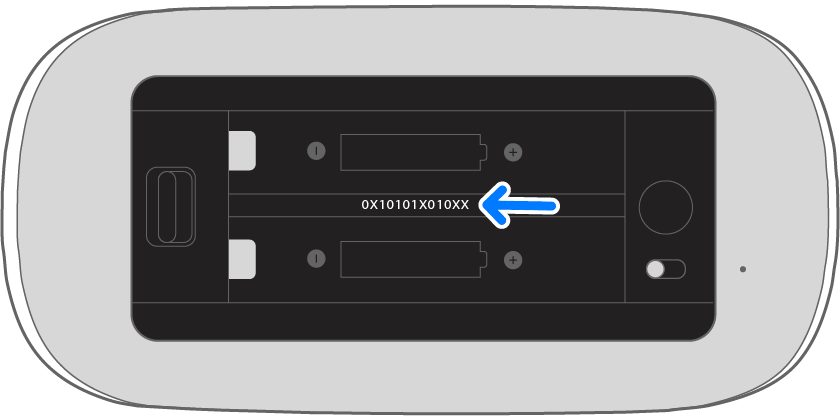
- Remove the bottom cover by releasing the latch, then install two batteries.


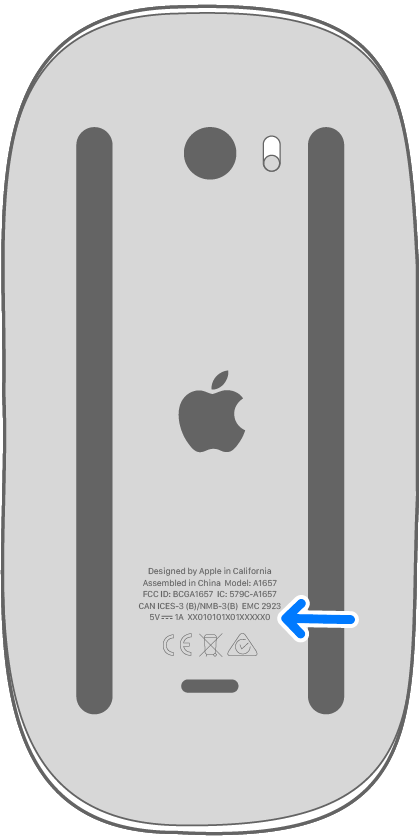
Figure 1, above: Magic Mouse latch and batteries


Figure 2, above: Mighty Mouse and Apple Wireless Mouse latch and batteries - Open Mouse System Preferences by choosing System Preferences from the Apple () menu and choosing Mouse from the View menu.
- Click Setup Bluetooth Mouse in the lower right-hand corner of the Mouse System Preferences pane.
- Turn on the mouse by sliding the mouse power switch to the on position. The indicator light above the power switch glows steadily for 5 seconds to indicate the batteries are good. After that, the indicator light should begin to flash to indicate the mouse is in discovery mode.
Note: If the light on the bottom of the mouse does not glow or flash when you turn on the mouse, make sure the batteries are properly charged and installed.

Figure 3, above: Slide the Magic Mouse power switch up to turn it on

Figure 4, above: Slide the Mighty Mouse or Apple Wireless Mouse power switch down to turn it on - After 5-10 seconds, the Mouse name should appear in the Search System Preferences pane.
- Click Continue. The Setup Assistant will try to pair with the mouse.
- Once the computer and keyboard have successfully paired, the Mouse System Preferences pane will expand to show all configurable options and battery level in the lower left-hand corner.
You should now be able to use the Apple Wireless Mouse.
Additional Information
Important: Information about products not manufactured by Apple is provided for information purposes only and does not constitute Apple’s recommendation or endorsement. Please contact the vendor for additional information.