Mac Basics: DVD Player
Summary
Learn about DVD Player, included with OS X.
Products Affected
DVD Player, Mac OS X 10.3, Mac OS X 10.4, Mac OS X 10.5, Mac OS X 10.6, OS X Lion, OS X Mountain Lion
With DVD Player, you can watch DVD movies right on your computer. If your Mac doesn't have a built-in optical drive, you can use an external Apple USB SuperDrive with DVD Player.
DVD Player lets you control your viewing experience just as if you were using a full-featured remote control with a standalone DVD player. It remembers where you stopped viewing a DVD and gives you the option to resume play at that point. You can bookmark your favorite scenes for viewing at any time, restrict access to certain DVDs using parental controls, and play media stored on your hard drive.

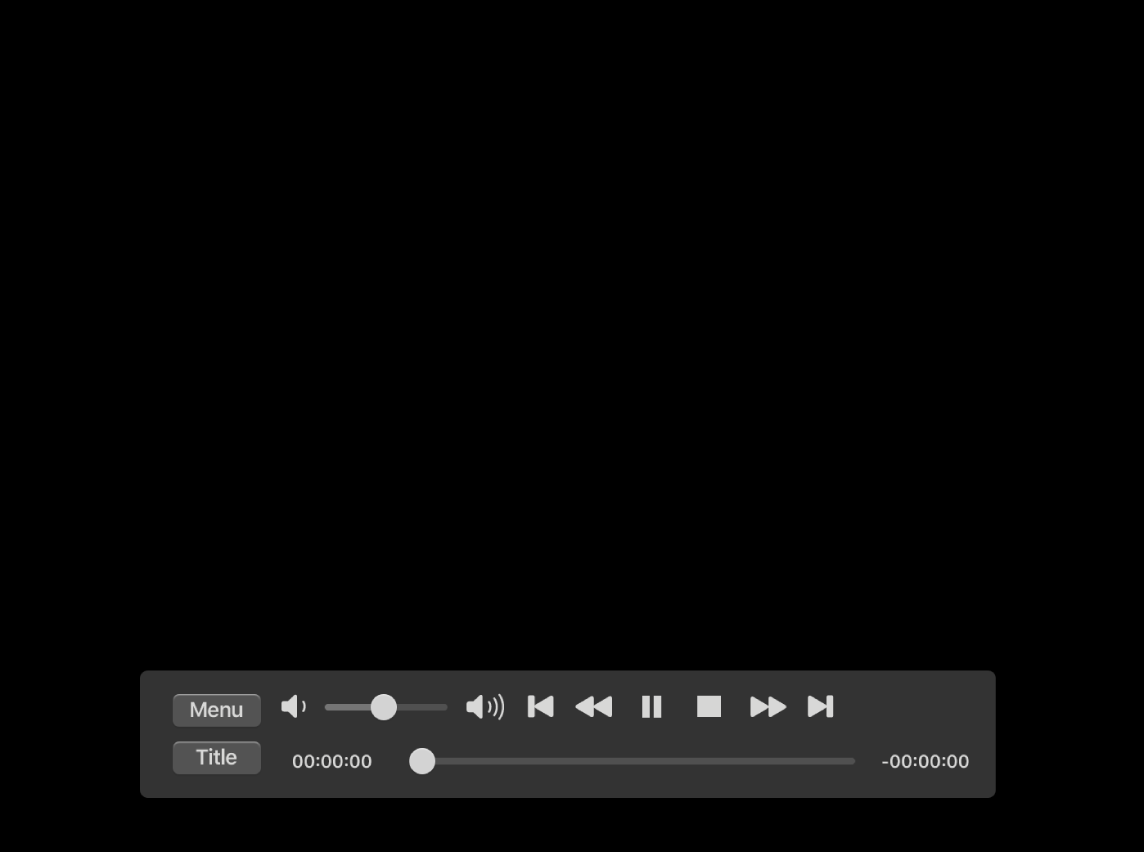
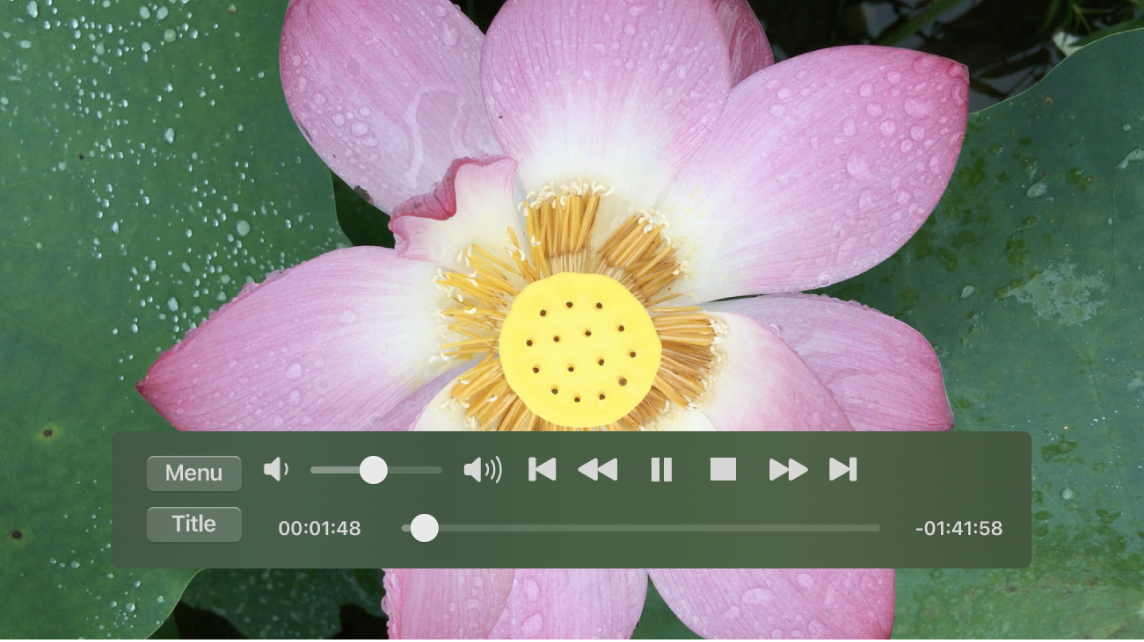
DVD Player not only lets you watch movies on your Mac, it includes a controller that functions just like your regular remote control
With DVD Player, you get the same controls you'd find on a DVD player remote control, including standard playback controls, navigational buttons, volume, chapter skip, menu, slow motion, subtitles, audio, camera angle, and more. You can also choose to view a movie in one of three window sizes, or view it in full screen. Here's how to use DVD Player to access and play content on a DVD movie disc.
- Insert a DVD-Video disc in your computer's optical drive.
- DVD Player automatically opens and displays the disc's DVD menu screen.
- To access the menu items, you can either use your mouse to select things, or use the navigational buttons on the DVD Player Controller.
- If DVD Player is set to Full Screen mode, you won't see your screen's menu bar, but you can easily access it by moving the pointer to the top of the screen.
- To change the size of the window, choose a size from the View menu (or Video menu in Mac OS X v10.6 and earlier).
- If you'd like to turn on closed captioning, which displays all dialog in text captions, from the Features menu (or Controls menu in Mac OS X v10.6 and earlier), choose Closed Captioning, then Turn On.
- To play the movie, click "Play Movie" in the DVD menu. During play, you can use the DVD Player Controller to pause, stop, fast forward or rewind, skip chapters, turn subtitles on or off, and more.
- When you're done watching, click the "eject" button on the controller, or drag the DVD icon on your desktop to the Trash icon to eject it.
Additional Information
Twitter
Facebook