Change the language on your iPhone or iPad
You can change the language setting on your iPhone or iPad if it's incorrect or if you've accidentally changed the language to one you don't understand.
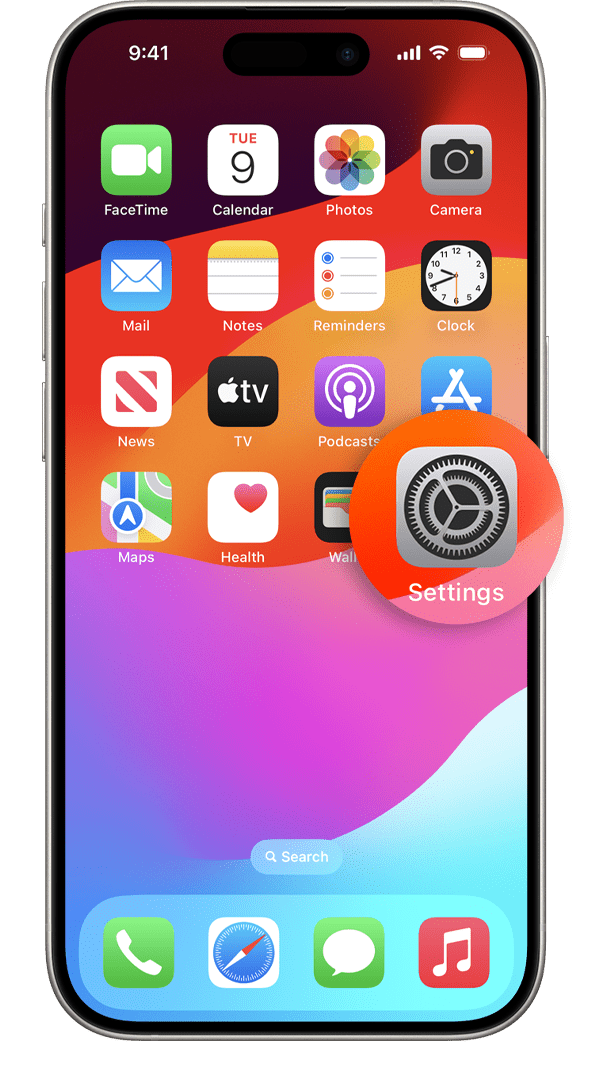
Open the Settings app
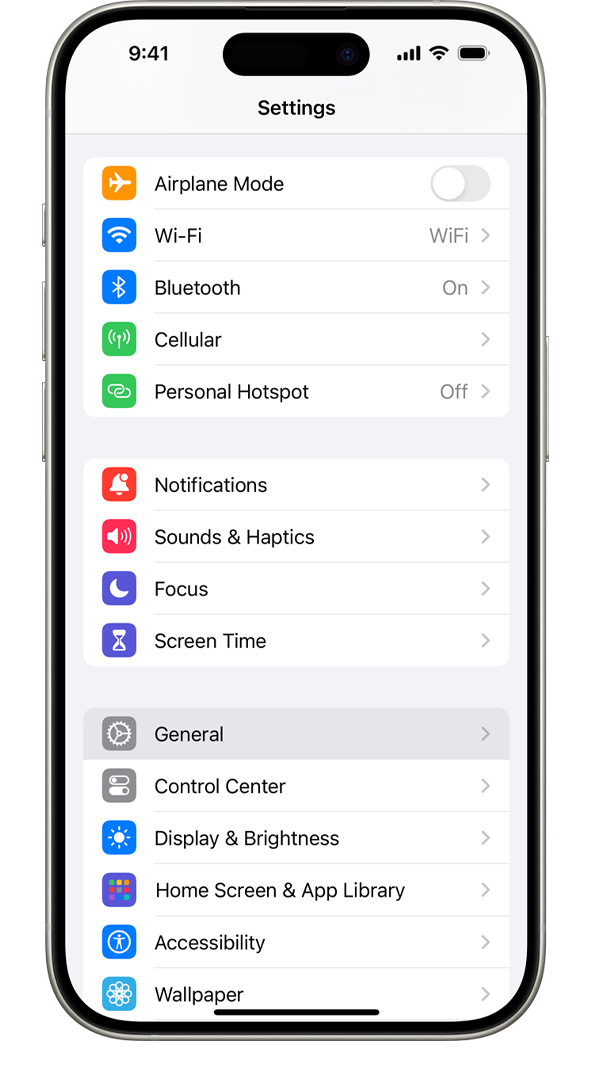
Tap General
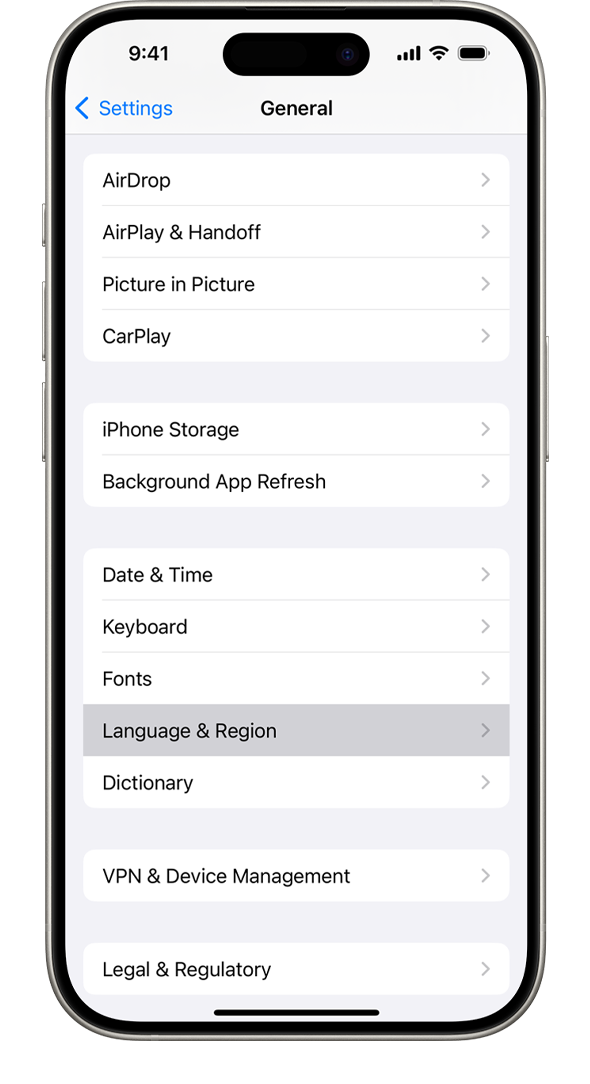
Select Language & Region
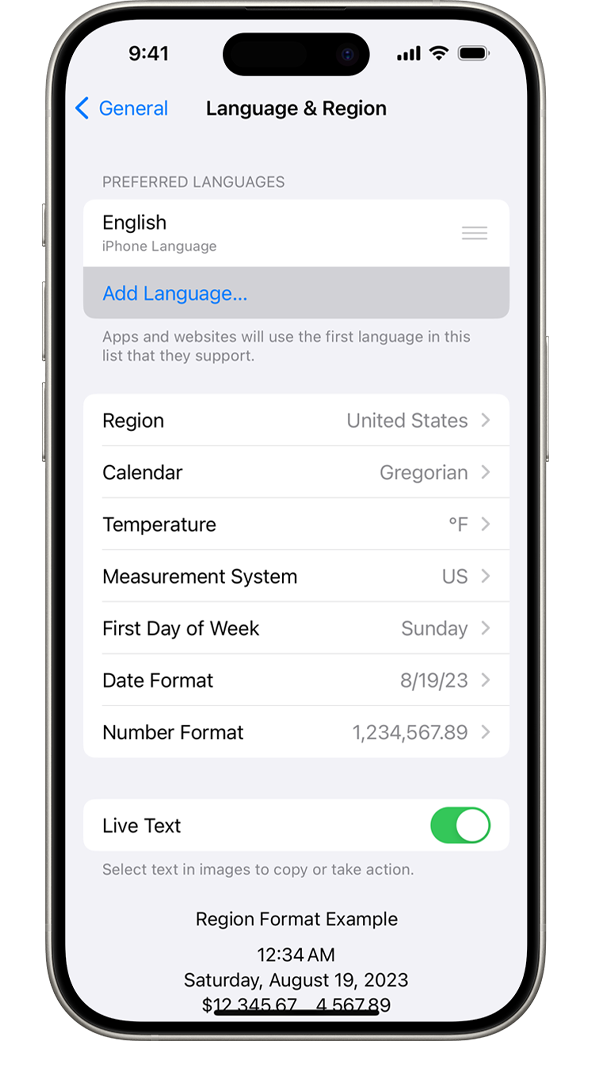
Tap Add Language
Select your language
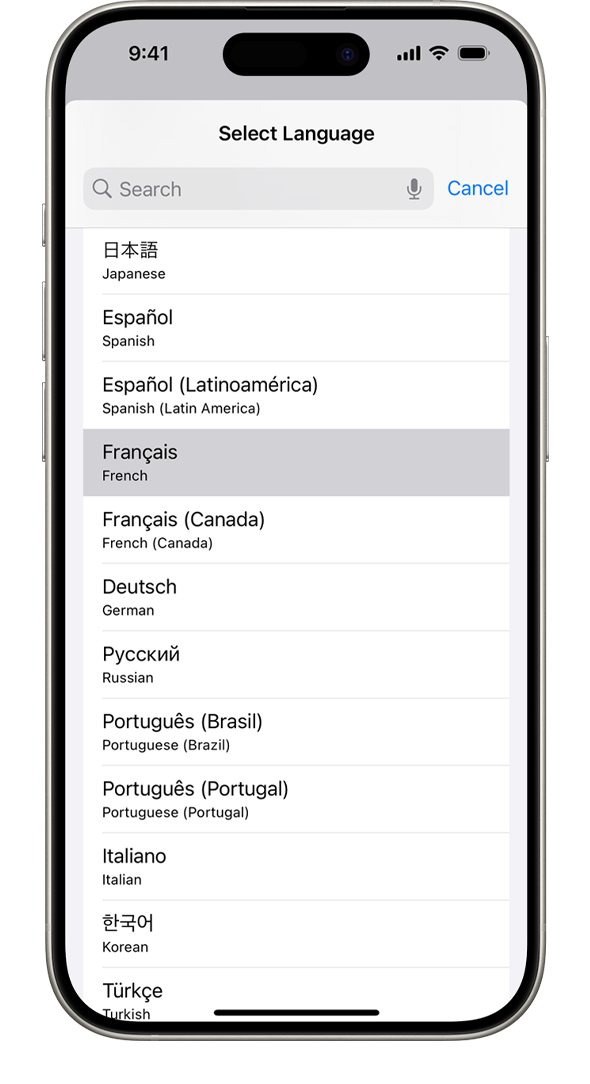
Select your primary language
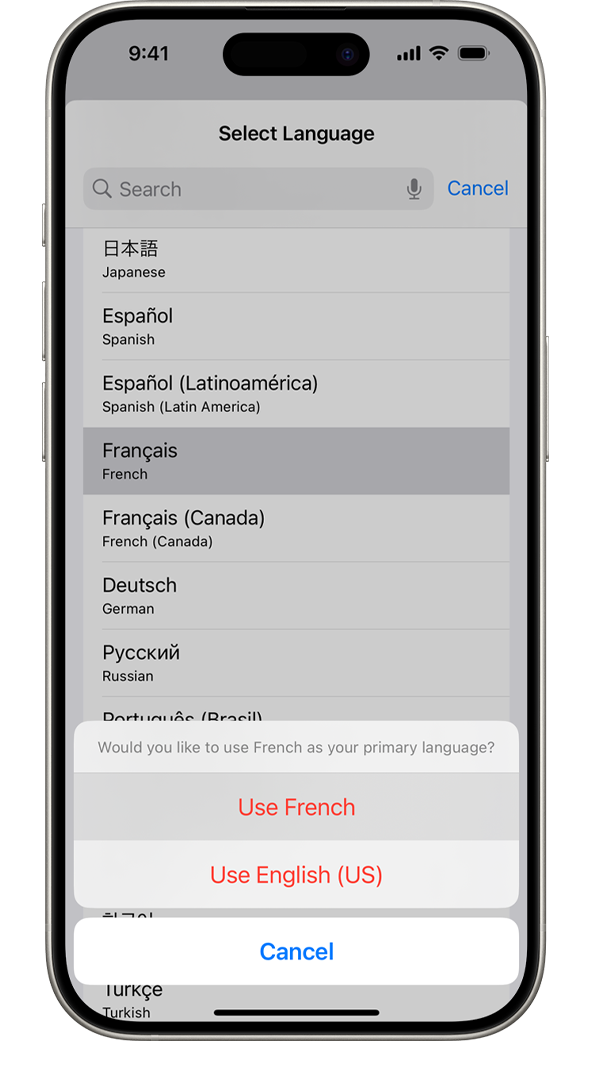
An alert will ask you which language you want to use as your primary language. After your device updates the language, your device automatically displays the language you selected.
Published Date:


