Add a payment method to your Apple ID
Add a payment method that you and your family can use for the App Store, iCloud+, Apple Music, and more.
Add a payment method
To make purchases from the App Store and use subscriptions like iCloud+ and Apple Music, you need at least one payment method accepted in your country or region on file.
Add a payment methodAdd a payment method on your iPhone, iPad, or Apple Vision Pro
Open the Settings app.
Tap your name.
Tap Payment & Shipping. You might be asked to sign in with your Apple ID.
Tap Add Payment Method.
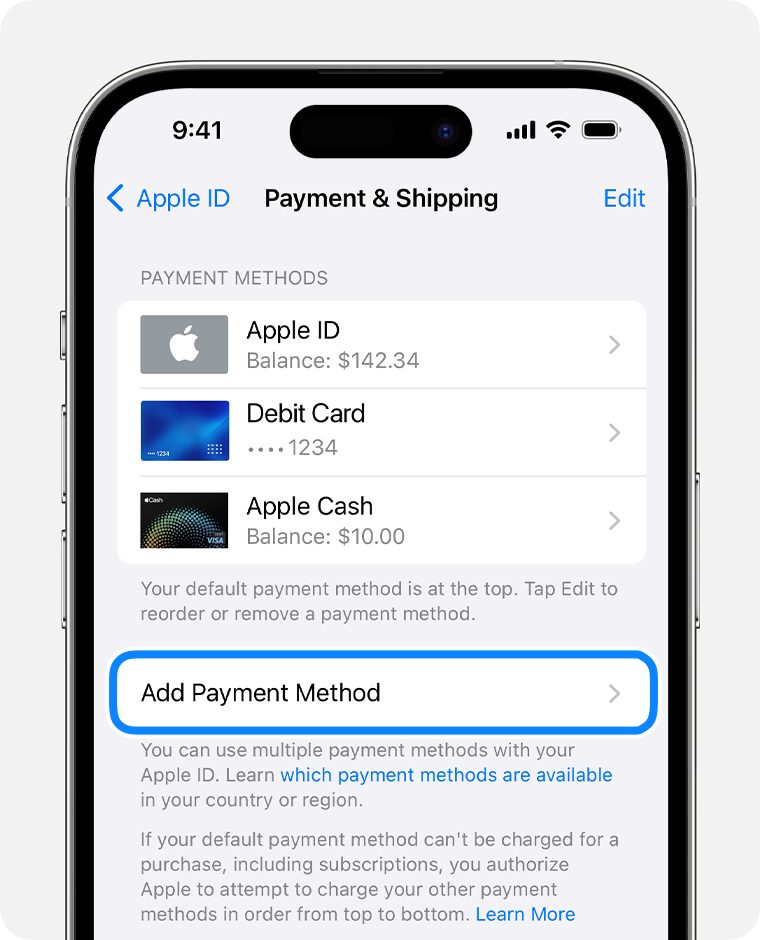
Enter the payment method details, then tap Done.
Reorder payment methods on your iPhone, iPad, or Apple Vision Pro
On the Payment & Shipping screen, tap Edit.
Touch and hold a payment method to drag it further up or down your list of payment methods. Apple will attempt to charge your payment methods in the order that they appear.
Tap Done.
If you already have a payment method on file, learn how to change or update your payment method.
Add a payment method on your Mac
Open the App Store.
Click your name. If your name doesn't appear, click the Sign In button, sign in with your Apple ID, then click your name.
Click Account Settings. You might be asked to sign in with your Apple ID.
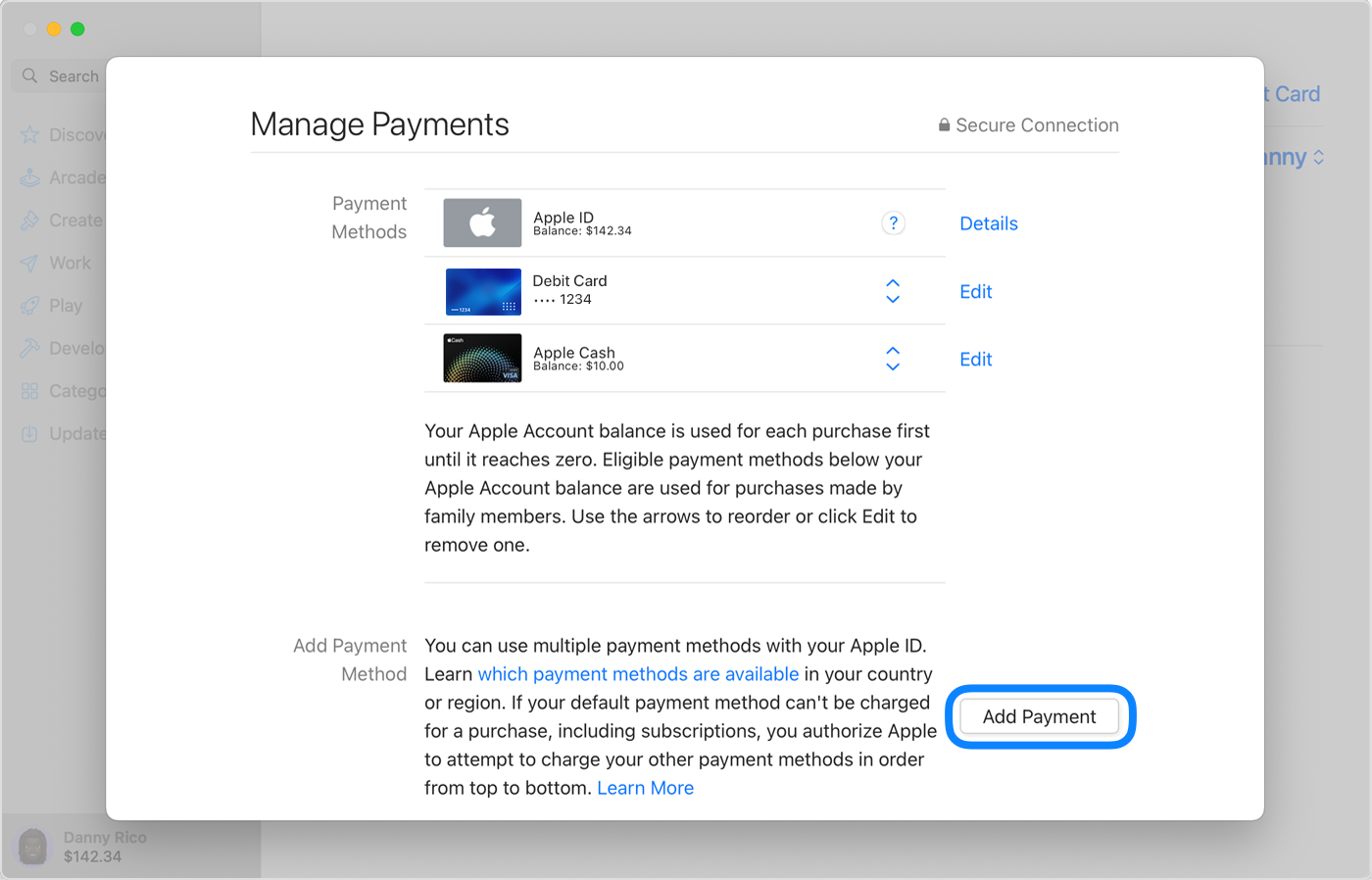
Next to Payment Information, click Manage Payments.
Click Add Payment.
Enter the payment method details, then click Done.
Reorder payment methods on your Mac
On the Payment Information screen, use the arrows next to each payment method to move it further up or down your list of payment methods. Apple will attempt to charge your payment methods in the order that they appear.
If you already have a payment method on file, learn how to change or update your payment method.
Add a payment method on your Windows PC
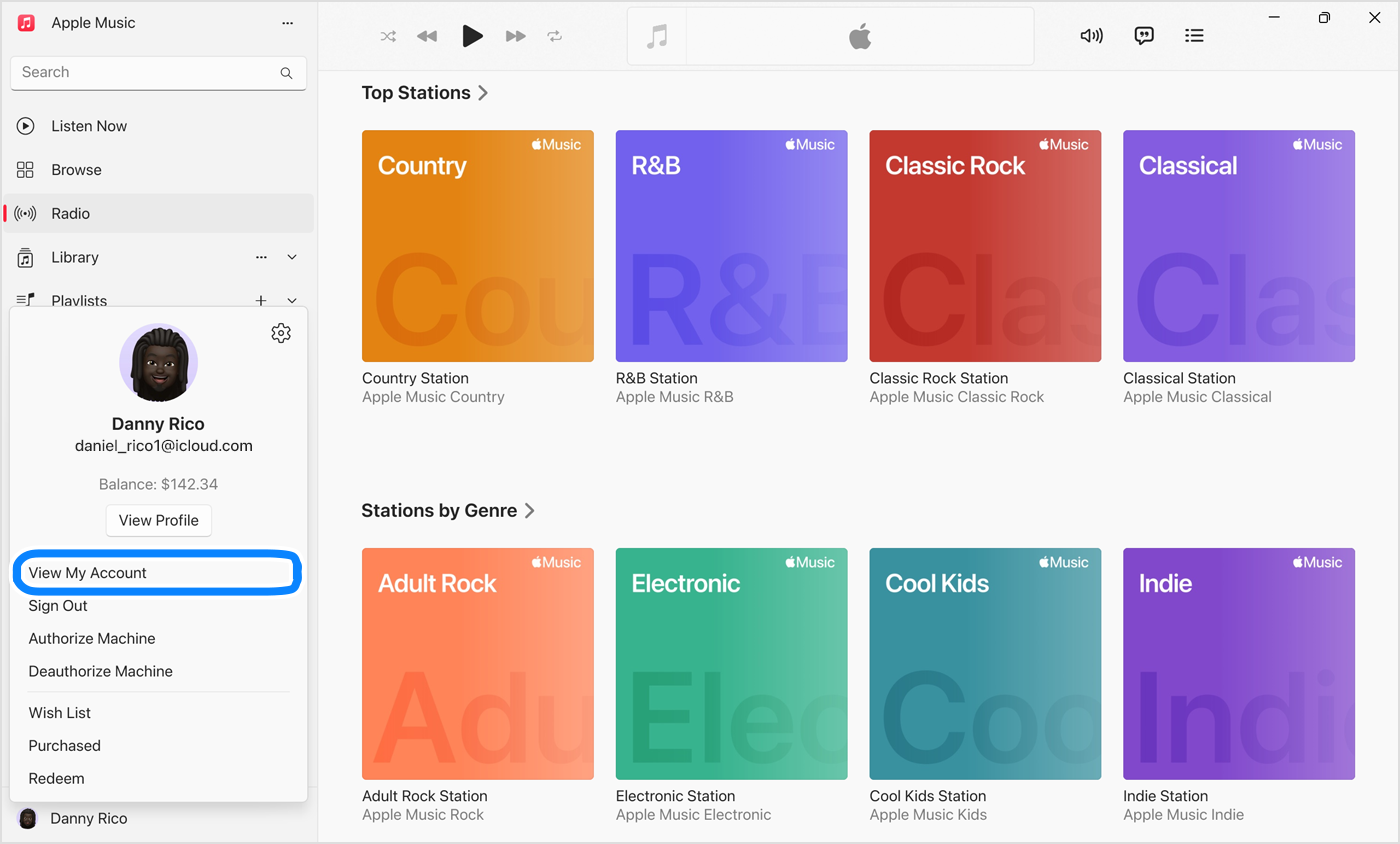
On your Windows PC, open the Apple Music app or Apple TV app.
Click your name at the bottom of the sidebar, then choose View My Account. You might need to sign in with your Apple ID first.
Next to Payment Information, click Manage Payments.
Click Add Payment.
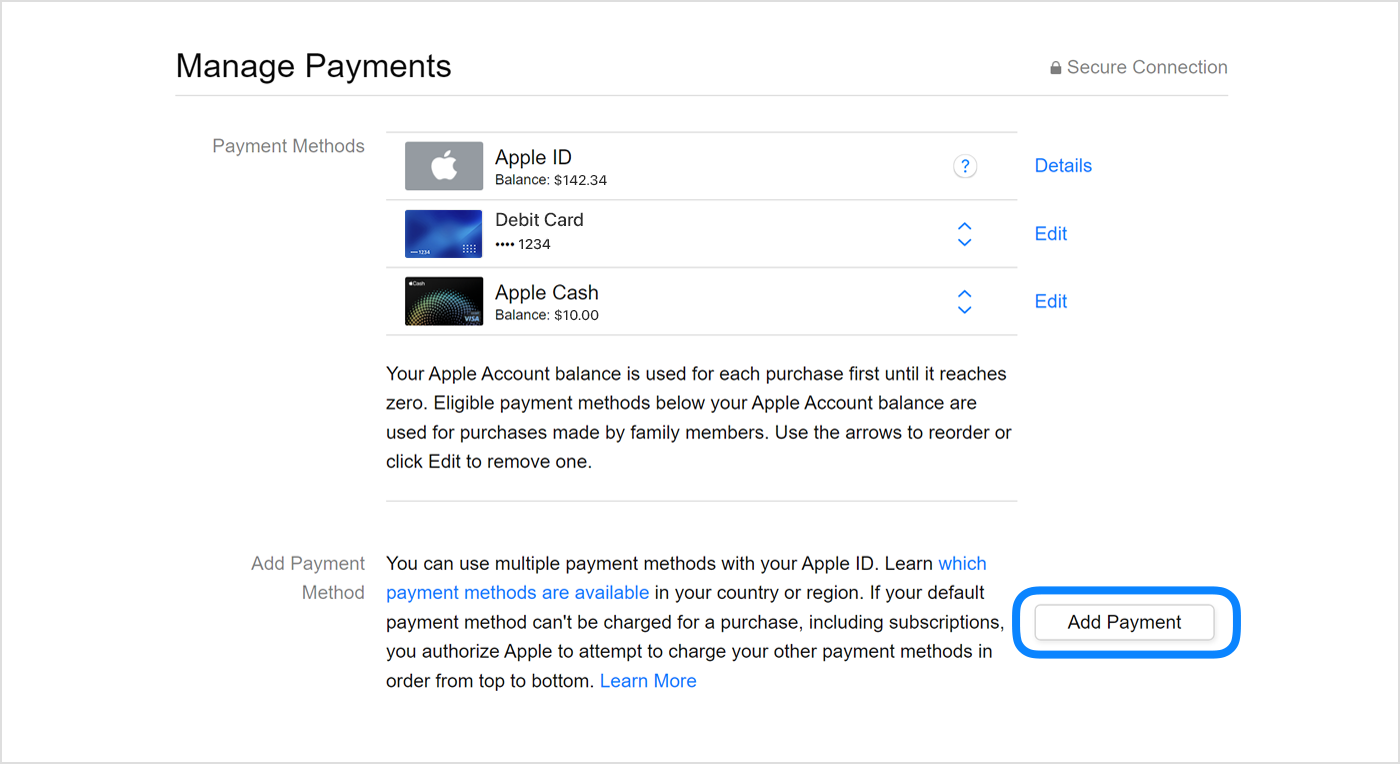
Enter the payment method details, then click Done.
Reorder payment methods on your Windows PC
On the Payment Information screen, use the arrows next to each payment method to move it further up or down your list of payment methods. Apple will attempt to charge your payment methods in the order that they appear.
If you already have a payment method on file, learn how to change or update your payment method.
Add a payment method online
You can also add a payment method after signing in to appleid.apple.com.
In some countries and regions, when you edit payment information online at appleid.apple.com, additional payment methods might be removed from your account automatically.
Information about products not manufactured by Apple, or independent websites not controlled or tested by Apple, is provided without recommendation or endorsement. Apple assumes no responsibility with regard to the selection, performance, or use of third-party websites or products. Apple makes no representations regarding third-party website accuracy or reliability. Contact the vendor for additional information.


