About cellular data roaming options for your iPhone and iPad
Turn data roaming on or off, prepare for international trips, and more.
Turn off Data Roaming or prepare for a trip
Need to avoid roaming charges because you arrived at your destination without an international data plan? Check your Cellular Data options and turn off Data Roaming.
In the Settings app, tap Cellular or Cellular Data. Then:
If your device has a single SIM card or eSIM, turn on Cellular Data, then tap Cellular Data Options.
If your device uses Dual SIM or Dual eSIM, turn on Cellular Data, tap the number you want to modify, then tap Cellular Data Options.
Turn off Data Roaming.1,2
Still planning your trip? Here are three other ways to prepare:
Shop roaming plans with your carrier
Before you go: To avoid fees and higher rates, contact your carrier by phone or online to shop international roaming plans.
After arrival: Open Settings. Tap Cellular or Cellular Data. Then:
If your device has a single SIM card or eSIM, turn on Cellular Data, then tap Cellular Data Options, and turn on Data Roaming and other settings suggested by your carrier.
If your device uses Dual SIM or Dual eSIM, turn on Cellular Data, tap the number you want to modify, then tap Cellular Data Options, and turn on Data Roaming and other settings suggested by your carrier.
Shop roaming plans with eSIM
Before you go: If you have an iPad with an eSIM3, you can browse cellular data plans from select carriers in more than 90 countries, regions, and territories.
After arrival: Go to Settings > Cellular Data and buy a roaming plan that fits your needs.
Beginning October 1, 2022, Apple SIM technology will no longer be available for activating new cellular data plans on iPad. If you're not sure if your iPad uses Apple SIM, find your iPad model and click the link for its tech specs.
Buy or rent local SIM cards
Before you go: You can usually4 buy or rent a SIM card for a specific country or region. Learn more from travel guides and websites related to the country or region.
After arrival: Replace your current iPhone SIM card or iPad SIM card with the new one. You'll need the original when you return home, so put your original in a safe place.
If your iPhone uses eSIM, you can purchase an eSIM when you travel. Learn how to use an eSIM while you travel abroad.
When you turn off Cellular Data and Data Roaming, the cellular data icon shouldn't appear in the status bar. Learn more about cellular data settings and usage.
Apple Watch Series 4 doesn't support data roaming. While using data roaming on your iPhone, your Apple Watch Series 4 will only be able to use Wi-Fi or your iPhone cellular connection.
To use eSIM with your iPad in China mainland, you need an iPad (10th generation) Wi-Fi + Cellular, model number A3162. All other iPad models, including those purchased outside of China mainland, are unable to install an eSIM profile from carriers in China mainland. Learn more about using eSIM with your iPad in China mainland.
To use bought or rented SIM cards, you need an iPad (Wi-Fi + Cellular), unlocked iPhone, or SIM-free iPhone.
Check your data usage
If you exceed the data-usage limits of your international data plan, you might run out of data or notice slower network speeds. To check data usage, open Settings and tap Cellular or Cellular Data. Then look under the Cellular Data heading.
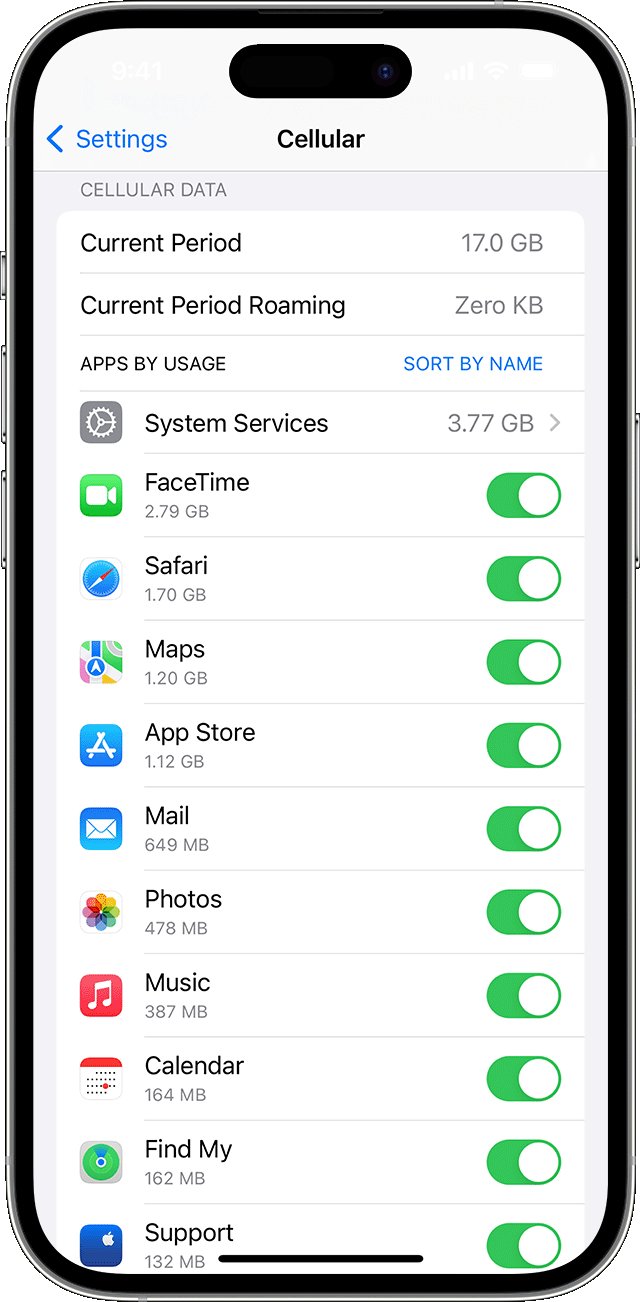
Learn more about cellular data usage.
If you have roaming issues during international travel
If the date and time are wrong after you arrive, go to Settings > General > Date & Time. Make sure that Set Automatically is turned on.
Turn on Airplane Mode for about 30 seconds. Then turn it off again and let your iPhone automatically select the best network.
If you see No Service or SOS only in the status bar of your iPhone, open Settings and tap Cellular or Cellular Data. Then:
If your device has a single SIM card or eSIM, turn on Cellular Data, then tap Cellular Data Options, and make sure Data Roaming is on.
If your device uses Dual SIM or Dual eSIM, turn on Cellular Data, tap the number you want to modify, then tap Cellular Data Options, and make sure Data Roaming is on.
If you still need help, try a different SIM card or contact your carrier for more information.
If you use an iPhone with an eSIM, learn more about your travel options for eSIM.


