AirPort base stations: Getting an equivalent network password
Learn how to get an equivalent network password for your AirPort base station.
For an explanation of when you would use an equivalent network password, see how to join an encrypted wireless network. Alternatively, you can eliminate the need for an equivalent network password by making a better password choice.
Before you begin
You must know the base station password.
You must connect to the base station from Mac OS X, or from a PC running Windows XP later.
Windows must have the latest version of AirPort Utility for Windows installed.
Getting the password
Follow these steps if using the AirPort Utility:
Open AirPort Utility, in Mac OS X from Applications/Utilities or in Windows from the Start Menu > All Programs > AirPort.
Select your base station from the list.
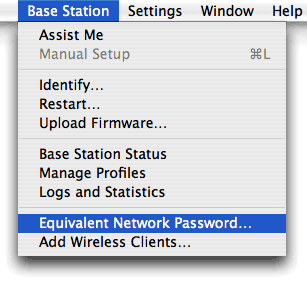
Manually configure your base station (press Command-L or selecting Manual Setup from the Base Station menu).
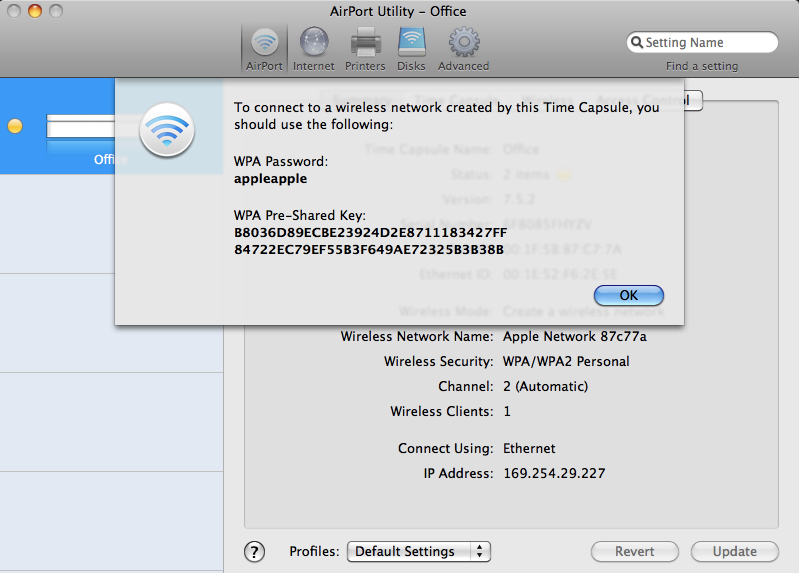
Select Equivalent Network Password from the Base Station menu.
Highlight the text in the dialog window to copy and paste.
Follow these steps if using the AirPort Admin Utility:
Open AirPort Admin Utility, in Mac OS X from Applications/Utilities or in Windows from the Start Menu > All Programs > AirPort.
Select your base station from the list.
Click Configure.
When prompted, enter the password for your base station.
Click the Password icon at the top of the window.
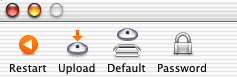
A window appears with the network equivalent password for your base station.
Information about products not manufactured by Apple, or independent websites not controlled or tested by Apple, is provided without recommendation or endorsement. Apple assumes no responsibility with regard to the selection, performance, or use of third-party websites or products. Apple makes no representations regarding third-party website accuracy or reliability. Contact the vendor for additional information.