Add an email account to your iPhone, iPad, or iPod touch
There are two ways that you can set up an email account in the Mail app on your iOS device — automatically or manually. Learn which option is best for you.
Set up automatically if you use a common email provider
If you use an email provider like iCloud, Google, Microsoft Exchange, or Yahoo, Mail can automatically set up your email account with just your email address and password. Here's how:
Go to Settings > Mail, then tap Accounts.
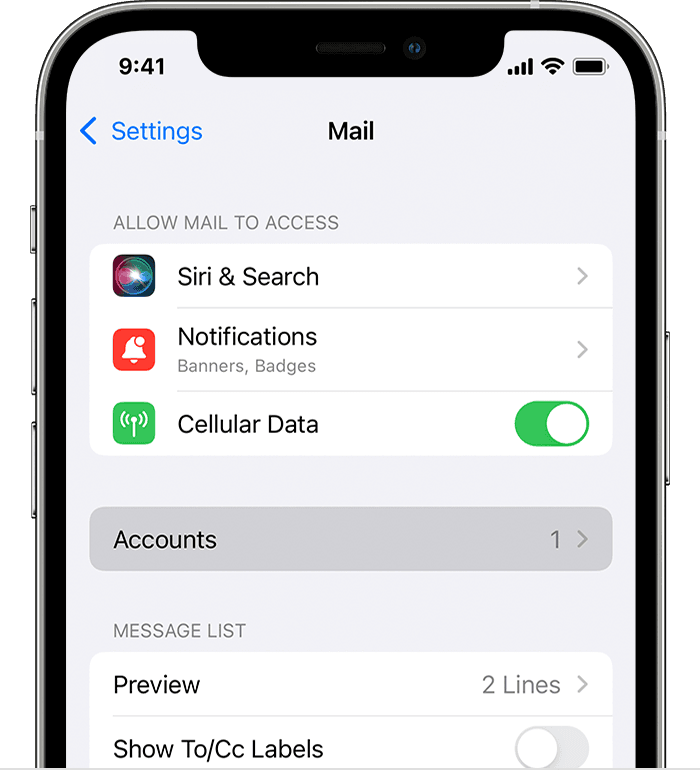
Tap Add Account, then select your email provider.
Enter your email address and password.
If you see Next, tap Next and wait for Mail to verify your account.
If you see Save, tap Save.
Learn which listed email provider matches your email account
Set up manually when you select Other for less common email providers
If you need to set up your email account manually, make sure that you know the email settings for your account. If you don’t know them, you can look them up or contact your email provider. Then follow these steps:
Go to Settings > Mail, then tap Accounts.
Tap Add Account, tap Other, then tap Add Mail Account.
Enter your name, email address, password, and a description for your account.
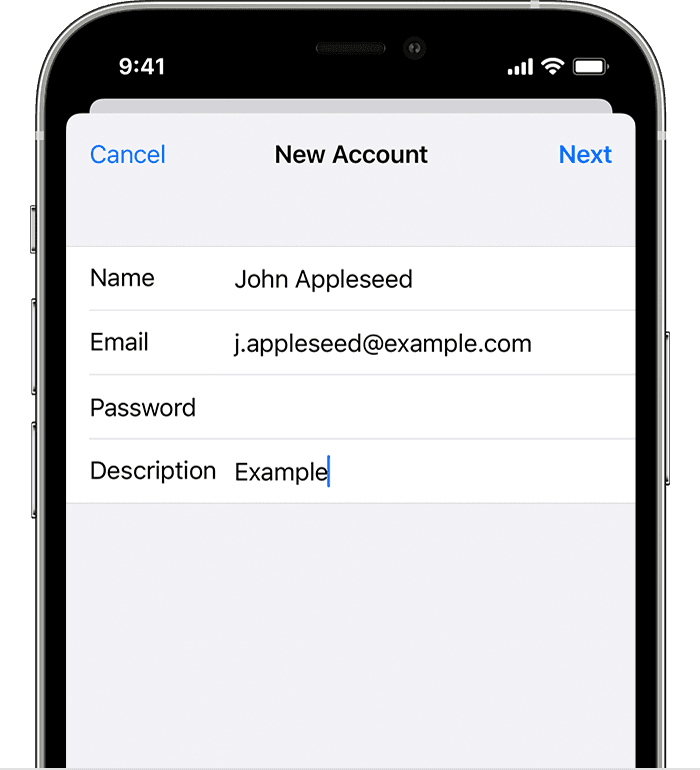
Tap Next. Mail will try to find the email settings and finish your account setup. If Mail finds your email settings, tap Done to complete your account setup.
If Mail can't find your account settings automatically
If Mail can't find your email settings, then you need to enter them manually. Tap Next, then follow these steps:
Choose IMAP or POP for your new account. If you aren’t sure which one to choose, contact your email provider.
Enter the information for Incoming Mail Server and Outgoing Mail Server. Then tap Next. If you don't have this information, try to look it up.
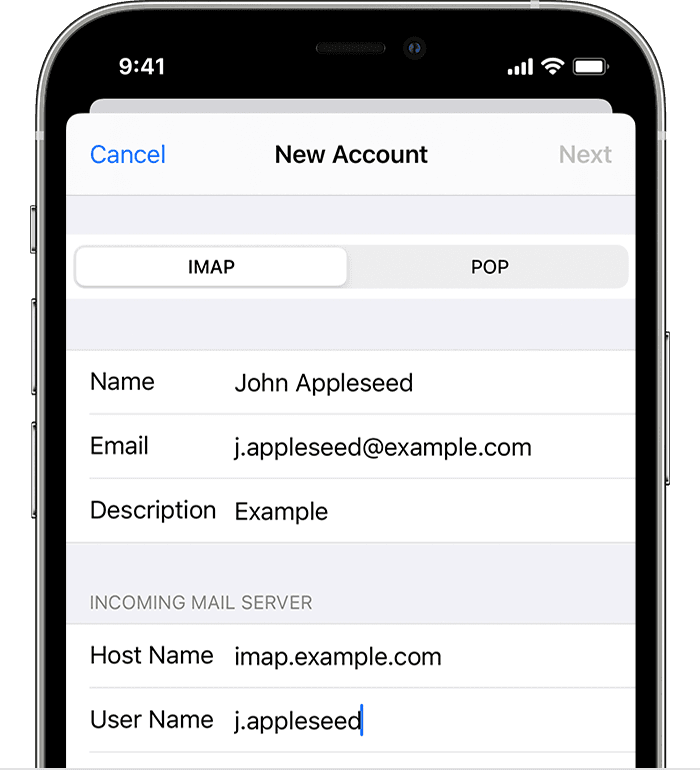
If your email settings are correct, tap Save to finish. If the email settings are incorrect, you'll be asked to edit them.
If you still can't set up your email account or save your email settings, contact your email provider.
Do more with Mail
Information about products not manufactured by Apple, or independent websites not controlled or tested by Apple, is provided without recommendation or endorsement. Apple assumes no responsibility with regard to the selection, performance, or use of third-party websites or products. Apple makes no representations regarding third-party website accuracy or reliability. Contact the vendor for additional information.


