Gift apps, media, and more from Apple
Found something special in the App Store? You can send it to a friend or family member. Or if you're not sure what to give, you can email a gift card.
If there's an issue when you send a gift
Send a gift
Gifts are billed to your payment method, not to your Apple Account balance.
How to send a gift from your iPhone or iPad
Open the App Store app, iTunes Store app, or Books app.
Tap the item that you want to give.
Tap the Gift button:
In the App Store, tap the Share button
 , then tap Gift App
 .
.In the iTunes Store, tap the Share button
, then tap Gift .
. In the Book Store, tap Gift
 .
.
Follow the onscreen instructions to personalize and send your gift.
After the gift is sent, the recipient gets an email. When they open the email and click Redeem, the item automatically downloads to their device.
You can also send a gift card. In the App Store, tap your profile icon at the top of the screen, tap Send Gift Card by Email. Then follow the onscreen instructions to personalize and send your gift.
How to send a gift from your Mac or Windows PC
On your Mac, open the iTunes Store in the Apple Music app. On a Windows PC, open the Apple Music app.
Find the item that you want to gift.
Click the arrow button
 next to the item's price to show sharing options.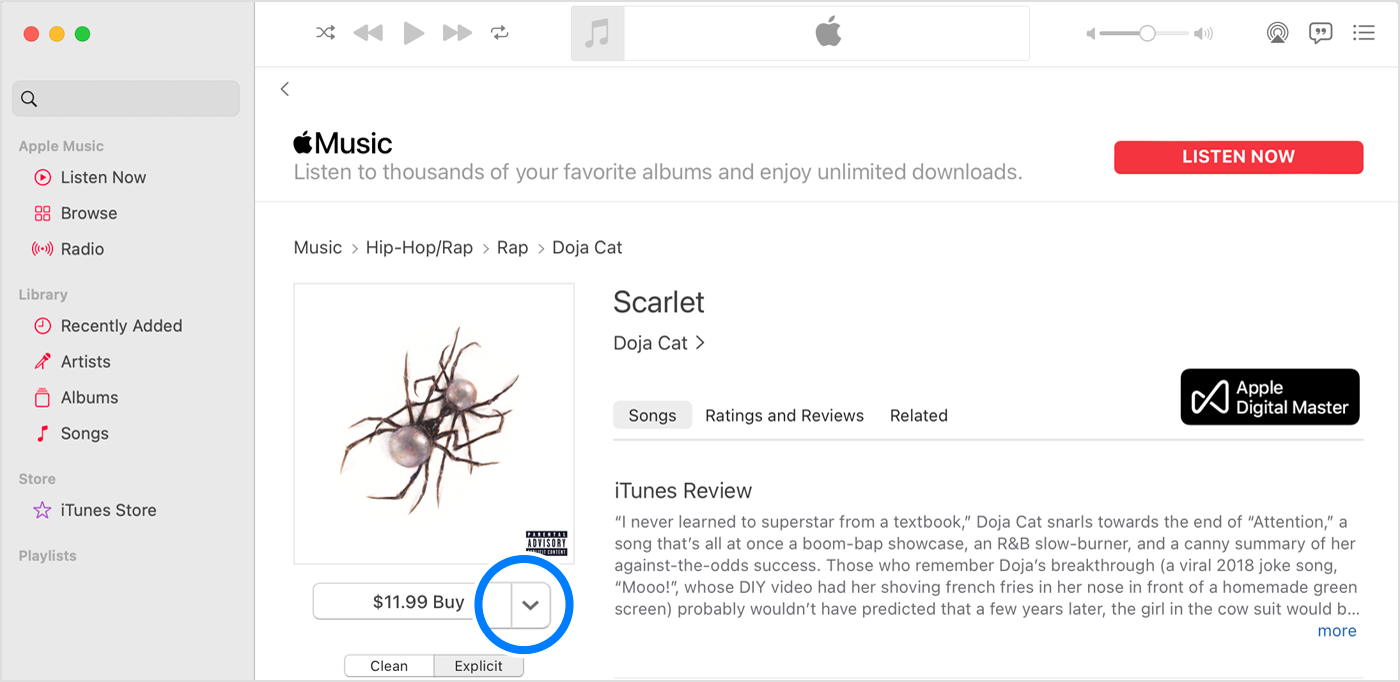
Choose Gift This [item type].
Follow the onscreen instructions to personalize and send your gift.
After the gift is sent, the recipient gets an email. When they open the email and click Redeem, the item automatically downloads to their device.
Resend a gift
If the recipient can't find the email with the redeem button, you can resend the gift.
How to resend a gift from your iPhone or iPad
Open the Settings app.
Tap your name.
Tap Media & Purchases, then tap View Account.
Sign in with your Apple ID.
Tap Gifts.
Tap the gift that you want to resend.
Make sure that the recipient's email is spelled correctly. If you need to edit the recipient's email address, tap their email address, then tap it again and enter the correct address.
Tap Resend Gift. If you don't see Resend Gift, it has already been redeemed.
How to resend a gift from your computer
Open the Music app. Or if you're on a Windows PC, open the Apple Music app.
From the menu bar on your Mac, choose Account > Account Settings. Or on a Windows PC, click your name in the sidebar, then click View My Account. You might be asked to sign in with your Apple ID.
The Account Information page appears. Scroll to the Purchase History section and click Manage Gifts.
Click Edit next to the gift that you want to resend.
Make sure that the recipient's email is spelled correctly. If you need to edit the recipient's email address, click the email address, then make changes.
Click Resend Gift.
If there's an issue when you send a gift
The recipient of your gift must have an Apple ID in your country or region. For example, if you're in the United States, you can't send a gift to a friend who lives in Australia.
In some regions, you can't send gifts. Store availability also varies by country or region. Learn what's available in your country or region.
If you use Family Sharing and Ask To Buy is turned on for your account, you can't purchase gifts.
You can't gift individual songs on an iPhone or iPad. To gift a song, use your Mac or Windows PC.
You can't gift apps on a Mac or Windows PC. To gift those items, use an iPhone or iPad.
You can't gift movies or TV shows on a Mac or Windows PC, on an iPhone running iOS 17.2 or later, on an iPad running iPadOS 17.2 or later, or on an Apple TV running tvOS 17.2 or later.
You can't gift a free app or item. But you can tap the Share button
or the arrow button to share a link to the app or item.
Cancel a gift
If you want to cancel a gift, you can contact Apple Support up to two days before scheduled delivery.
Email a gift card
Your recipient can redeem an Apple Gift Card or App Store & iTunes gift card to their Apple Account balance. Then they can use that balance to buy subscriptions like Apple Music, Apple Arcade, or Apple TV+. Or they can buy apps and more from Apple.
Information about products not manufactured by Apple, or independent websites not controlled or tested by Apple, is provided without recommendation or endorsement. Apple assumes no responsibility with regard to the selection, performance, or use of third-party websites or products. Apple makes no representations regarding third-party website accuracy or reliability. Contact the vendor for additional information.


