Back up your Mac with Time Machine
If you have a USB drive or other external storage device, you can use Time Machine to automatically back up your files, including apps, music, photos, email, and documents.

Connect a storage device to your Mac
Connect an external storage device, such as a USB drive or Thunderbolt drive, to the appropriate port on your Mac. Identify the ports on your Mac.
Use a storage device with at least twice the storage capacity of your Mac. For example, if your Mac has 1TB of storage, your backup disk should ideally have at least 2TB of storage. If Time Machine needs more storage space, your Mac will let you know.
Use your Time Machine backup disk only for Time Machine backups, not for storage of other files.*
Set up the storage device as your backup disk
Learn the setup steps in your version of macOS, or follow these steps in macOS Ventura 13 or later:
From the Apple menu in the corner of your screen, choose System Settings.
Click General in the sidebar, then click Time Machine on the right.
Click Add Backup Disk, or click the Add button (+).
Select your connected storage device and click Set Up Disk. During setup:
Your Mac might ask if you want to erase the storage device so that it can be used for Time Machine. Either erase it or select a different backup disk or volume.
Your Mac might ask whether this computer should claim existing backups created on a different computer. Claim the backups if you want them to become part of the backups for this Mac.
If you turn on Encrypt Backup to help secure your backup from unauthorized access, you’re asked to create a backup password. You will need it if you later attempt to restore files from the backup.
After setup, your Mac immediately begins using the connected storage device to make backups.
Make a backup
To back up now, choose Back Up Now from the Time Machine menu in the menu bar. Or wait for the next automatic backup.
Use the same menu to stop or skip a backup or check its progress. The top of the menu shows how much of the current backup is done, or the date and time of the latest backup:
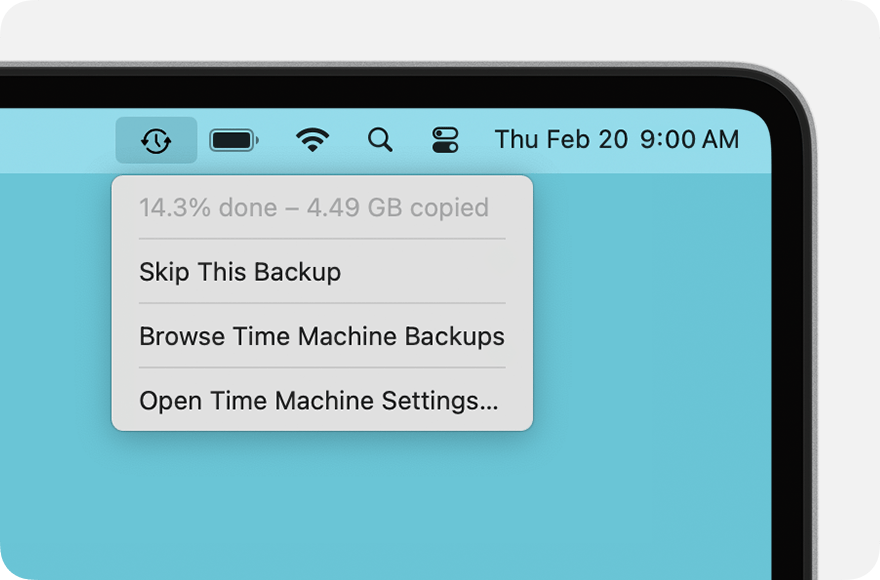
Backup is in progress
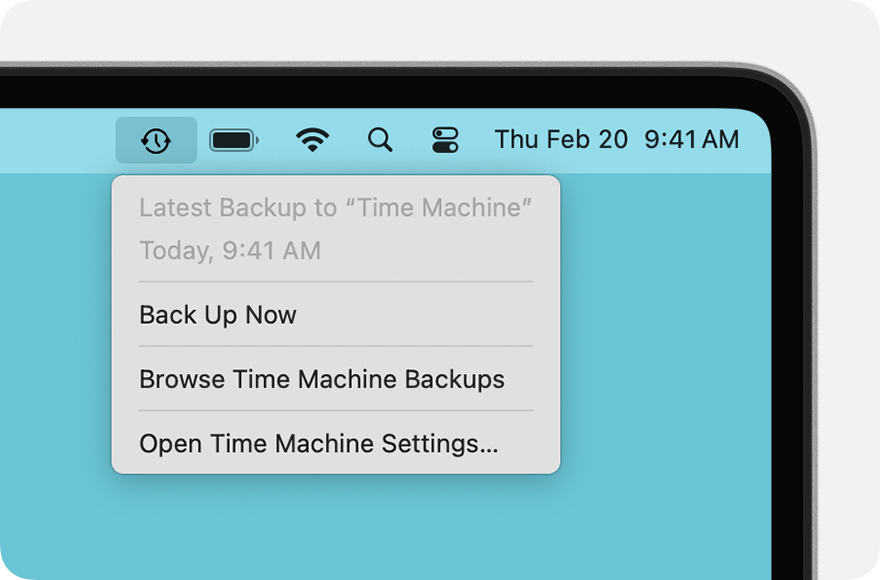
Backup is done
If you don't see this menu, make sure that Menu Bar settings, Control Center settings, or Desktop & Menu Bar preferences are set up to show Time Machine status in the menu bar.
Learn about backup frequency and duration
Time Machine automatically makes hourly backups for the past 24 hours, daily backups for the past month, and weekly backups for all previous months. The oldest backups are deleted when your backup disk is full.
To change the backup frequency in macOS Ventura 13 or later, choose Open Time Machine Settings from the Time Machine menu. Click Options, then choose a setting from the “Back up frequency” menu.
The first backup might take longer than you expect, but you can continue using your Mac while a backup is underway. Time Machine backs up only the files that changed since the previous backup, so future backups will be faster.
If you disconnect your backup disk from your Mac, Time Machine will automatically resume its backup schedule when you reconnect it to your Mac. Before disconnecting your backup disk, either eject the backup disk or shut down your Mac.
Restore your Mac from a backup
You can use your Time Machine backup to restore any or all of your files to the same Mac or a different Mac. Learn how to restore your Mac from a Time Machine backup.
Learn more
* Advanced users: If you add an APFS volume to the external storage device, you can use one volume for Time Machine backups and the other for storage of other files. The Time Machine volume should be twice the storage capacity of your Mac.
Information about products not manufactured by Apple, or independent websites not controlled or tested by Apple, is provided without recommendation or endorsement. Apple assumes no responsibility with regard to the selection, performance, or use of third-party websites or products. Apple makes no representations regarding third-party website accuracy or reliability. Contact the vendor for additional information.