Reset the SMC of your Mac
The System Management Controller (SMC) is responsible for managing power on your Mac. Resetting it can help resolve uncommon issues related to power, thermal management, or hardware behavior.
Do you need to reset the SMC?
You most likely do not need to reset the SMC. However, it may help resolve certain issues on Intel-based Mac computers.
If you’re experiencing one of these issues, follow the instructions below based on your Mac type.
What does the SMC control?
Power button behavior
Battery and charging
USB port power
Thermal features like fans
Lid open and close behavior
Sensors (such as ambient light, motion sensor, keyboard backlighting)
Status indicators (such as sleep and battery lights)
Resetting the SMC does not affect NVRAM or PRAM.
Identify Your Mac type
Choose your path based on your chip type:
Find out if you have a Mac with Apple silicon
Find out if you have a Mac with the Apple T2 Security Chip
Mac with Apple Silicon
Make sure that your Mac is plugged into power, then take one of these actions.
Restart: Choose Restart from the Apple menu .
Or shut down: Choose Shut down from the Apple menu . Then press the power button on your Mac to turn it on again.
No other steps are needed. SMC resets automatically on Mac with Apple silicon.
Mac with the Apple T2 Security Chip
Step 1: Restart
Shut down your Mac.
Press and hold the power button (or Touch ID) for 10 seconds.
Release, wait a few seconds, then turn it back on.
Step 2: Reset the SMC (if issue persists)
Shut down your Mac.
On your built-in keyboard, press and hold all of the following keys. Your Mac might turn on.
Control
 on the left side of your keyboard
Option (Alt)
 on the left side of your keyboard
Shift
 on the right side of your keyboard
Keep holding all three keys for 7 seconds, then press and hold the power button as well. If your Mac is on, it will turn off as you hold the keys.
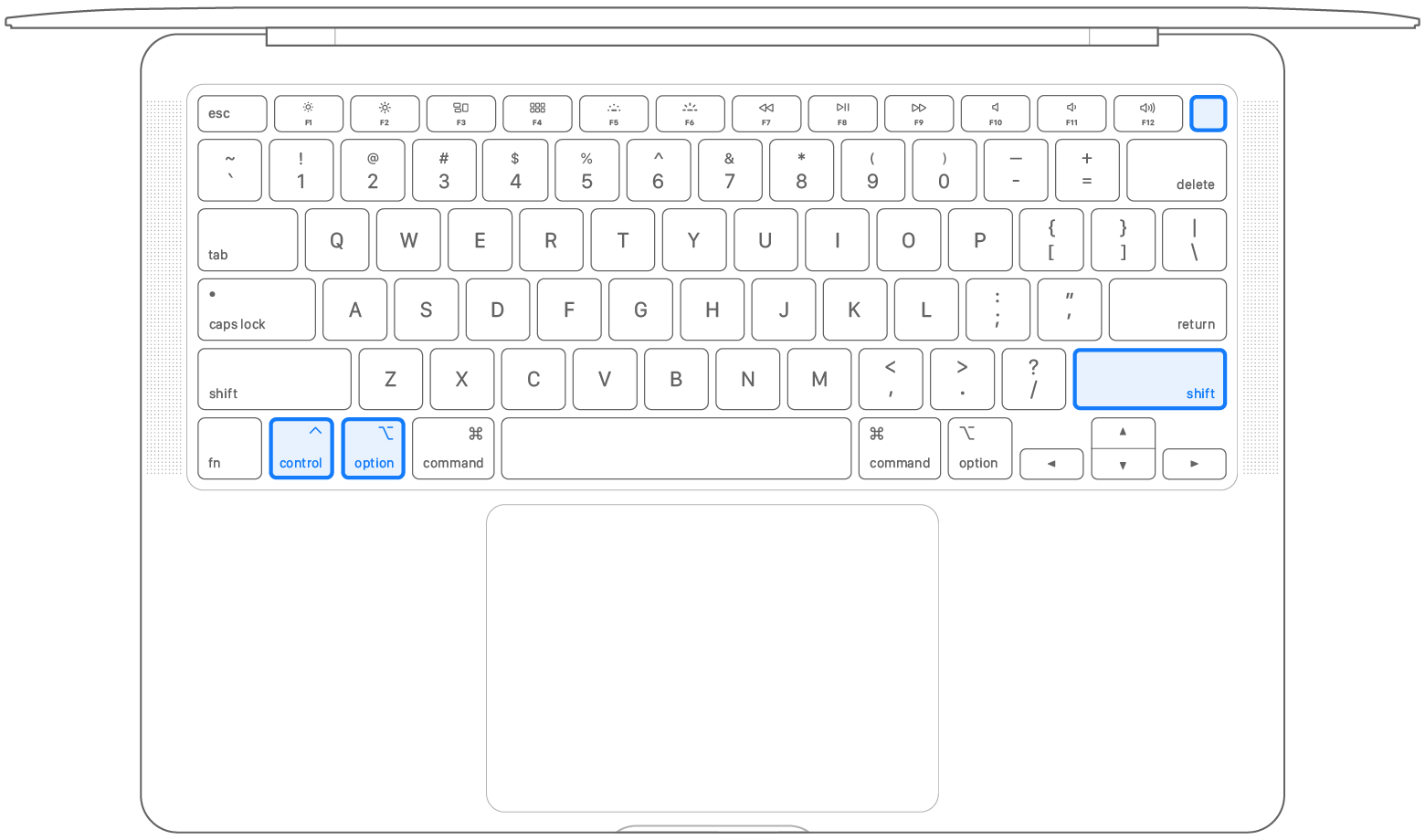
Keep holding all four keys for another 7 seconds, then release them.
Wait a few seconds, then press the power button to turn on your Mac.
Desktop computer with the T2 chip
If your Mac isn't a laptop computer, follow these steps:
Shut down your Mac, then unplug the power cord.
Wait 15 seconds, then plug the power cord back in.
Wait 5 seconds, then press the power button to turn on your Mac.
For Mac without Apple Silicon or T2 Chip
Laptop Mac
Shut down your Mac.
On your built-in keyboard, press and hold all of these keys:
Shift
on the left side of your keyboardControl
on the left side of your keyboardOption (Alt)
on the left side of your keyboard
While holding all three keys, press and hold the power button as well.
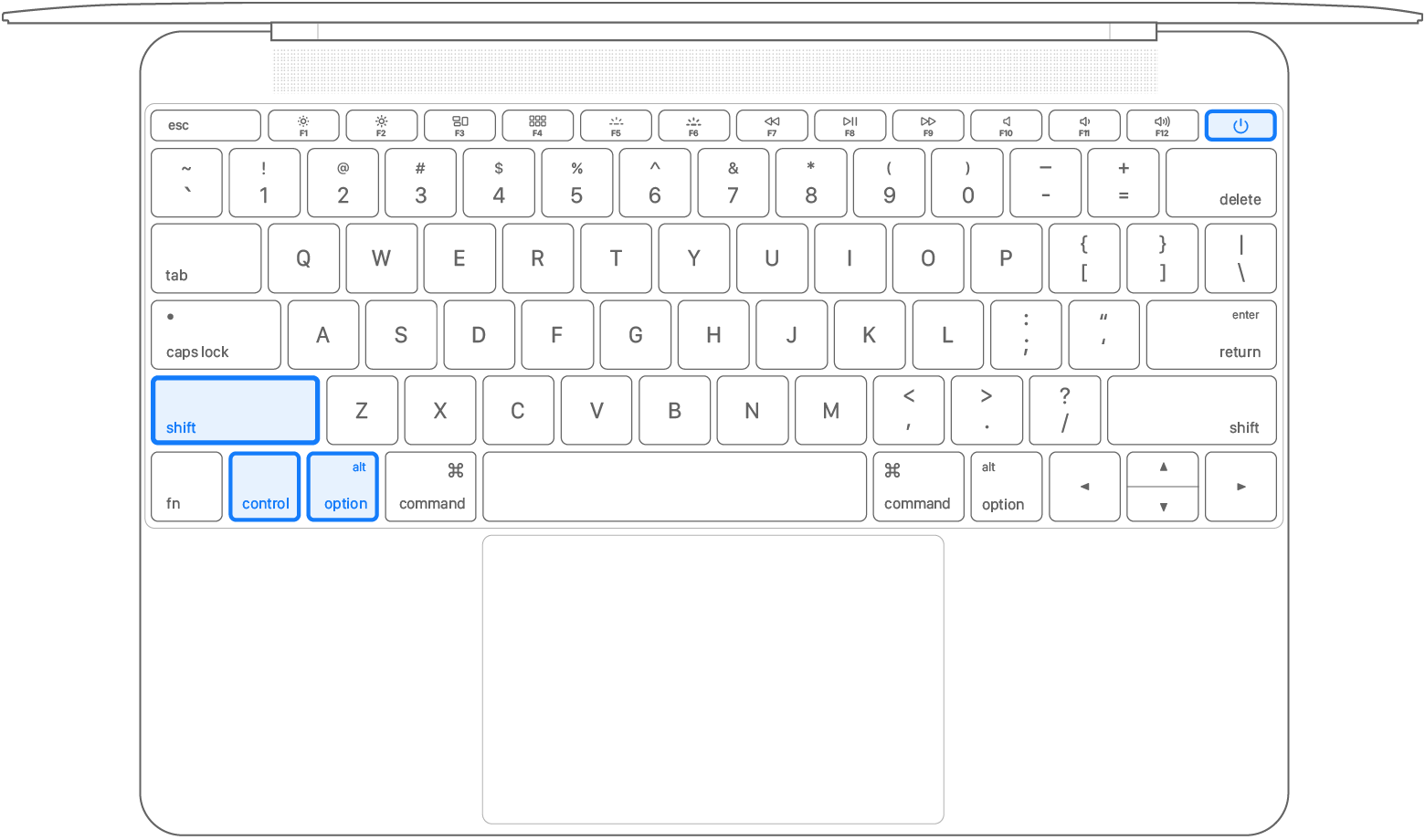
Keep holding all four keys for 10 seconds.
Release all keys, then press the power button to turn on your Mac.
Desktop Mac
Shut down your Mac, then unplug the power cord.
Wait 15 seconds, then plug the power cord back in.
Wait 5 seconds, then press the power button to turn on your Mac.
Still need help?
Tell us more about what's happening, and get personalized troubleshooting suggestions:
