Sync your photos manually using the Finder
If you don't use iCloud Photos, you can manually sync your photos and videos from your Mac to your iPhone, iPad, or iPod touch using the Finder.
Turn on Finder syncing
You can use the Finder on your Mac to sync photos to your iPhone, iPad, or iPod touch from the Photos app, or from a folder on your computer. Each time that you sync your iOS device with your computer, the photos and videos on your iOS device update to match the albums on your computer. If you have photos on your iPhone, iPad, or iPod touch that aren't on your computer, learn how to import them.
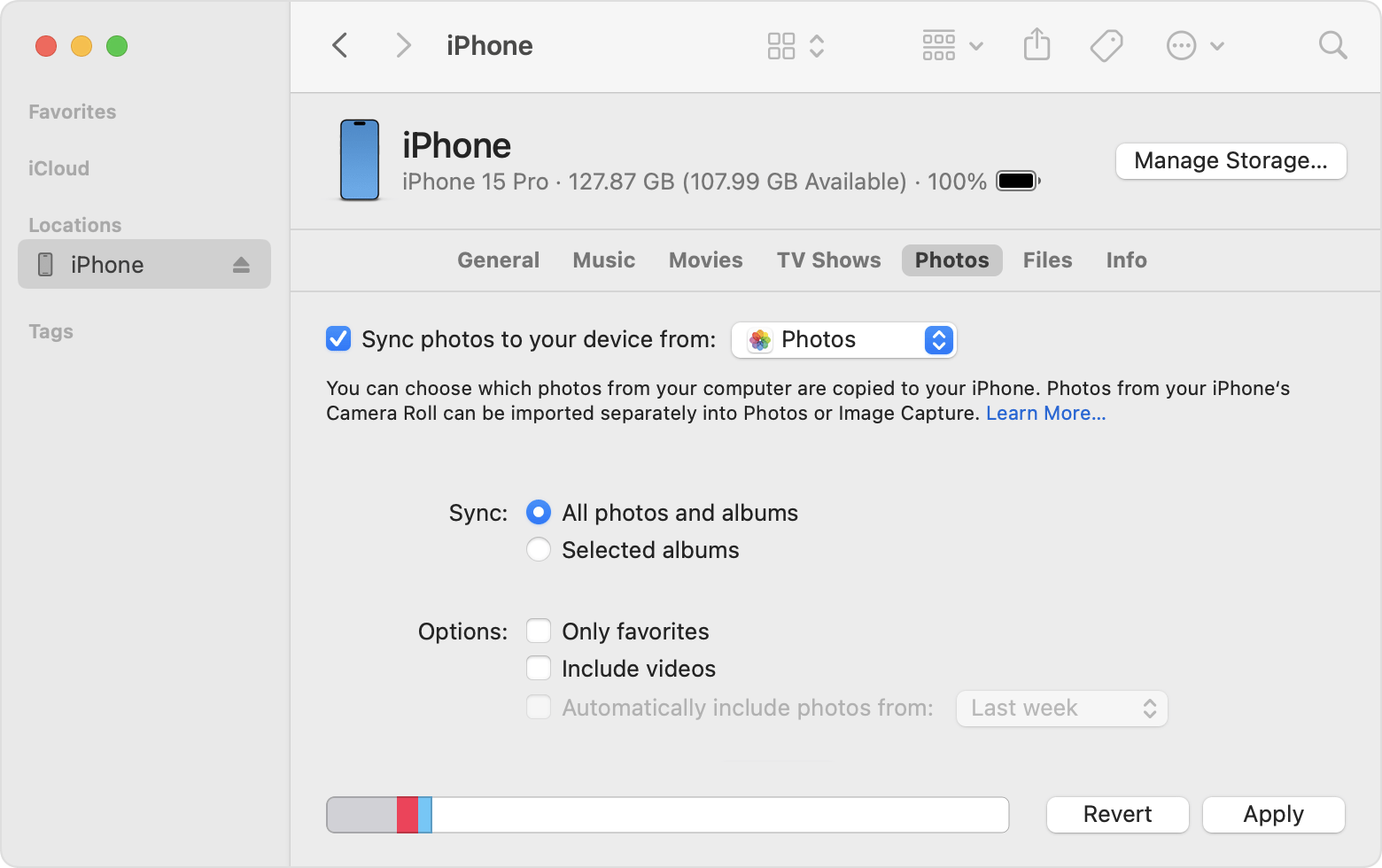
Open a Finder window and connect your device to your computer using a USB cable.
Unlock your device.
Your device appears in the sidebar of the Finder window. Click the device to select it.
If prompted, trust your device.
Click the Photos tab below your device's information.
Select the checkbox next to Sync photos to your device from, then select Photos or a folder on your Mac.
Choose between syncing all your photos and albums or only selected albums. You can also choose to sync only favorites, and whether to include videos.
Click the Apply button in the lower-right corner of the window. If syncing doesn't start automatically, click the Sync button.
You must import Slo-Mo and Time-Lapse videos through the Photos app or Image Capture in OS X Yosemite or later for their effect to be synced via the Finder. When you use iCloud Photos, Slo-Mo and Time-Lapse videos keep their effects.
Live Photos keep their effect when you import them to Photos in OS X El Capitan and later, but they lose their effect if you sync them back to your device via your computer. Use iCloud Photos so that Live Photos keep their effect, no matter what device you use.
You can sync your device only with the System Photo Library. If you have more than one photo library on your Mac, be sure that the correct one is designated as the System Photo Library.
Turn off Finder syncing
If you don't want the synced photos on your iPhone, iPad, or iPod touch anymore, turn off syncing in the Finder and they'll be removed from your device. You can turn off syncing for some of your photo albums or all of them at once.
Stop syncing some albums
Open a Finder window and connect your device to your computer using a USB cable.
Unlock your device.
Your device appears in the sidebar of the Finder window. Click the device to select it.
If prompted, trust your device.
Click the Photos tab below your device's information.
Choose "Selected albums" and deselect the albums or collections that you want to stop syncing.
Click Apply.
Stop syncing all photos
Open a Finder window and connect your device to your computer using a USB cable.
Unlock your device.
Your device appears in the sidebar of the Finder window. Click the device to select it.
If prompted, trust your device.
Click the Photos tab below your device's information.
Deselect "Sync Photos" then click "Remove photos."
Click Apply.
Keep your photos updated automatically with iCloud
If you use iCloud Photos, you can keep all your photos and videos stored in iCloud. They sync seamlessly across all of your devices so you can access your library from your Mac, Apple TV, iPhone, iPad, and even your PC. Your newest shots and edits upload automatically when you're connected to the internet.
Learn how to set up and use iCloud Photos.
Learn more
iCloud Photos doesn't upload photos and videos that you add to your device from your computer. If you're missing photos after you turn on iCloud Photos, follow these steps.
You can always make a copy of your photos and videos and keep them on your computer.
Learn how to import photos and videos from your iPhone, iPad, or iPod touch to your computer.
Information about products not manufactured by Apple, or independent websites not controlled or tested by Apple, is provided without recommendation or endorsement. Apple assumes no responsibility with regard to the selection, performance, or use of third-party websites or products. Apple makes no representations regarding third-party website accuracy or reliability. Contact the vendor for additional information.
