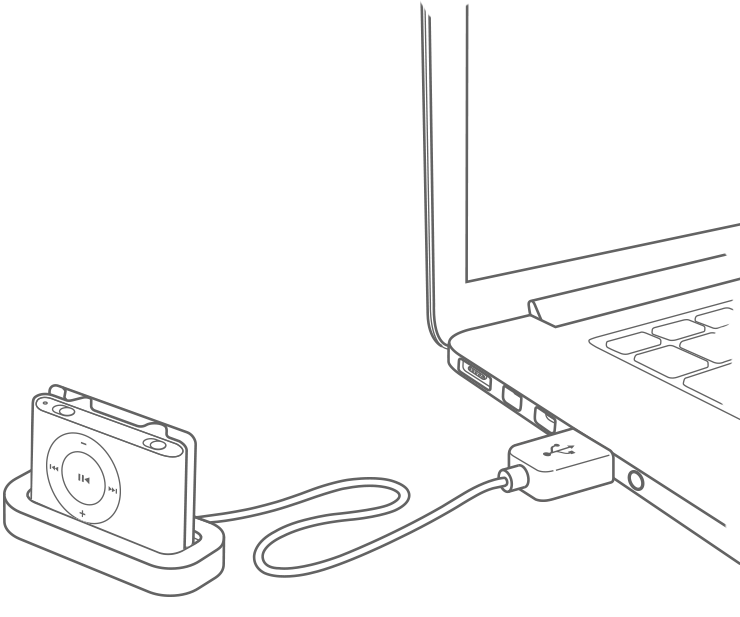
Charging your iPod battery

Summary

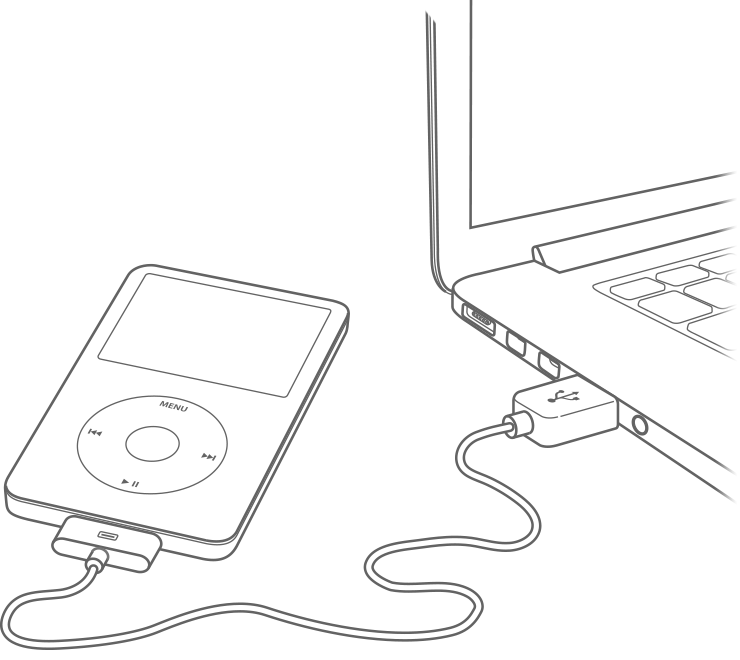
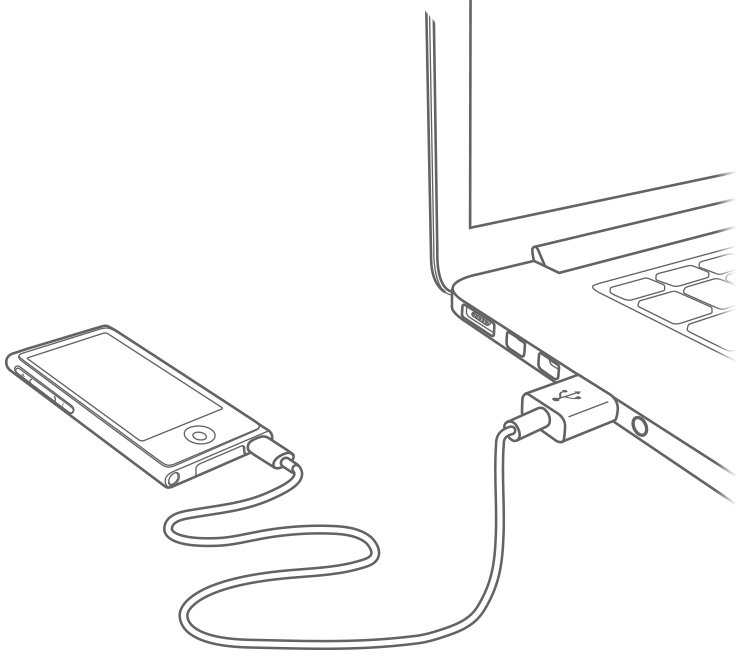
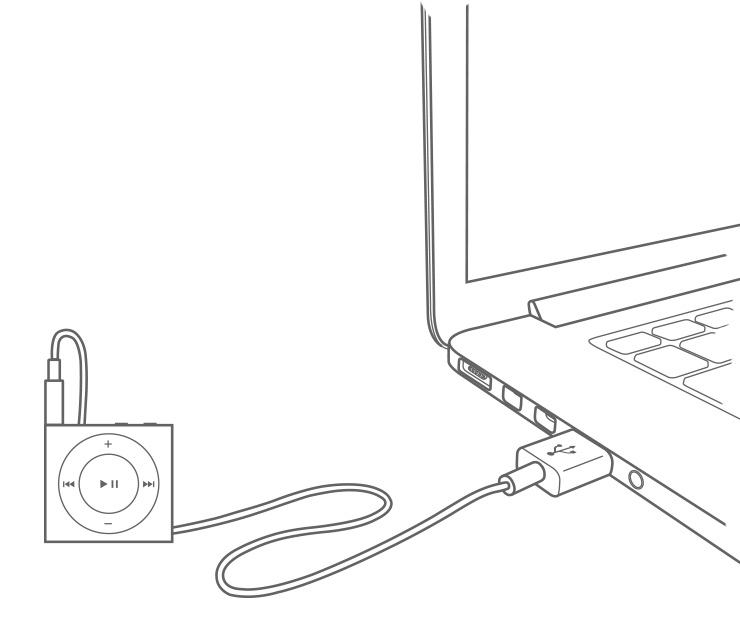
To charge iPod, connect it directly to a computer's USB port (not a keyboard) and make sure standby, hibernation, or sleep mode is turned off. Important: iPod will stop charging if the computer it's connected to enters standby, hibernation, or sleep mode.

Products Affected

iPod, iPod classic, iPod mini, iPod nano, iPod touch, Windows 7, Windows Vista, Windows XP

Note: When using a portable computer, make sure it is plugged in to a power source and that the lid or display is open. If the lid is closed the computer may go into either standby, sleep, or hibernation mode and iPod will not charge properly.

Tip: If you have an Apple iPod USB Power Adapter, you'll be able to charge your iPod without leaving your computer powered on.

If you have an iPhone or iPod touch, click here. If you have an iPod shuffle, see this document.

If you're not sure how to check if standby, sleep, or hibernation mode are active, click the appropriate link to see more:

If you are using Mac OS X

  1. Choose Apple > System Preferences.
  2. Choose Energy Saver.
  3. Click Power Adapter.
    Click Power Adapter
  4. Drag the top slider to Never.

    Move slider to Never

  5. It's OK to set the display sleep time using the bottom slider.

If you are using Windows 7

  1. From the Start menu, choose Control Panel.
  2. Click System and Security.
  3. Click Power Options.
  4. Select a power plan.
  5. Click “Change plan settings” for the power plan you selected.
  6. Under the “Plugged in” heading for “Put the computer to sleep,” select Never.
  7. Click Save changes and close the Power Options control panel.

If you are using Windows Vista

  1. From the Start menu, choose Control Panel.
  2. Click System and Maintenance and click Power Options. Alternately, in Classic View of Control Panel, click Power Options.
  3. Select a power plan.

    Power plans: Balanced, Power saver, or High performance.

  4. Click “Change plan settings” for the power plan you selected.
  5. Under the “Plugged in” heading for “Put the computer to sleep,” select Never.

  6. Click Save changes and close the Power Options control panel.

If you are using Windows XP

  1. From the Start menu, choose Control Panel.
  2. Open the Power Options control panel (Open Performance and Maintenance first if you are in category view).
  3. Click the Power Schemes tab.
  4. Under the Plugged in heading, set System standby and System hibernates to Never.

  5. Click Apply.

Unexpected Charging Behavior

There are certain situations where certain iPods may display behavior in which it looks like the battery isn't charging when it actually is. Or you may think your iPod is charging but it is not:

  • iPod will stop charging if the computer or portable computer it's connected to goes to sleep. Turn sleep off and make sure the portable is plugged into power.
  • If the battery is fully discharged on earlier iPod classic models, you may have to wait up to ten minutes before your computer will recognize it. Click here for additional information.
  • When you eject iPod nano 5th generation or earlier in iTunes but leave it connected to the USB port, the battery indicator at the top of the screen may not animate when charging. If you see a lightning bolt in the battery indicator icon, iPod nano is charging. For iPod nano 6th generation or later, you will see a lighting bolt when the battery is charging.
  • When you connect iPod nano to your computer using a USB hub, the battery charging indicator may appear to slow down. This is cosmetic and does not mean that iPod nano is charging more slowly.
  • If you use Windows 2000, the iPod may stop charging after it syncs.

Charging Your iPod

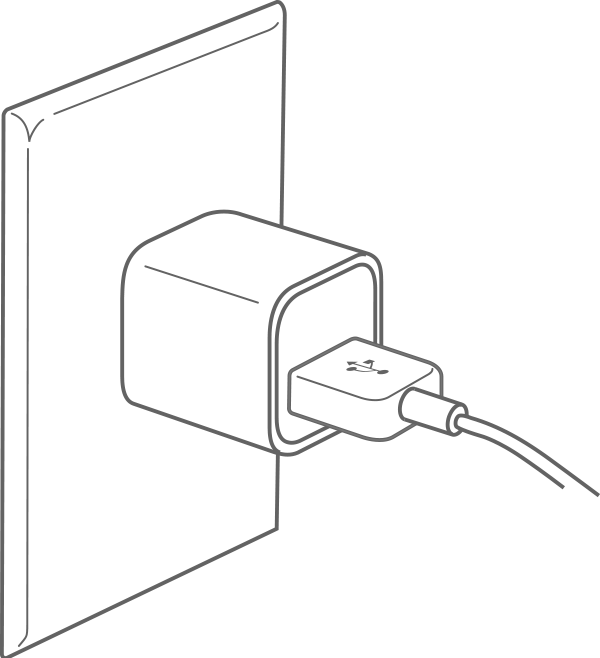
You can charge your iPod battery by connecting it to an Apple iPod Power Adapter or by connecting it to a high-power USB port (or FireWire port, if applicable) on your computer.

Note: iPod touch (2nd generation and later) and iPod nano (4th generation and later) do not support FireWire and will not charge from any FireWire-based power source (including the iPod Hi-Fi).

  • Using a Power Adapter
    If you're using an Apple iPod Power Adapter, connect your iPod to the adapter using the FireWire or USB cable that came with your iPod. Then plug the adapter into a working electrical socket. Adapters are available from the Apple Online Store.
  • Using Your Computer
    If you want to charge your iPod using your computer, make sure that your computer is turned on, it isn't sleeping (refer to the computer's manual to find out how to turn sleep off), and that the USB or FireWire port you connect your iPod to provides power. If you use USB, connect your iPod to a high-powered port using the USB cable that came with your iPod (or an Apple-branded cable). High-powered USB ports are typically found on the computer itself—not on your keyboard, which is low-powered.

    Note: If using a portable computer, make sure it is plugged into power and that the lid or display is open because if the lid is closed the computer may go into either standby, sleep, or hibernation mode and iPod will not charge.

    FireWire ports on all Macs and some PCs provide electricity. If your FireWire port only has four pins, it doesn't provide electricity. If you're using FireWire, connect your iPod to a FireWire port on your computer using the FireWire cable that came with your iPod (or an Apple-branded cable).

Once connected, your iPod battery will be 80 percent charged in about 3 hours and fully charged in about 4 hours (time may vary depending on your iPod model). You can disconnect and use your iPod before the battery is fully charged. You don't have to wait until the battery is completely empty before charging it again. This is because lithium-ion batteries, such as those used in iPod, have none of the memory effects seen in nickel-based rechargeable batteries.

The battery stops charging when it's full, so you don't have to worry if you leave it plugged in overnight (leaving your iPod connected to an electrical source all the time doesn't continuously charge it). Once the battery is charged, disconnect your iPod. If you're using your computer to charge iPod, make sure that you disconnect your iPod correctly when it's finished charging.

For more information about charging your battery, see your iPod User Manual. For more information about iPod batteries, see the iPod battery page.

How to check the battery's status

Your iPod displays a battery icon in the upper-right corner of the screen to show approximately how much charge is left. If you have an iPod classic or iPod touch that is asleep while being charged, a larger version of the same icon appears in the center of the screen. Use the iPod shuffle status light to check the charge.

Using an iPod Dock

iPod models with that include a dock connector can be charged while sitting in their docks, as long as the conditions mentioned above for using a computer to charge are met. Make sure that you connect the iPod Dock to a high-powered USB or FireWire port on your computer or to an iPod Power Adapter.

Charging iPod around the World

So, what if you're going abroad? Can you charge your iPod overseas? Absolutely. The Apple iPod Power Adapter can accommodate the common electrical standards used throughout the world. To make things easy, consider purchasing the World Travel Adapter Kit so you'll always have the right set of plugs for the many outlets you're bound to encounter. The kit also works with most iBook and PowerBook G4 power adapters.

Warranty Information

If your iPod is no longer covered by Apple's One Year Limited warranty or the AppleCare Protection Plan for iPod, you may replace the battery for a fee under the Out-of-Warranty Battery Program. See the iPod Battery Replacement Program page for more information.

Additional Information

Rechargeable batteries have a limited number of charge cycles and may eventually need to be replaced. Battery life and number of charge cycles vary by use and settings. For more information, go to: www.apple.com/batteries/ipods.html

See these pages for more information:

Important: Mention of third-party websites and products is for informational purposes only and constitutes neither an endorsement nor a recommendation. Apple assumes no responsibility with regard to the selection, performance or use of information or products found at third-party websites. Apple provides this only as a convenience to our users. Apple has not tested the information found on these sites and makes no representations regarding its accuracy or reliability. There are risks inherent in the use of any information or products found on the Internet, and Apple assumes no responsibility in this regard. Please understand that a third-party site is independent from Apple and that Apple has no control over the content on that website. Please contact the vendor for additional information.
Not helpful Somewhat helpful Helpful Very helpful Solved my problem
Ask other users about this article
in Apple Support Communities
See all questions on this article See all questions I have asked