MacBook Pro: How to remove or install memory
Learn how to remove or install memory in your MacBook Pro laptop computer.
To identify your MacBook Pro model, use the information in How to identify MacBook Pro models.
Once you're sure which model you have, find it in the list below to go to the instructions for that model. Note: Apple laptops not listed in this table have non-removable memory.
Applicable Models
The instructions provided below are for the following MacBook Pro (13-inch) models:
MacBook Pro (13-inch, Mid 2012)
MacBook Pro (13-inch, Late 2011)
MacBook Pro (13-inch, Early 2011)
MacBook Pro (13-inch, Mid 2010)
MacBook Pro (13-inch, Mid 2009)
Memory specifications
Use the tables below to confirm the memory you're installing is compatible with your MacBook Pro.
MacBook Pro (13-inch, mid 2012) | |
|---|---|
Number of memory slots | 2 |
Base memory | 4 GB |
Maximum memory | 8 GB |
Memory card specifications | - Double Data Rate Small Outline Dual Inline Memory Module (DDR3) format - 67.6mm x 30mm (1.18 inch) - 2 GB or 4 GB - 204-pin - PC3-12800 DDR3 1600 MHz type RAM |
Additional notes | For best performance, fill both memory slots, installing an equal memory module in each slot. |
MacBook Pro (13-inch, Late 2011) and MacBook Pro (13-inch, Early 2011) | |
Number of memory slots | 2 |
Base memory | 4 GB |
Maximum memory | 8 GB |
Memory card specifications | - Double Data Rate Small Outline Dual Inline Memory Module (DDR3) format - 67.6mm x 30mm (1.18 inch) - 2 GB or 4 GB - 204-pin - PC3-10600 DDR3 1333 MHz type RAM |
Additional notes | For best performance, fill both memory slots, installing an equal memory module in each slot. |
MacBook Pro (13-inch, Mid 2010) and MacBook Pro (13-inch, Mid 2009) | |
Number of memory slots | 2 |
Base memory | 4 GB |
Maximum memory | 8 GB |
Memory card specifications | - Double Data Rate Small Outline Dual Inline Memory Module (DDR3) format -30mm (1.18 inch) - 2 GB or 4 GB - 204-pin - PC3-8500 DDR3 1066 MHz type RAM |
Additional notes | For best performance, fill both memory slots, installing an equal memory module in each slot. |
Removing or installing memory
Warning: The internal components of your MacBook Pro can be warm. If you have been using your MacBook Pro, wait ten minutes after shutting down the computer to let the internal components cool before continuing.
Step 1: Remove the bottom case
Shut down your MacBook Pro. Disconnect the power adapter, Ethernet cable, USB cables, security lock, and any other cables connected to the MacBook Pro to prevent damaging the computer.
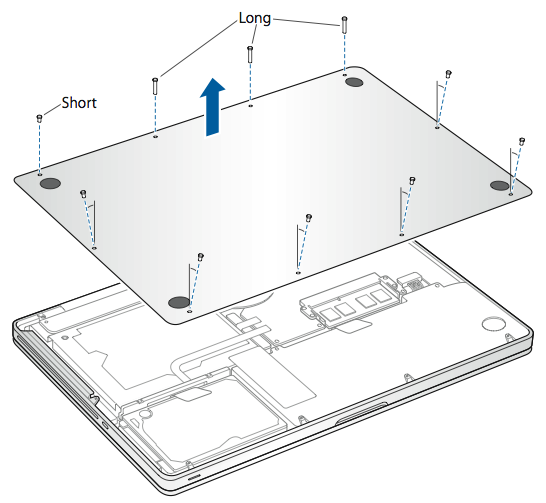
Turn over your MacBook Pro and remove the ten (10) screws that secure the bottom case. Because the screws are different lengths, note the screw lengths and locations so you can replace the screws correctly. Put them aside in a safe place. Lift off the case and place it to the side.
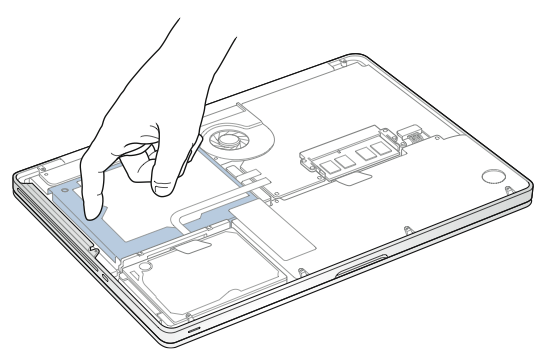
Touch a metal surface inside the computer to discharge any static electricity from your body.
Step 2: Remove existing memory (if present)
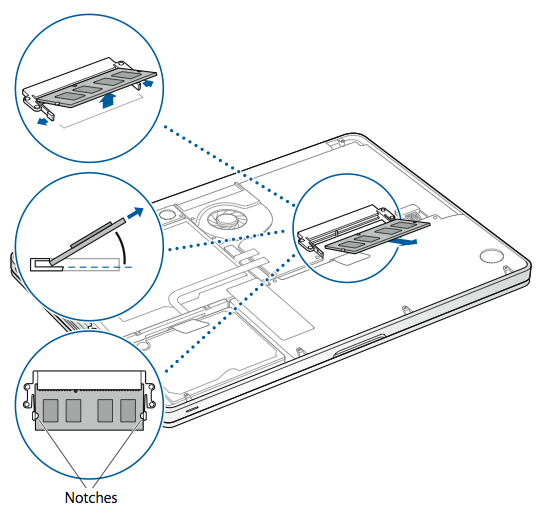
Push the levers on the sides of the memory module in an outward direction to release the module from the memory card slot. The memory pops up at an angle. Before removing it, make sure you find the half-circle notches. If you don’t, try pressing the levers outward again.
Hold the memory module by its notches and remove it from the slot.
Remove the other memory module.
Important: Hold the memory modules by their edges, and do not touch the gold connectors.
Step 3: Install memory
Align the notch on the gold edge of the module with the notch in the lower memory slot.
Tilt the card and push the memory into the slot.
Use two fingers with firm, even pressure to push down on the memory module. There should be a click when you insert the memory correctly.
Repeat this procedure to install an additional memory module in the top slot. Press down on the module to make sure it is level.
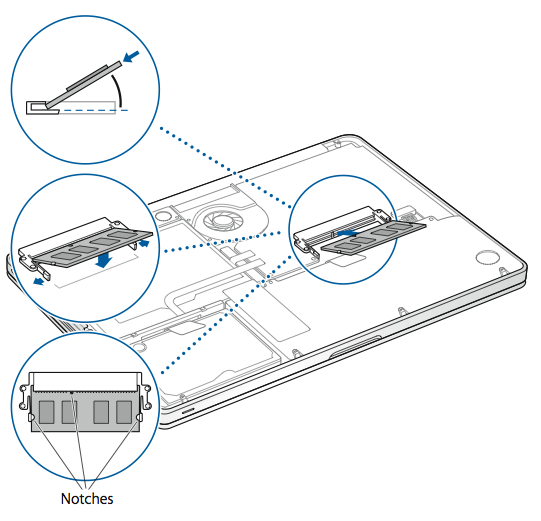
Note: Make sure you install the memory according to this illustration, with the gold contacts inserted almost completely into the connector.
Step 4: Replace the bottom case
Replace the bottom case. Replace and tighten the ten screws you removed earlier, making sure to put the different length screws in their proper locations.
Applicable Models
The instructions provided below are for the following MacBook Pro 15-inch models:
MacBook Pro (15-inch, Mid 2012)
MacBook Pro (15-inch, Late 2011)
MacBook Pro (15-inch, Early 2011)
MacBook Pro (15-inch, Mid 2010)
MacBook Pro (15-inch, 2.53GHz Mid 2009)
MacBook Pro (15-inch, Mid 2009)
Memory specifications
Please use the tables below to confirm the memory being installed is compatible with your MacBook Pro.
MacBook Pro (15-inch, Mid 2012) | |
Number of memory slots | 2 |
Base memory | 4 GB |
Maximum memory | 8 GB |
Memory card specifications | - Double Data Rate Small Outline Dual Inline Memory Module (DDR3) format - 30mm (1.18 inch) - 2 GB or 4 GB - 204-pin - PC3-12800 DDR3 1600 MHz type RAM |
Additional notes | For best performance, fill both memory slots, installing an equal memory module in each slot. |
MacBook Pro (15-inch, Late 2011) and MacBook Pro (15-inch, Early 2011) | |
Number of memory slots | 2 |
Base memory | 4 GB |
Maximum memory | 8 GB |
Memory card specifications | - Double Data Rate Small Outline Dual Inline Memory Module (DDR3) format - 30mm (1.18 inch) - 2 GB or 4 GB - 204-pin - PC3-10600 DDR3 1333 MHz type RAM |
Additional notes | For best performance, fill both memory slots, installing an equal memory module in each slot. |
MacBook Pro (15-inch, Mid 2010), MacBook Pro (15-inch, 2.53 GHz, Mid 2009), MacBook Pro (15-inch, Mid 2009) | |
Number of memory slots | 2 |
Base memory | 4 GB |
Maximum memory | 8 GB |
Memory card specifications | - Double Data Rate Small Outline Dual Inline Memory Module (DDR3) format - 30mm (1.18 inch) - 2 GB or 4 GB - 204-pin - PC3-8500 DDR3 1066 MHz type RAM |
Additional notes | For best performance, fill both memory slots, installing an equal memory module in each slot. |
Removing or installing memory
Warning: The internal components of your MacBook Pro can be warm. If you have been using your MacBook Pro, wait ten minutes after shutting down the computer to let the internal components cool before continuing.
Step 1: Remove the bottom case
Shut down your MacBook Pro. Disconnect the power adapter, Ethernet cable, USB cables, security lock, and any other cables connected to the MacBook Pro to prevent damaging the computer.
Turn over your MacBook Pro and remove the ten (10) screws that secure the bottom case. Because the screws are different lengths, note the screw lengths and locations so you can replace the screws correctly. Put them aside in a safe place. Lift off the case and place it to the side.
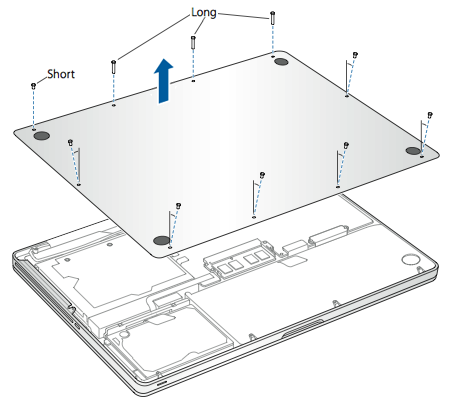
Touch a metal surface inside the computer to discharge any static electricity from your body.
Step 2: Remove existing memory (if present)
Push the levers on the sides of the memory module in an outward direction to release the module from the memory card slot. The memory pops up at an angle. Before removing it, make sure you find the half-circle notches. If you don’t, try pressing the levers outward again.
Hold the memory module by its notches and remove it from the slot.
Remove the other memory module.
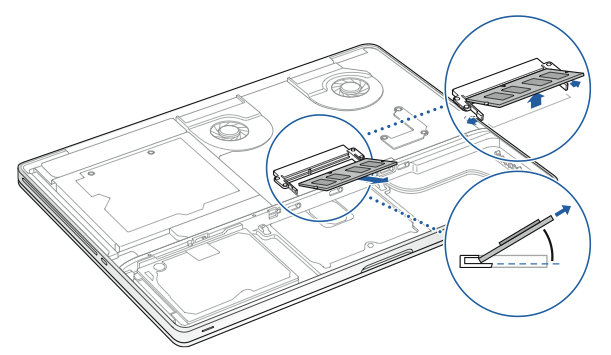
Important: Hold the memory modules by their edges, and do not touch the gold connectors.
Step 3: Install memory
Align the notch on the gold edge of the module with the notch in the lower memory slot.
Tilt the card and push the memory into the slot.
Use two fingers with firm, even pressure to push down on the memory module. There should be a click when you insert the memory correctly.
Repeat this procedure to install an additional memory module in the top slot. Press down on the module to make sure it is level.
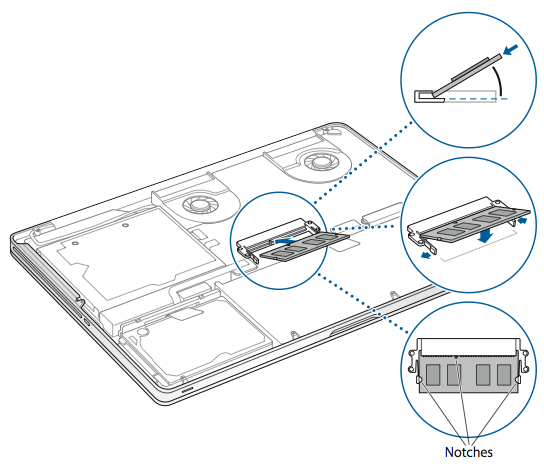
Note: Make sure you install the memory according to this illustration, with the gold contacts inserted almost completely into the connector.
Step 4: Replace the bottom case
Replace and tighten the ten screws you removed earlier, making sure to put the different length screws in their proper locations.
Applicable model
The instructions provided below are for the following MacBook Pro 15-inch models:
MacBook Pro (15-inch, Late 2008)
Memory specifications
Please use the table below to confirm the memory being installed is compatible with your MacBook Pro.
MacBook Pro (15-inch, late 2008) | |
Number of memory slots | 2 |
Base memory | 2 GB |
Maximum memory | 4 GB |
Memory card specifications | - Double Data Rate Small Outline Dual Inline Memory Module (DDR3) format - 30mm (1.18 inch) - 1 GB or 2 GB - 204-pin - PC3-8500 DDR3 1066 MHz type RAM |
Additional notes | For best performance, fill both memory slots and install an identical memory module in each slot. |
Removing or installing memory
Warning: The internal components of your MacBook Pro can be warm. If you have been using your MacBook Pro, wait ten minutes after shutting down the computer to let the internal components cool before continuing.
Step 1: Remove the access door
Shut down your MacBook Pro. Disconnect the power adapter, Ethernet cable, security lock, and any other cords connected to the MacBook Pro to prevent damaging the computer.
Turn over your MacBook Pro and locate the latch. Push down to release the latch and remove the access door that covers the battery and hard drive.
The latch must be in its released, open position to remove the access door.
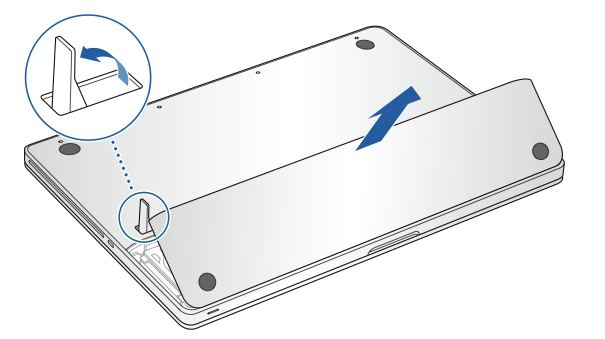
Step 2: Remove the battery
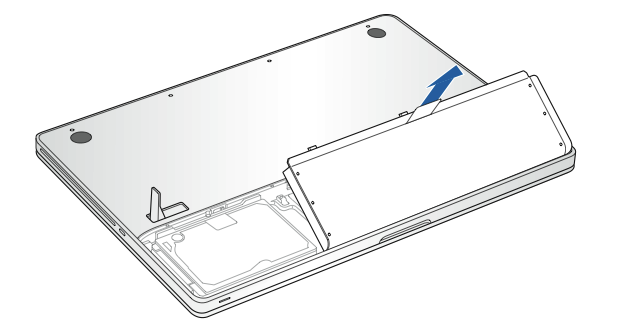
With the latch still in its open position, gently pull up on the tab to remove the battery.
Step 3: Remove the bottom case
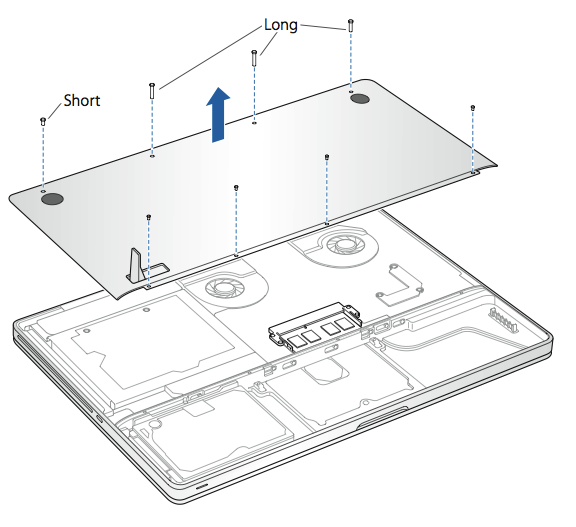
Remove the eight screws that secure the bottom case of your MacBook Pro, and then remove the bottom case.
Important: Because the screws are different lengths, note the screw lengths and locations so you can replace the screws correctly. Put them aside in a safe place.
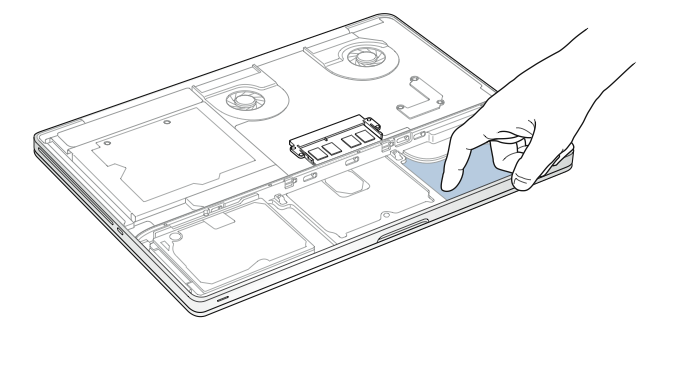
Touch a metal surface inside the computer to discharge any static electricity from your body.
Step 4: Remove existing memory (if present)
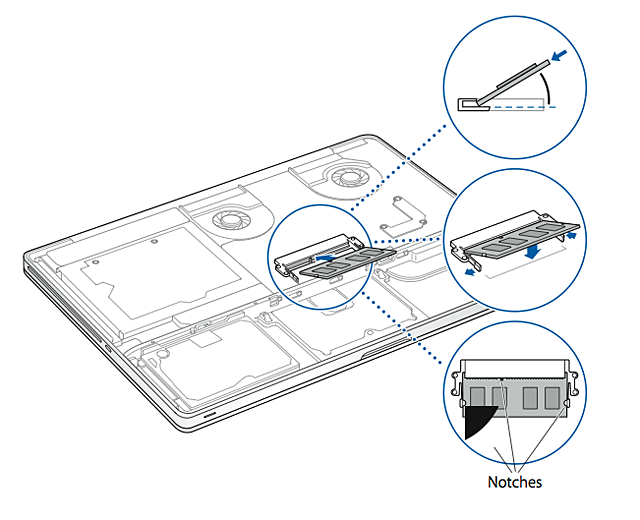
Push out the ejection levers on the sides of the memory module to release the module from the memory card slot. The memory pops up at an angle. Before removing it, make sure you find the half-circle notches. If you don’t, try pressing the ejection levers again.
Hold the memory module by the notches and remove it from the slot.
Remove the other memory module.
Important: Hold the memory modules by their edges; do not touch the gold connectors.
Step 5: Install memory
Align the notch on the gold edge of the module with the notch in the lower memory slot.
Tilt the card and push the memory into the slot.
Use two fingers with firm, even pressure to push down on the memory module. There should be a click when you insert the memory correctly.
Repeat, if necessary, to install an additional memory module in the top slot. Press down on the module to make sure it is level.
Note: Make sure you install the memory according to the illustration below, with the gold contacts inserted almost completely into the connector.
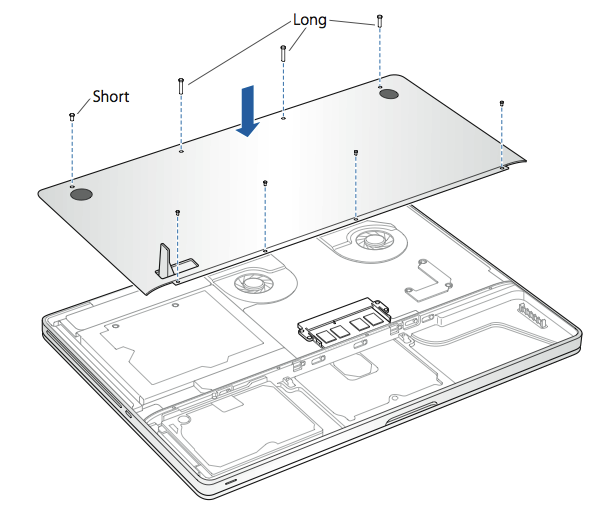
Step 6: Replace the bottom case
Replace the bottom case. Replace and tighten the eight screws.
Step 7: Replace the battery
To replace the battery, make sure the latch is in its open position. Hold the battery at an angle and slide the lipped edge of the battery below the brackets on the outside edge of the battery bay. Gently press the battery down.
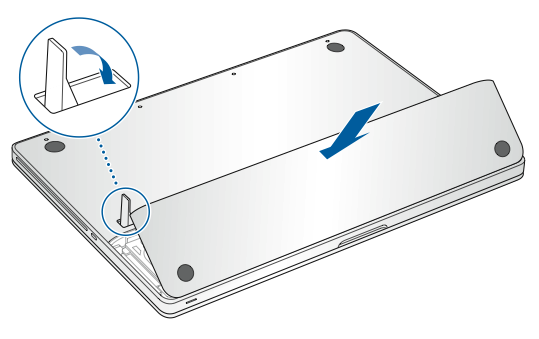
Step 8: Replace the access door
With the latch in the open position replace the access door, making sure it is level with the bottom case of your MacBook Pro, and press the latch into the closed position.
Applicable models
The instructions provided below are for the following MacBook Pro 17-inch models:
MacBook Pro (17-inch, Late 2011)
MacBook Pro (17-inch, Early 2011)
MacBook Pro (17-inch, Mid 2010)
MacBook Pro (17-inch, Mid 2009)
MacBook Pro (17-inch, Early 2009)
Memory specifications
Use the tables below to confirm the memory being installed is compatible with your MacBook Pro.
MacBook Pro (17-inch, Late 2011) and MacBook Pro (17-inch, Early 2011) | |
Number of memory slots | 2 |
Base memory | 4 GB |
Maximum memory | 8 GB |
Memory card specifications | - Double Data Rate Small Outline Dual Inline Memory Module (DDR3) format - 67.6mm x 30mm (1.18 inch) - 2 GB or 4 GB - 204-pin - PC3-10600 DDR3 1333 MHz type RAM |
Additional notes | You can add two 4 GB memory modules for a maximum of 8 GB of memory. For best performance, fill both memory slots and install an identical memory module in each slot. |
MacBook Pro (17-inch, Mid 2010), MacBook Pro (17-inch, Mid 2009) and MacBook Pro (17-inch, Early 2009) | |
Number of memory slots | 2 |
Base memory | 4 GB |
Maximum memory | 8 GB |
Memory card specifications | - Double Data Rate Small Outline Dual Inline Memory Module (DDR3) format - 30mm (1.18 inch) - 2 GB or 4 GB - 204-pin - PC3-8500 DDR3 1066 MHz type RAM |
Additional notes | You can add two 4 GB memory modules for a maximum of 8 GB of memory. For best performance, fill both memory slots and install an identical memory module in each slot. |
Removing or installing memory
Warning: The internal components of your MacBook Pro can be warm. If you have been using your MacBook Pro, wait ten minutes after shutting down the computer to let the internal components cool before continuing.
Step 1: Remove the bottom case
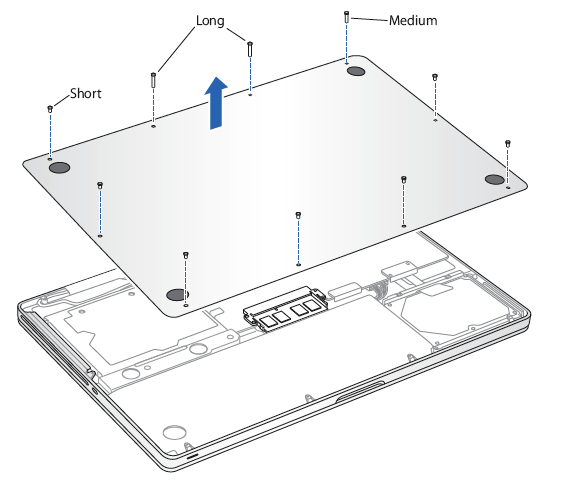
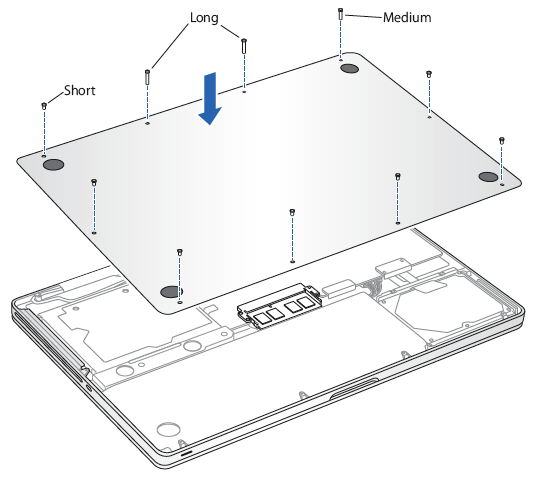
Shut down your MacBook Pro. Disconnect the power adapter, Ethernet cable, USB cables, security lock, and any other cables connected to the MacBook Pro to prevent damaging the computer.
Turn over your MacBook Pro and remove the ten (10) screws that secure the bottom case. Because the screws are different lengths, note the screw lengths and locations so you can replace the screws correctly. Put them aside in a safe place. Lift off the case and place it to the side.
Touch a metal surface inside the computer to discharge any static electricity from your body.
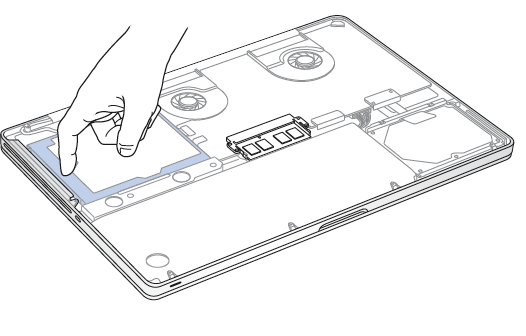
Step 2: Remove existing memory (if present)
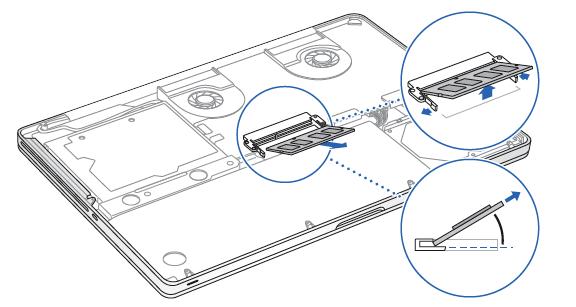
Push the levers on the sides of the memory module in an outward direction to release the module from the memory card slot. The memory pops up at an angle. Before removing it, make sure you find the half-circle notches. If you can't find the notches, try pressing the levers outward again.
Hold the memory module by its notches and remove it from the slot.
Remove the other memory module.
Important: Hold the memory modules by their edges; do not touch the gold connectors.
Step 3: Install memory
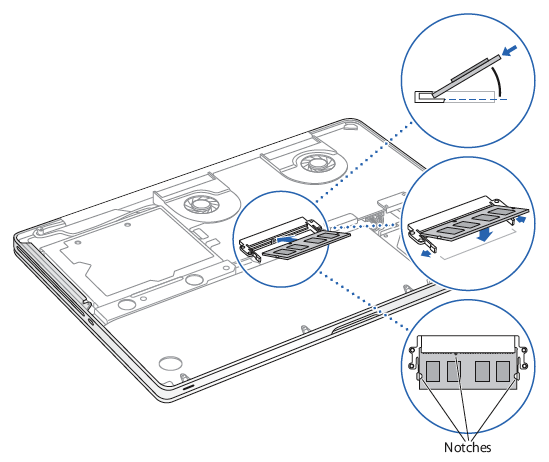
Align the notch on the gold edge of the module with the notch in the lower memory slot.
Tilt the card and push the memory into the slot.
Use two fingers with firm, even pressure to push down on the memory module. There should be a click when you insert the memory correctly.
Repeat this procedure to install an additional memory module in the top slot. Press down on the module to make sure it is level.
Note: Make sure your memory is installed according to the illustration below, with the gold contacts inserted almost completely into the connector.
Step 4: Replace the bottom case
Replace the bottom case. Replace and tighten the ten screws you removed earlier, making sure to put the different length screws in their proper locations.
Applicable models
The instructions provided below are for the following MacBook Pro 15-inch and 17-inch models:
MacBook Pro (17-inch, Late 2008) and earlier
MacBook Pro (15-inch, Early 2008) and earlier
Memory specifications
Please use the tables below to confirm the memory being installed is compatible with your MacBook Pro.
MacBook Pro (17-inch, Late 2008) and earlier and MacBook Pro (15-inch, Early 2008) and earlier | |
Number of memory slots | 2 |
Base memory | 512 MB (configure to order) |
Maximum memory | Refer to the table below |
Memory card specifications | - Double Data Rate Small Outline Dual Inline Memory Module (DDR3) format - 30mm (1.18 inch) - 200-pin - PC2-5300 DDR2 667 MHz Type RAM |
Refer to this table for the maximum amount of memory that can be recognized by these laptop computers:
2 GB | MacBook Pro, MacBook Pro (17-inch), MacBook Pro (15-inch, Glossy) |
3 GB | MacBook Pro (15-inch and 17-inch Core 2 Duo) Note: These models will support only 3 GB total memory. If you want to maximize the amount of SDRAM in your computer, install a 2 GB SO-DIMM in one slot and a 1GB SO-DIMM in the other. |
4 GB | MacBook Pro (15-inch 2.4/2.2 GHz), MacBook Pro (17-inch 2.4 GHz), MacBook Pro (15-inch Early 2008), MacBook Pro (17-inch Late 2008) |
Removing or installing memory
You will need to remove the battery before installing additional memory and reinstall the battery after installing the memory. The following procedure includes all the necessary instructions for both parts of the process.
Warning: The internal components of your MacBook Pro can be warm. If you have been using your MacBook Pro, wait ten minutes after shutting down the computer to let the internal components cool before continuing.
Step 1: Remove the battery
Shut down your MacBook Pro. Disconnect the power adapter, Ethernet cable, and any other cords connected to the MacBook Pro to prevent damaging the computer.
Turn the computer over.
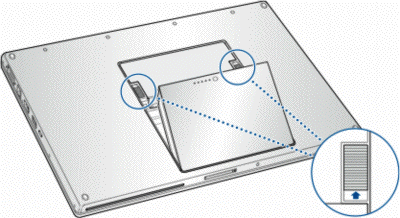
Locate the battery release latches on each side of the battery.
Slide both latches up. The battery should pop up slightly.
Lift the battery out.
Step 2: Remove the memory door
Using a Phillips size 00 screwdriver, unscrew the memory door and remove it from the battery bay of your computer. Depending on the model of your MacBook Pro, you may have three or four screws.
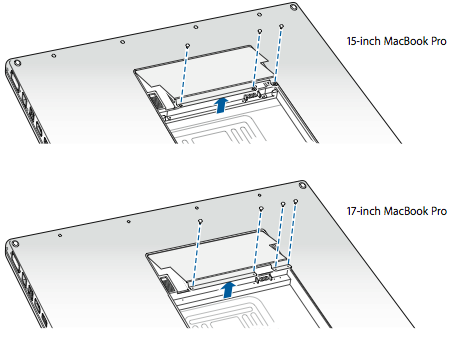
Touch a metal surface inside the computer to discharge any static electricity from your body.
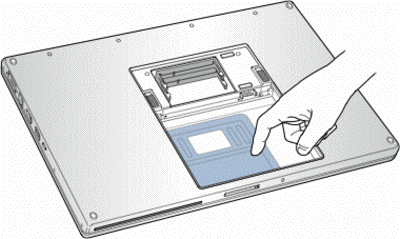
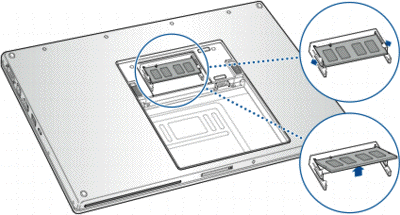
Step 3: Remove existing memory (if present)
If you need to remove a memory card—for example if you are replacing it or if you need to get past the memory in the top slot to access the bottom slot—you can remove the card by spreading the tabs on each side of the card away from the notches in the memory card. The card should pop up slightly. Lift the memory card to about a 25-degree angle and then gently slide the card out of the memory slot.
Important: Hold the memory modules by their edges; do not touch the gold connectors.
Step 4: Install memory
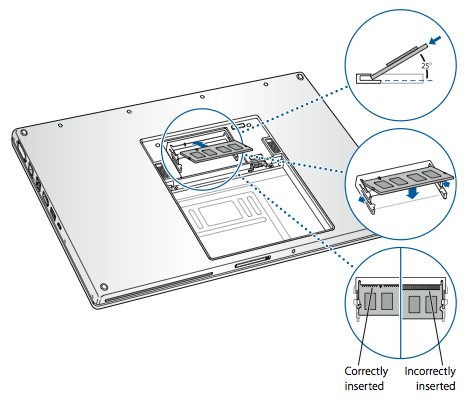
Insert the new memory card at a 25-degree angle. Line up the notch in the card with the small tab in the memory slot and slide the card into the slot until the gold edge is almost invisible. Firmly press the memory card into the memory slot. You might feel some resistance.
Gently spread the small tabs in the memory slot away from the notches and push the memory card down until the two tabs on either side of the card lock into place.
Insert any additional memory into the second slot.
Note: Make sure you install the memory according to the illustration below, with the gold contacts inserted almost completely into the connector.
Step 5: Replace the memory door
Replace the memory door, and make sure the door is lying flat before you screw it back into place.
Step 6: To insert the battery
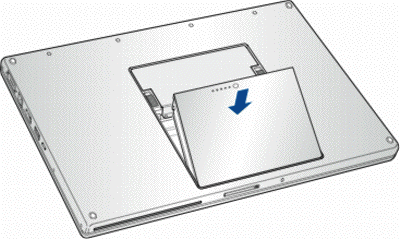
Place the bottom edge of the battery into the battery compartment at an angle, as shown below.
Gently press the top edge of the battery down until the battery latch locks into place.
Learn more
Checking that your computer recognizes the new memory
After installing additional memory, you should confirm that the computer recognizes the new memory. To check the computer’s memory:
Start up your computer.
When you see the Mac OS X desktop, choose the Apple () menu from the upper-left menu bar, then choose About This Mac.
The total memory includes the amount of memory that originally came with the computer plus the new memory you added, or if all the memory has been replaced, the new total for that memory. For detailed information about the amount of memory installed in your computer, open System Profiler by choosing Apple () and then About This Mac. Then, click More Info and then Memory from the Hardware section that appears in System Profiler.
If your computer doesn’t recognize the memory or doesn’t start up correctly, confirm that the memory you installed is compatible with your MacBook Pro and that it is installed correctly by reseating the memory.