Boot Camp: MacBook Pro built-in keyboard mapping in Windows

  • Last Modified: June 11, 2008
  • Article: HT1220

Summary

Learn how Boot Camp maps Microsoft Windows functions and special keys to the MacBook Pro built-in keyboard, as well as which keys to use for various functions.

Note: MacBook built-in keyboards are similar to MacBook Pro built-in keyboards, but there are some differences (such as Keyboard Illumination keys, which are not on a MacBook keyboard). However, the majority of this article applies to MacBook keyboards as well.

 MacBook Pro keyboard all keys
Sample MacBook Pro built-in keyboard

Products Affected

Boot Camp, Microsoft Windows XP, Microsoft Window Vista

Key mappings for Microsoft Windows features

Below is a chart of keyboard functions specific to Microsoft Windows, and equivalent key combinations as they are mapped to Apple keyboards by the Apple Keyboard Support driver.

 PC keyboard all keys


Print Screen PC Print Screen key Mac fn (function) keyMac Shift keyMac F11 key
Print active window -- Mac fn (function) keyMac Shift keyMac Option keyMac F11 key
Scroll Lock PC Scroll Lock key  Mac fn (function) keyMac Shift keyMac F12 key
Pause/Break PC Pause key  --
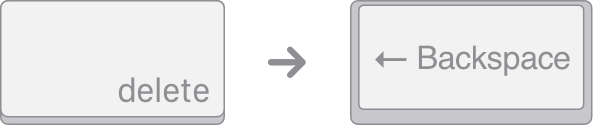
Backspace delete PC Backspace key  Mac delete key
Insert PC Insert key  --
Number lock PC numlock key Mac fn (function) keyMac F6 num lock key
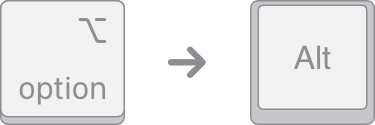
Alt (Option) PC Alt key  Mac Option key
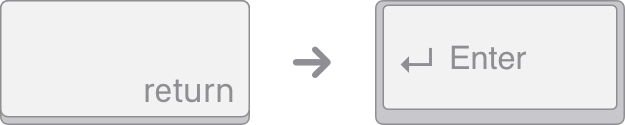
Enter PC Enter key Mac Return key 
AltGr / Alt GR PC Alt key (Right Alt key)  Mac Option keyMac Control key
Forward delete PC forward delete key  Mac fn (function) keyMac delete key
Applications PC applications key --
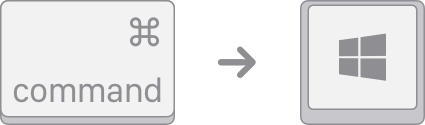
Windows logo (Start menu) PC period delete keypad key Mac Command key 


Key mappings for Boot Camp features

Some keys are only available on a keyboard designed for Apple computers. They are either named differently or simply not available on a Windows-compatible keyboard.

Your Apple keyboard provides certain keys that are not available on Windows/PC keyboards.

MacBook keyboard all keys shown and certain ones highlighted


Brightness down -- Mac F1 key 
Brightness up --  Mac F2 key
Volume down --  Mac F4 key
Volume up --  Mac F5 key
Mute --  Mac F3 key
Media eject --  Mac eject key
Media eject secondary optical drive -- Mac Option key Mac eject key
Delete --  Mac delete key
Fn (Function) --  Mac fn (function) key
Display Mode Toggle --  Mac F7 key
Keyboard Illumination Toggle (MacBook Pro) --  Mac F6 key
Decrease Keyboard Illumination --  Mac F9 key
Increase Keyboard Illumination --  Mac F10 key


Numeric keypad mappings

Apple external and built-in keyboards provide the same functionality as Microsoft-compatible numeric keypads.

To enable numerical input, press Num Lock on a PC keyboard, or Fn-Numlock on the MacBook Pro keyboard.

The chart below shows equivalent keystrokes.


Page Up PC 2 keypad Mac fn (function) keyMac Page Up key (Numlock off)
Page Down PC 3 keypad Mac fn (function) keyMac Page Down key (Numlock off)
Insert PC zero keypad  --
Decimal Point PC period delete keypad Mac decimal point key (Numlock off)
Delete PC period delete keypad Mac fn (function) keyMac decimal point key (Numlock off)
Up arrow PC 8 keypad  Mac page up key(Numlock off)
Down arrow PC 2 keypad  Mac page down key(Numlock off)
Left arrow PC 4 keypad  Mac left arrow key(Numlock off)
Right arrow PC 6 keypad Mac right arrow key(Numlock off)
Home PC Home keypad Mac fn (function) keyMac left arrow key(Numlock off)


Additional Information

Note: If you disable the Apple Keyboard Support driver in Windows, Windows will not recognize extended Function keys, nor the (Fn) key.

Important: Apple does not provide technical phone support for installing, using, or recovering Microsoft Windows. Support is available for using Boot Camp Setup Assistant, as well as installing or restoring Boot Camp software while booted into Windows. Support articles and discussions may also be available on Apple's support website.

Important: Information about products not manufactured by Apple is provided for information purposes only and does not constitute Apple’s recommendation or endorsement. Please contact the vendor for additional information.

Not helpful Somewhat helpful Helpful Very helpful Solved my problem