About AirPort base station firmware updates

Summary

There are several things you should know about installing firmware updates onto your AirPort base station.

Products Affected

AirPort Express Base Station, AirPort Extreme Base Station, Time Capsule

How do I open AirPort Utility?

  • In OS X: Navigate to the /Applications/Utilities folder. Locate and double-click on AirPort Utility to open it.
  • In Microsoft Windows: Click Start > All Programs > AirPort.

Why should I install a firmware update?

Apple provides AirPort firmware updates to improve AirPort base station performance and functionality. You should install the latest version of firmware available for the best experience.

How do I know when an update is available?

There are several ways in which you may be notified of a firmware update.

  • The AirPort base station itself will check at a recurring time (default is weekly) to see if it has the latest version of firmware installed. If a newer (later) version is available, the device will flash its amber light to alert you that it wants your attention. In this case, opening AirPort Utility will confirm that an update is available, and will give you the option to install it.
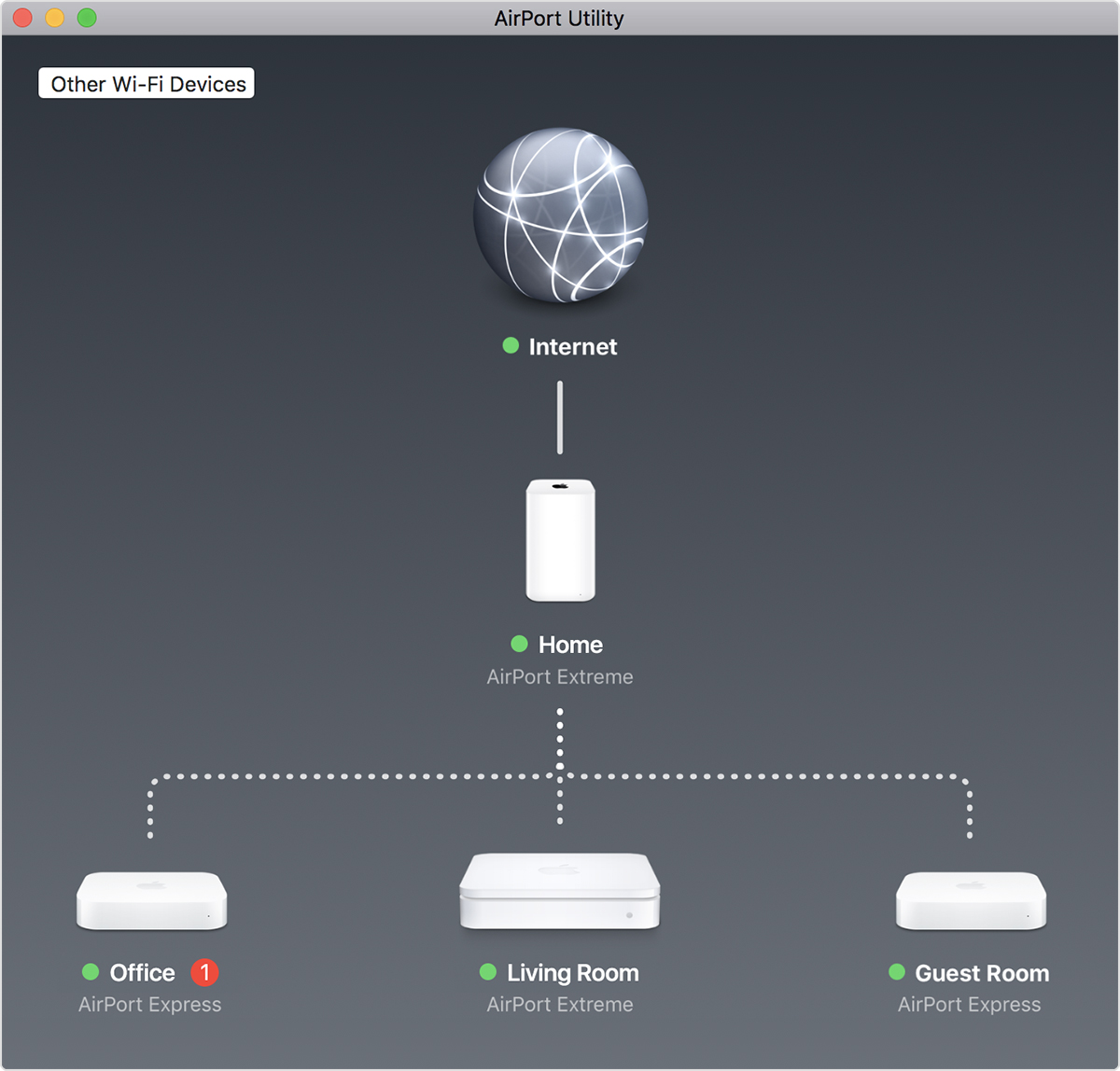
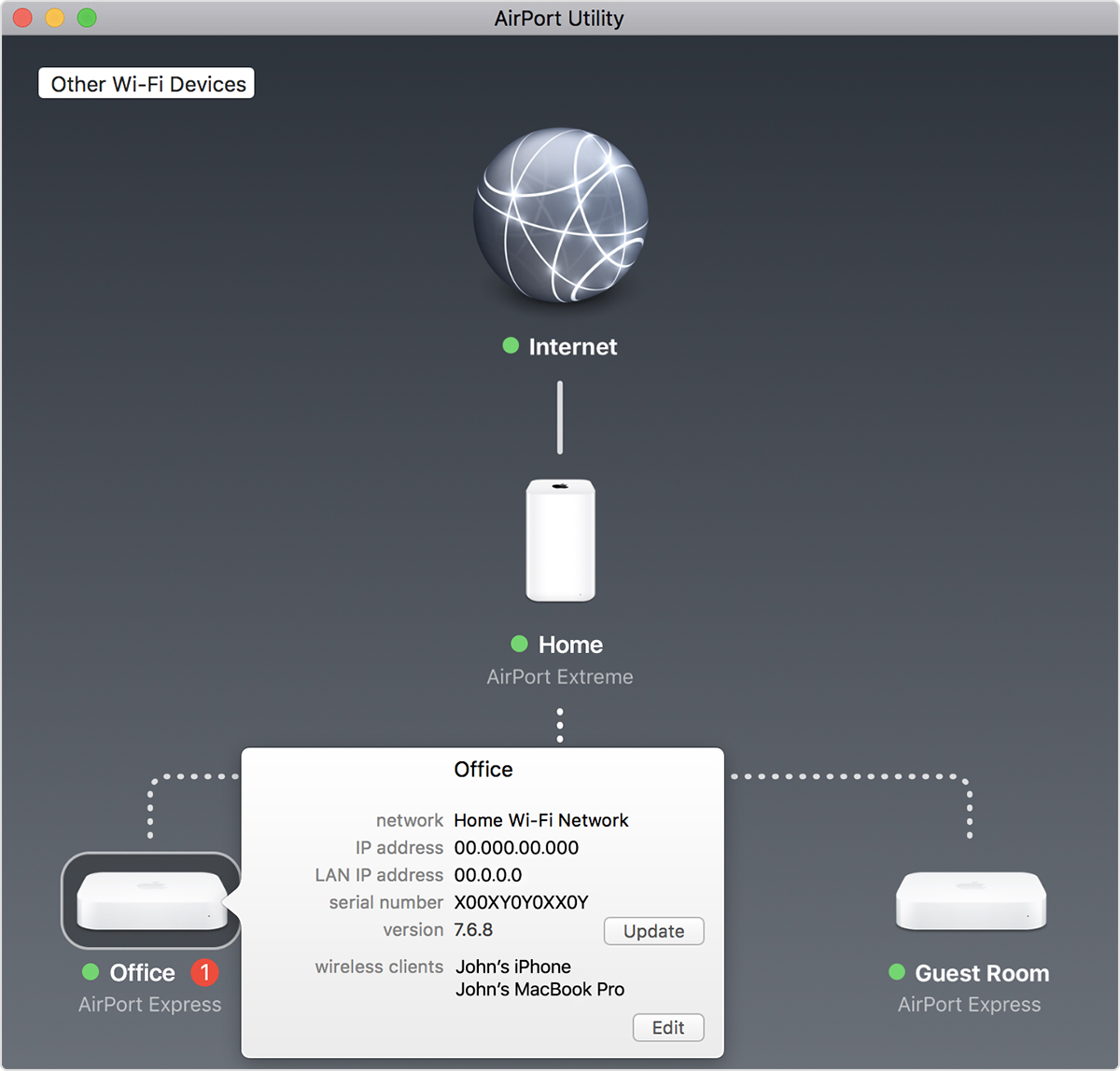
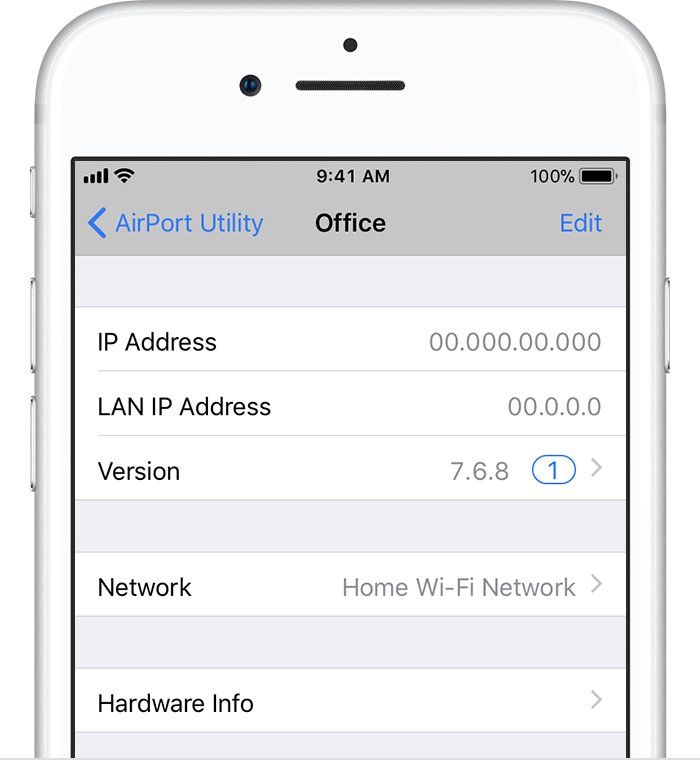
  • AirPort Utility 5 will display the firmware available and the option to update. AirPort Utility 6 will have a red indicator next to the device indicating a firmware update is available.
  • Even though you may not have AirPort Utility open, it will automatically do a weekly check to see if an update is available.
  • Each time you open AirPort Utility, it will check for updates.

Are AirPort base station firmware Updates installed automatically?

No. AirPort base station firmware updates will not be installed without your interaction.

How can I adjust when AirPort Utility will check for updates?

  1. Open AirPort Utility.
  2. Choose AirPort Utility from the Menu bar.
  3. Select Preferences.
  4. Check Check for Updates: and select when you wish to check for updates.

How can I adjust when my AirPort base station will check for updates?

AirPort Utility 5

  1. Open AirPort Utility.
  2. Select the AirPort base station you wish to adjust.
  3. Select the Time Capsule/AirPort Extreme/AirPort Express tab (Which you click depends one which device you selected).
  4. Click on the Options button.
  5. Adjust Update frequency to your choice.

AirPort Utility 6

  1. Open AirPort Utility.
  2. Choose Preferences... from the AirPort Utility menu.
  3. Select Check for Updates automatically, and select your preferred duration.

How do I obtain and install a AirPort base station firmware update?

AirPort Utility 5

  1. Open AirPort Utility (If there are no other important issues displayed, the base station in need of an update will be selected and the version information will be displayed).
  2. Click Update Firmware.
  3. Follow the prompts.

AirPort Utility 6

  1. Open AirPort Utility.
  2. Select a AirPort base station to update. If there is a firmware update available for it the will be an amber flashing icon to the right of the name.
  3. Follow the prompts.

Important: If you are updating a Time Capsule, disconnect any clients that may be using the Time Capsule's disk before installing the firmware.

Does AirPort Utility keep an archive of all my AirPort base station firmware updates?

AirPort Utility keeps an archive of all Wi-Fi Base Station firmware updates you install, and stores them in the location below.

  • OS X:  ~/Library/Application Support/Apple/AirPort/Firmware
  • Windows: ~/AppData/Local/Apple/AirPort/Firmware

If I have a computer or device that does not work well with my AirPort Base Station after I have installed an update, how can I install previous (earlier) versions of firmware?

Note: Before installing a previous (earlier) version of firmware, check to see if a newer version of the firmware is available online by opening AirPort Utility and choosing Airport Utility > Check for Updates... If a newer version appears, install it and verify that the issue still occurs before continuing with the following steps.

AirPort Utility 5

  1. Open AirPort Utility.
  2. Select your base station and choose Manual Setup, or double-click on the Wi-Fi base station icon.
  3. Choose Base Station > Upload Firmware...
  4. From the window that appears, select a firmware version and click OK. If you select Other from the Upload Version menu, you will be prompted to manually locate the firmware update.

AirPort Utility 6

  1. Open AirPort Utility.
  2. Select the base station you want to downgrade.
  3. Place the mouse cursor over the version number and hold down the Option key to turn it into a pop-up menu. Press and hold the mouse button to open the menu.
  4. From the menu that appears, select a firmware version and click OK. If you select Other, you will be prompted to manually locate the firmware update.

Additional Information

If the following alert appears in AirPort Utility after you open it, verify that you have a valid network connection to the Internet:

"There was an error connecting to the update server. Check your network settings and try again."

If you have a valid connection, wait a few minutes, then choose Check for Updates again.

Important: Mention of third-party websites and products is for informational purposes only and constitutes neither an endorsement nor a recommendation. Apple assumes no responsibility with regard to the selection, performance or use of information or products found at third-party websites. Apple provides this only as a convenience to our users. Apple has not tested the information found on these sites and makes no representations regarding its accuracy or reliability. There are risks inherent in the use of any information or products found on the Internet, and Apple assumes no responsibility in this regard. Please understand that a third-party site is independent from Apple and that Apple has no control over the content on that website. Please contact the vendor for additional information.
Not helpful Somewhat helpful Helpful Very helpful Solved my problem
Ask other users about this article
in Apple Support Communities
See all questions on this article See all questions I have asked