Update the firmware on your AirPort base station
Use AirPort Utility to update an AirPort base station, including AirPort Time Capsule, AirPort Extreme, or AirPort Express Base Station.
Apple periodically offered software updates (called firmware updates) that improved AirPort performance, security, and functionality. Here's how to make sure that your base station is up to date.
Before you begin
Make sure that your base station and Mac or iOS device (iPhone, iPad, or iPod touch) are connected to the internet. Learn what to do if your Mac isn't connecting to the internet or your iPhone or iPad isn't connecting to the internet.
If your base station is performing a Time Machine backup or sharing a hard drive on your network, make sure that none of your devices are currently using that drive. Updating an AirPort base station causes it and its network services to be temporarily unavailable.
Restart your base station
Open AirPort Utility on your Mac, iPhone, or iPad, then select your base station. If you have more than one base station, restart your primary base station last.
Enter the base station password, if prompted.
On Mac, choose Base Station > Restart from the menu bar. On iPhone or iPad, tap the base station in AirPort Utility, then tap Edit > Advanced > Restart Base Station.
If you can't restart using AirPort Utility, just unplug the base station for a few seconds, then plug it back in.
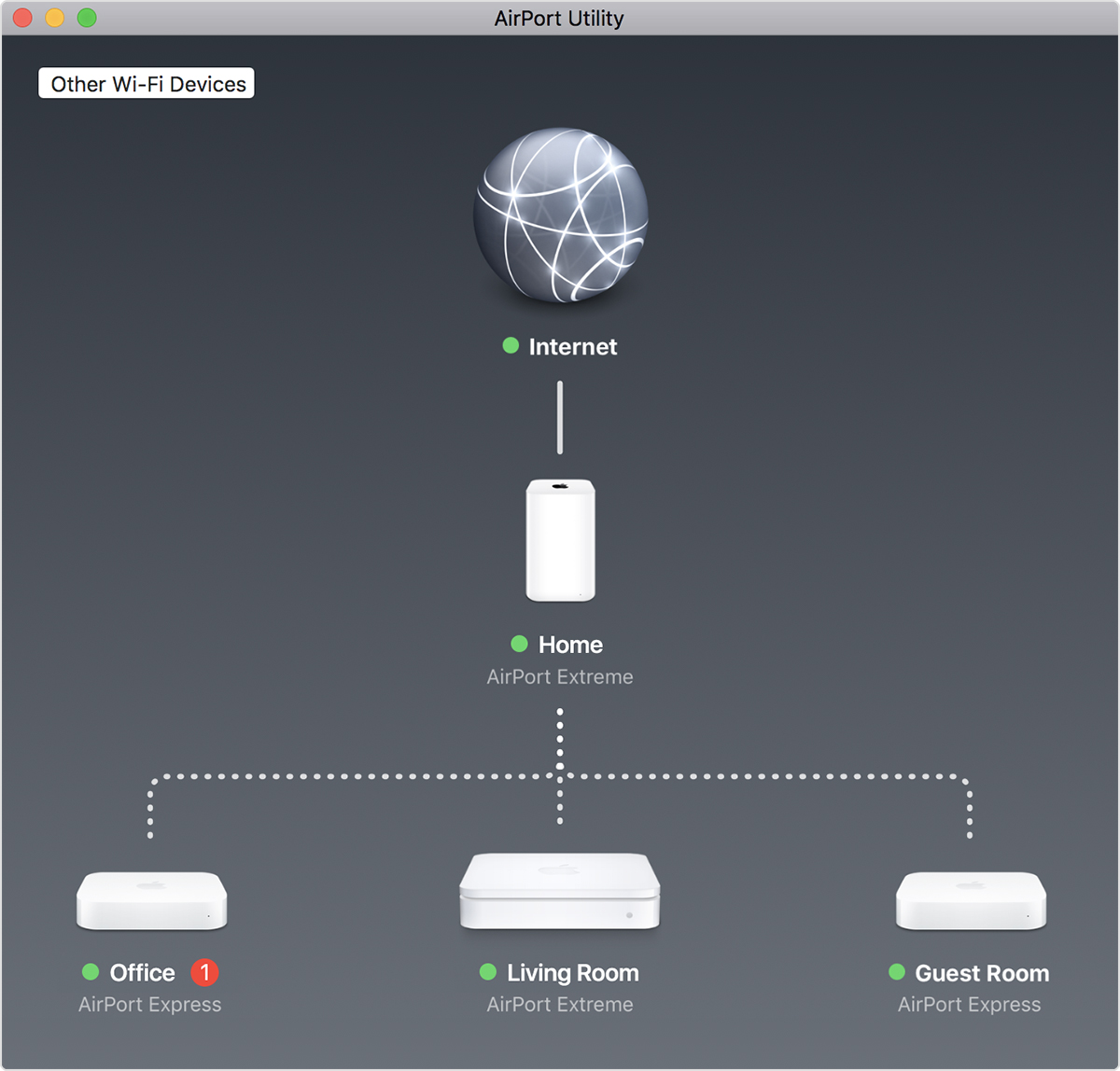
AirPort Utility shows a graphical overview of your Wi-Fi network and any base stations connected to it. The primary base station (Home, in this example) is connected to the internet via your modem.
Check for a firmware update
After restarting your base station, select the base station in AirPort Utility to see details about it. If you have more than one base station, start with the one farthest from your primary base station.
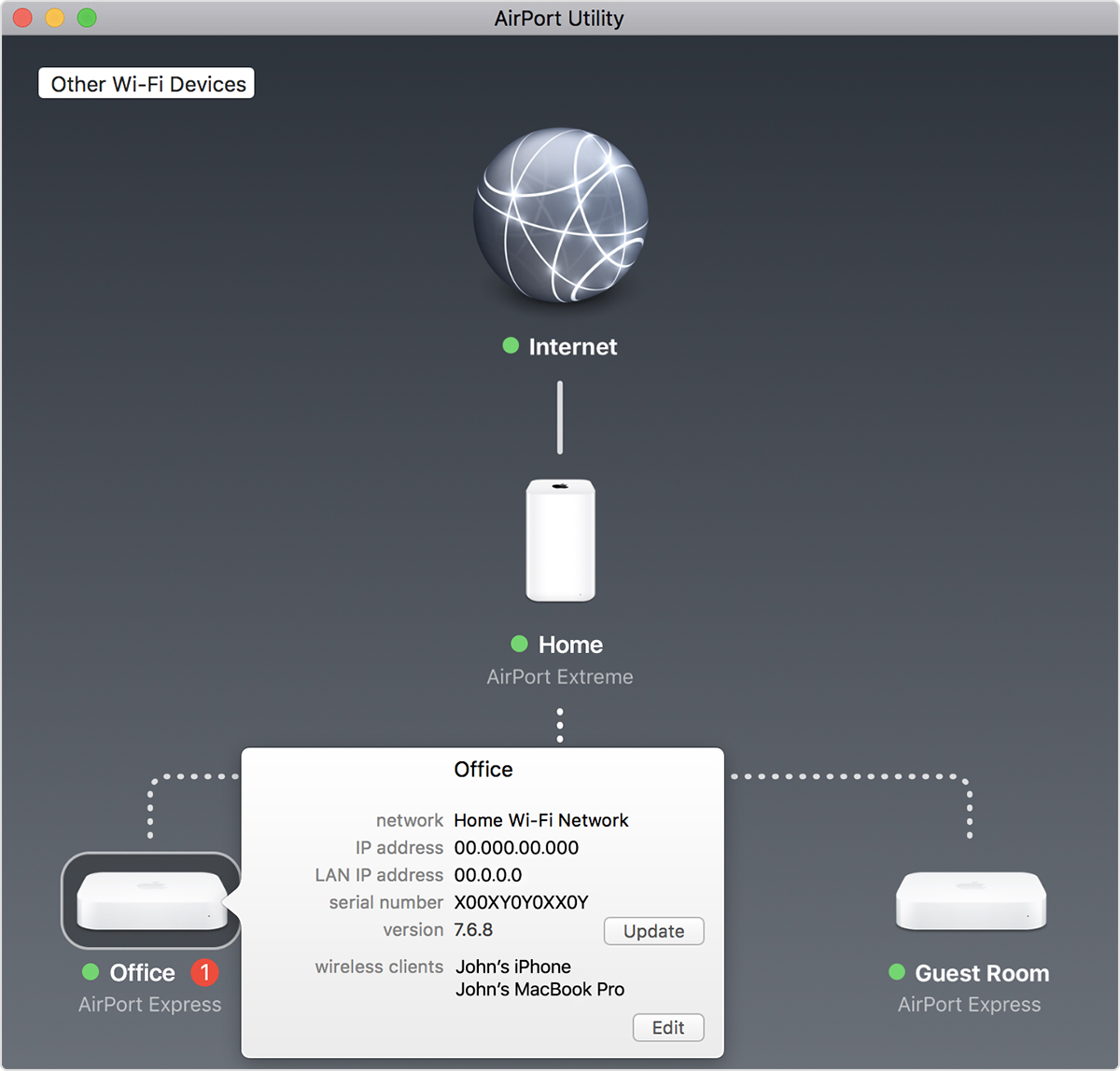
On Mac, the details pop-up shows an Update button when an update is available. Click the Update button to install the update.
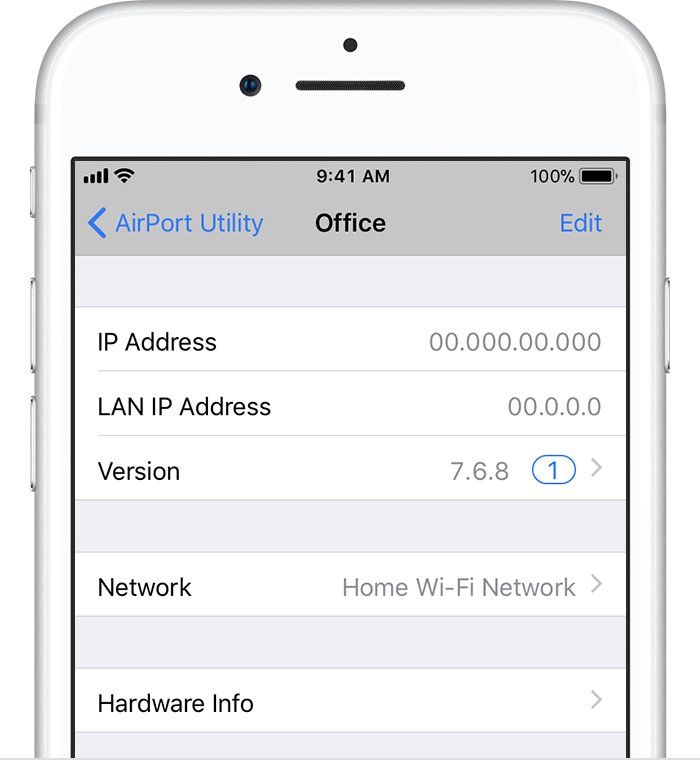
On an iPhone or iPad, the details screen shows a numbered badge next to Version when an update is available. Tap Version, then tap Download and Install.
Your base station automatically restarts after the update is installed. Repeat these steps for any other base stations you're using. Update your primary base station last.
Latest firmware
All Apple AirPort products have been discontinued.
For AirPort Time Capsule 802.11ac and AirPort Extreme Base Station 802.11ac, the final firmware version is 7.9.1.
For AirPort Time Capsule 802.11n, AirPort Extreme Base Station 802.11n, and AirPort Express 802.11n, the final firmware version is 7.8.1.
For AirPort Express (original), the final firmware version is 6.3.