Manually manage content on your iPhone, iPad, or iPod touch using your Mac
You can manually add music, TV shows, and movies from your computer to your iOS or iPadOS device.
Instead of manually syncing content to your iOS or iPadOS device, consider using iCloud Photos, Apple Music, or similar services to keep content from your Mac in the cloud. This way, you can access your music, photos, and more on your devices when you aren't near your computer.
If you're using macOS Catalina, you can manually add content from the Music app or the TV app to your iOS or iPadOS device after setup in Finder. If you're using macOS Mojave or earlier, you can manually add content from iTunes.
Find out which macOS your Mac is using.

Manually add content from the Music app or TV app
In macOS Catalina, you can manually manage your content using the Music app or TV app. Follow these steps.
Set up your iOS or iPadOS device
Connect your device to your computer.
Open a Finder window.
Locate and click your device. If asked, trust your computer on your device.
If asked to sync your device, click Get Started.
Scroll to the Options section. Select "Manually manage music, movies, and TV shows," and click Apply.
Add content from the Music or TV app
Connect your device to your computer.
Open the Music app or TV app on your Mac.
Select the content that you want to add to your device from your library.
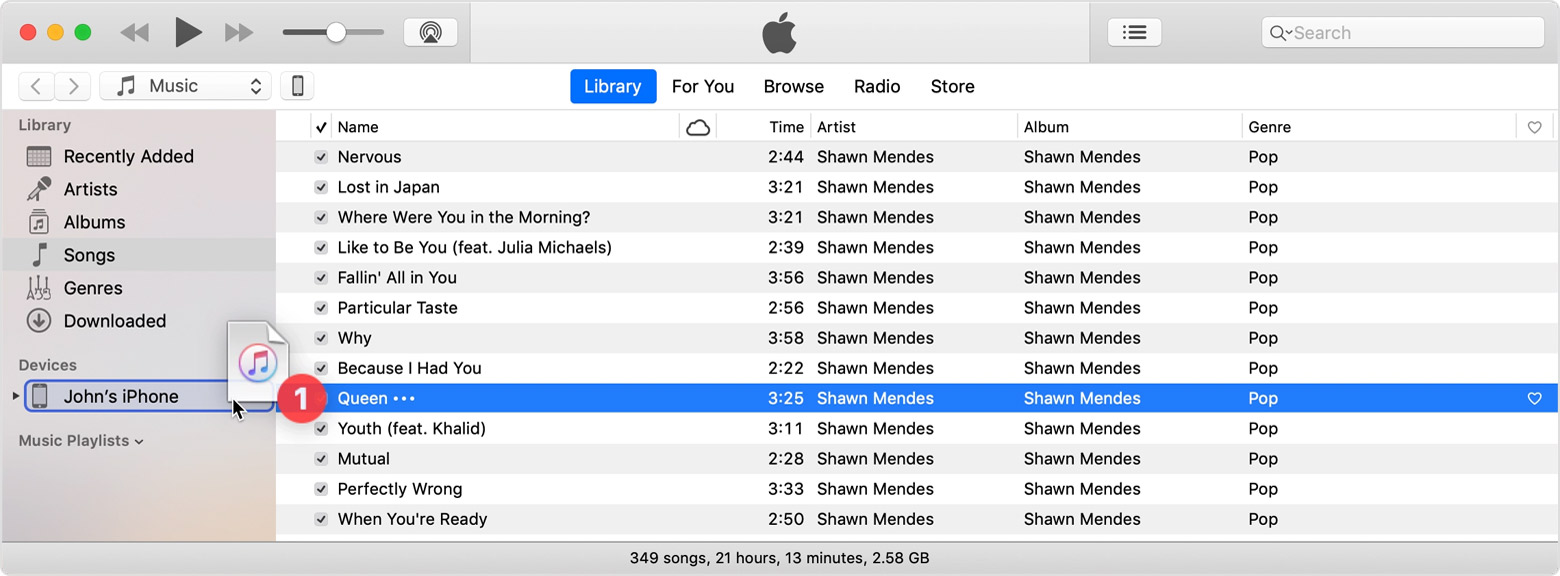
Look in the left sidebar for your device, then drag the content to your iPhone, iPad, or iPod touch.
Manually add content from iTunes
In macOS Mojave or earlier, you can manually manage your content using iTunes. Follow these steps.
Set up your iOS or iPadOS device
Connect your device to your computer.
Open iTunes. Make sure that you have the latest version.
Locate and click your device.
In the left sidebar, click Summary.
Scroll to the Options section. Select "Manually manage music and videos," and click Apply.
You might see a message that your device is synced with another library. This means that you've used a different computer to sync your device in the past, and iTunes can't sync without first erasing and replacing all iTunes content on your device.
Add content from iTunes
Connect your device to your computer.
Open iTunes. Make sure that you have the latest version.
Select the content that you want to add to your device from your iTunes library.
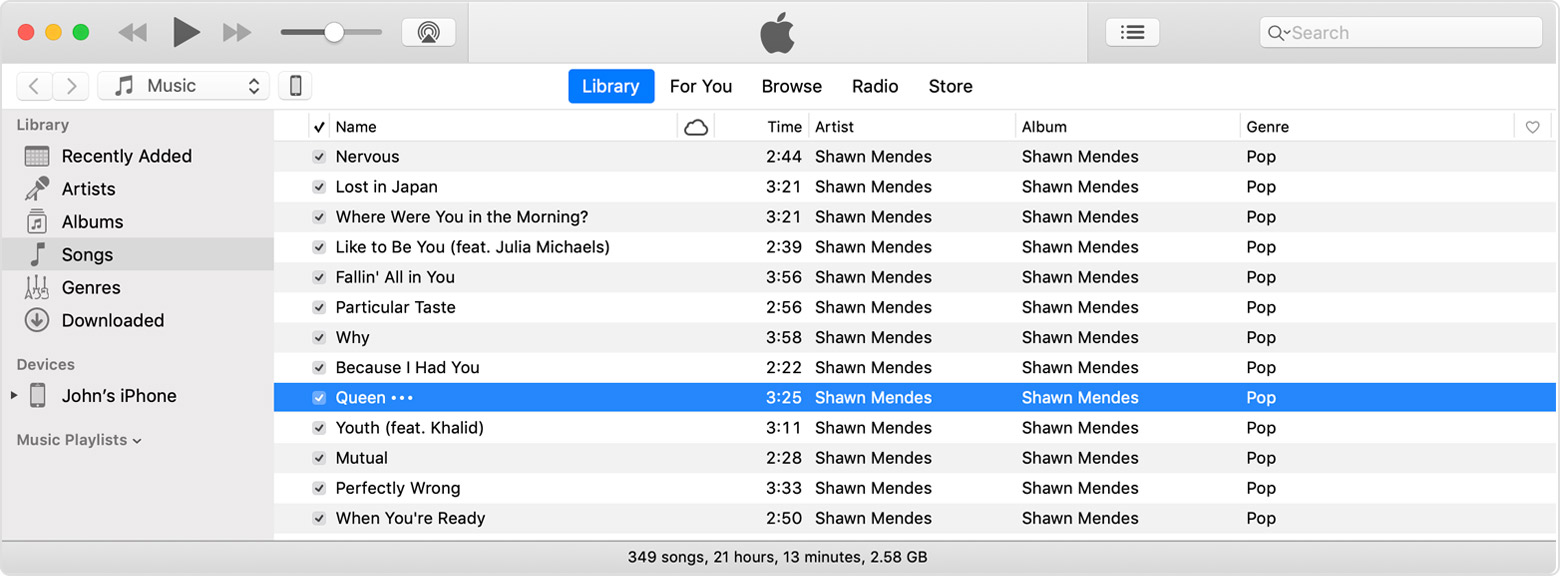
Look in the left sidebar for your device, then drag the content to your iPhone, iPad, or iPod touch.