If your Mac isn't connecting to the internet over Wi-Fi
If your Mac is connected to a Wi-Fi network but can't get online to connect to websites, email, and all other internet services, try these solutions.
Check the Wi-Fi connection
To connect to the internet over Wi-Fi, your Mac must first be connected to a Wi-Fi network, and that network must allow your Mac to connect to the internet.
If you’re having difficulty connecting to a Wi-Fi network, start with the Wi-Fi instructions in Connect to the internet with your Mac. After your Mac is connected to Wi-Fi, continue to the next section.
Restart your Mac
Restarting might help because your Mac then automatically renews the internet address it was assigned when joining the Wi-Fi network. Or you can renew the IP address manually. This is known as renewing the DHCP lease. If the lease expired and the address is already in use by another device, your Mac is assigned a new address.
Check date and time
Make sure that the date and time are set correctly on your Mac.
Update macOS
If you can connect to the internet from a different Wi-Fi network, connect to that network and then update macOS on your Mac.
Check VPN or other security software
If you installed VPN or other software that monitors or interacts with your network connections, that software could be affecting access to the internet. Learn about network issues related to VPN and other software.
Check the Wi-Fi router
If you manage the network's Wi-Fi router, install the latest firmware updates for the router, as recommended by its manufacturer.
It might also help to simply restart the router and use Apple's recommended settings for Wi-Fi routers and access points.
Use the built-in diagnostic tools
Wi-Fi Recommendations. Click Wi-Fi in Control Center or the menu bar and check for a menu item named Wi-Fi Recommendations. If you see it, your Mac has detected an issue and has recommendations. Choose Wi-Fi Recommendations to learn more.
The Wi-Fi Recommendations feature isn't available for personal hotspots or networks that use certain enterprise security protocols, such as WPA Enterprise or WPA2 Enterprise.
Wireless Diagnostics. Press and hold the Option key on your keyboard while clicking Wi-Fi in Control Center or the menu bar, then choose Open Wireless Diagnostics from the menu. Learn more about using Wireless Diagnostics to analyze your wireless environment.
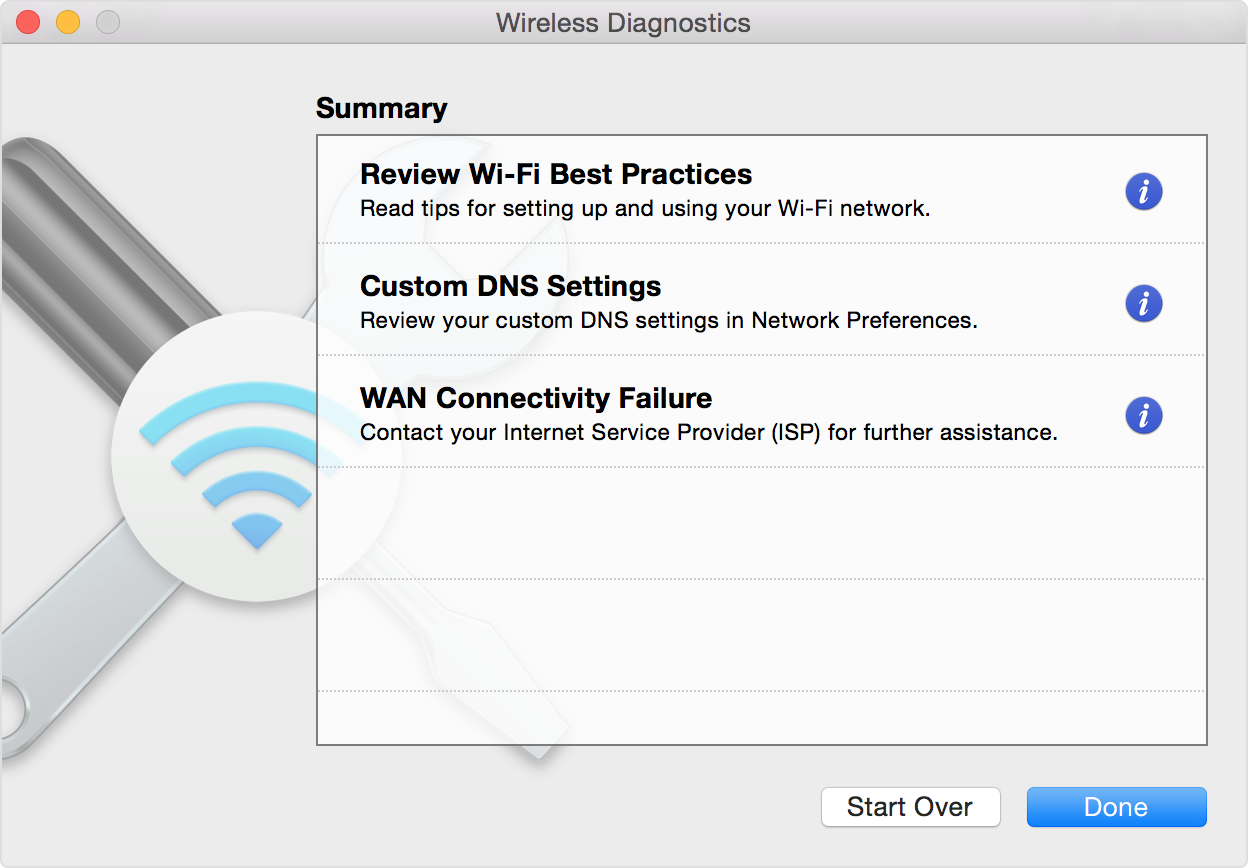
Try a different network or contact your ISP
If you can access the internet when connected to a different network, or you're not sure, check with your internet provider or network administrator to make sure that your network is working properly and there isn't an internet service outage.
Need more help?
Tell us more about what's happening, and we’ll suggest what you can do next.
