This article has been archived and is no longer updated by Apple.
Logic Studio: How to install content to a different location
Here are some tips on how to install the Logic Studio Content to a different location on your computer.
When you get to the Installation Type portion of the installation process, you will see a window like this:
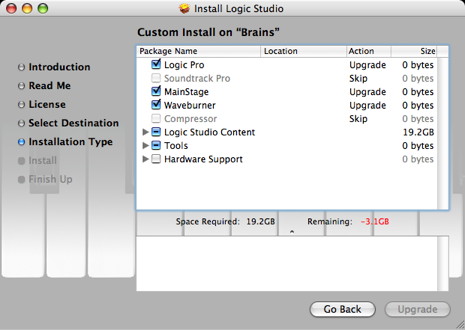
Click the disclosure triangle to the left of Logic Studio Content.
Click the disclosure triangle to the left of the Jam Pack whose loops you'd like to relocate.
Click the double arrows to the left of "Upgrade" for the Jam Pack's Apple Loops.
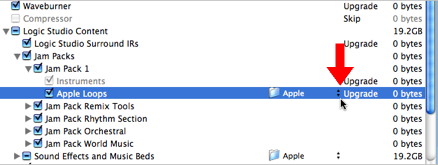
Click "Other" in the relocation dialog.
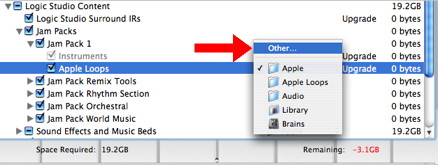
Choose the location you want in the file selector dialog window that appears.
Repeat steps 2-5 for the rest of the Jam Packs.
Repeat steps 2-5 for the Sound Effects and Music Beds.
Published Date: